Create A Content Calendar From Scratch [Social Media Calendar Template!]
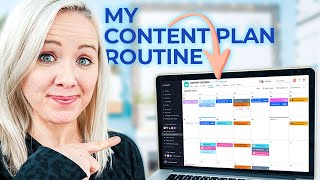
Trena Little walks through building a content calendar in Asana to plan posts across Instagram, LinkedIn, YouTube, and Facebook. She shows how color coding and task management keep content organized, and how repurposing content cuts down the work.
This plan allows me to create consistent content for Instagram, LinkedIn, YouTube and Facebook much easier than I was doing before. So when you start mapping out your calendar every time you duplicate this, all of those subtasks will be in there as well. This is literally the best way that I have found to organize all of my content. If you're trying to stay caught up posting to all the social platforms out there, it's not going to happen unless you you have a content calendar. So let me show you how to create a good content calendar from scratch so you can start planning out all your content weeks in advance and taking so much pressure off your shoulders. My name is Trena, and if you enjoy learning about how to organize and plan out all of your content in advance so you can make more money in your business, make sure you hit subscribe because that is my jam. I'm going to be real honest with you here. For years, it's been hard for me to stay consistent on social media because I just couldn't find a process or a system that worked for me and my life. But after really evaluating how I wanted to show up on social media last year and who I really wanted to be talking to, I took some time to set up my own content calendar system that I am biasedly in love with. This plan allows me to create consistent content for Instagram, LinkedIn, YouTube and Facebook much easier than I was doing before. If you're ready to see what this system looks like and start setting up this calendar for yourself, make sure you hit that like button and let's dig in. So here is my content calendar for January. A couple things to note. As of right now, we do not have LinkedIn mapped into our plan just yet. And I also don't necessarily plan things on Friday and Saturday. We may start incorporating more Friday and Saturday type content, but for me, I don't work on Fridays and Saturdays. Obviously we can schedule things out, but we just haven't really determined what our content plan is going to look like for specifically Fridays and Saturdays. Everything in here is color coded. So these pink are Instagram stories, what I'm talking talking about. The yellow are Instagram feed posts that I am writing. So content that I am writing, the pink is Instagram post, this carousel post that you see that is promoting that day's YouTube video that goes live. So for example, on the 6th of January, the YouTube video that goes live is what is content marketing. And then the carousel is going to pull out three main pieces or four main pieces of that video in a Sliding carousel post so that we can repurpose that. I also have Instagram lives planned on Wednesdays because Wednesdays for me are Content Creation Day. These are the days I'm filming YouTube videos. These are the days I'm doing reels that I can go live because I'm gonna actually have my hair and makeup done and my kids aren't in the house as of right now because they're going to nana who is in our bubble. This is when I'm doing all of my lives and I literally just came up with live topics that I have asked my audience about that I'm going to be doing on these particular days. You can see right here is my IGTV episod IGTV episode is actually this YouTube video repurposed and published on Thursday, the day after that video goes live. And again, you'll see the Instagram story here as well when you go into these. I use Alex Beaton's project storyline to help me come up with ideas for stories and I'll click on this and I'll know exactly what I'm supposed to be talking about that day. So tell a story by only posting photos or text. So if I want to get ahead of schedule, I can literally sit down on Wednesday and maybe batch a bunch of these Instagram stories in advance and so that they're ready to go. Because remember, Wednesday I have my hair and makeup already done and so I could pump out a couple of those and batch Instagram stories when I know exactly what I'm creating. So let me show you how you can set up one of these on your own. So inside of Asana, you'll want to come up here to the plus button and then you'll want to create a project from there. You go ahead and do a blank project and name it content plan. And I'm going to make this a test. And the best way that I like to initially set this up is a board view. Just double check where your project is going within your team. And so the team that I have my content calendar in is sales and marketing, because my content generates sales for my business. My content is my marketing material. So I'm going to make sure that it's in the sales and marketing team and I'm going to create that project. So while that creates real quick, let me just show you what my content calendar looks like in the board format. So I have all my templates over here. So if you want to think about what is everything you have to do for an Instagram TV post, Or what is everything you have to do with an Instagram story posts? You can come in here and list things like come up with title, right caption, create cover photo, remind followers when I'm going live. Alright, so if that is your template, every time you duplicate this, you're going to have all of these created. So when you go to your Instagram TV post, you can make sure those are all checked off before you actually go live. So that's just an example of the way that I've done it and why I like it in this board format first. But then how I can make it look really nice and color coded right here. So let me go over here to where we are at this content calendar and we'll go ahead and make this our templates. I always recommend putting the bracket template and then just say Instagram post. And then you can start adding all the subtasks that you need to do for every single Instagram post. So hook caption, photo, hashtags and whatever else you want with that Instagram post. So when you start mapping out your calendar, every time you duplicate this, all of those subtasks will be in there as well. So maybe you also do a template linked in IG Live, however you want to do that. Okay, so then the next columns are going to be that particular platform. So we're going to type Instagram post, LinkedIn, IG Live, and you can continue to build this out as you go, as many platforms as you want. Then I'm going to do, okay, we're going to duplicate this task and this particular Instagram post is going to be behind the scenes post and create a new task and I'm going to put it here. I'm going to pretty much repurpose stuff. So if I'm done a behind the scenes post and I'm writing that out, I'm going to probably post that on LinkedIn too. So I'm going to go ahead and duplicate that and do behind the scenes post, create new task, move it to LinkedIn. Then I want to think, okay, how can I do a Instagram Live maybe about this? So I'm going to do a duplicate task. Maybe my IG Live that day is going to be how I create a schedule and I'm going to move that to IG Live. All right, so again, you can start building these out if you want. You can also go to the calendar and add in any specifics that you have going on. So let's say like on February, February 14th is Valentine's Day. So you make sure. You have a Valentine's Day post going on. You could literally come in here and do Valentine's post, click on this, move it to the Instagram post. But remember, this doesn't have all of your templates in it. So you'll have to remember that the only way to do that is if you go back into your board and duplicate it. But you could just move it into your Instagram post. Then what you want to do, if you want to add the color codes, you want to come up here to these three dots, and you'll want to add a tag and just type in what you want. So, Instagram post, you can hit enter. So we create a tag for Instagram post, Then you can pick whatever color that you want it to be. And that's how it's going to be color coded on your calendar, inside of your content plan project. Okay, so if we use this Instagram post, you can see now that it is pink because it is in the content plan project, but yellow because the tag is yellow for Instagram posts. So you can see when your Instagram posts happen. So you need to go in here and give everything due dates, right? Because that's when it's going to show up in the calendar. And you need to assign it to somebody, right? If you need to write this, you need to make sure you come in, assign it to yourself. Let's say I need to write this behind the scene post. I want it to go live on the sixth, so I need to write it on the fourth, so it's ready to go. I have that saved. If I go into my tasks On Monday the 4th, you see, right, there it is. So I know I can get that done. Can come right in here, check off everything that I need to. Another thing that I might do is I might just write the caption in here and upload that photo so that we can get it scheduled on planoly, or I can get it sent to my phone so that I can manually publish it myself. But once you start creating this template for yourself and you start creating these tags, that's how you're going to get this calendar really built out. I actually recommend repurposing as many posts as possible. So if you watched last week's video, I actually show you how I link my YouTube videos to all of my content. Since YouTube is my content pillar, I have a specific board for YouTube. And then each YouTube video that I create, I add it to another project. So the way you can add it to another project is just hitting this plus and adding it to whatever project that you want. For me, it was my content calendar. If we go into the board, you can see here all my YouTube videos that are linked from this particular project. You can see how it is gray because my YouTube content calendar project is gray. But when you go into the calendar, you'll see that all the YouTube videos are white because they don't have a tag associated with them here in the content calendar. But everything else is. I know it seems like a lot, but your big action step here is to start creating the columns of content that you want to create. Decide on your pillar content. So again, mine is going to be YouTube video. I'm going to actually put my YouTube video as the first column because if I know what I'm talking about, what is content marketing? And that video goes live on the sixth. I know that I want to do an Instagram post on what is content marketing on the six. I know I want to do a LinkedIn. I know I want to do an IGTV. So then you can start to see all your content across the board. Line up with your pillar content. And then your calendars start to get color coded. It will not be color coded until you add those tags. So let's say this is a YouTube video. I come in here, add the tag YouTube. We come back to the calendar, now it's red. Now this is an Instagram post. Come in here, add a tag, Instagram post, make it yellow. This is literally the best way that I have found to organize all of my content because I can come into this content calendar, know what we're talking about. If it has me assigned to it, it shows up in my task, so I need to do it. So on Monday, I need to create the behind the scene post. This is what I'm focusing on on Mondays. This is what I'm focusing on on Tuesday. So this is the Instagram story. Now remember, your tasks from your content calendar will show up in that color with the tag color in the corner. So if you hover over there, you'll see it's a tag and Instagram story. For me, these are executive high level tasks that I need to focus on. The green is then content and then this one here was in the content plan test. But that allows me to see exactly what I'm focusing on every single day. This, for example, is us focusing on online summit tasks. So that project is blue. That is why everything that I have is color coded. So just one more last look at what this content calendar board looks like so that you can start mapping yours out. And if you've got any questions. Absolutely. Let me know. Okay, now, before you actually go forward and set up this complete content calendar, let's first make sure you have a content marketing strategy in place first. Otherwise, creating all this content will end up being a waste of your time. So make sure you watch this video on your screen right now, where I show you exactly what you need to do to create a content marketing strategy that that makes creating content actually pay off, I. E. Money in your bank. Click that video and I'll see you over there.
More from Trena







Why Every "Business Guru" Suddenly Went All-In on YouTube (And What NOT to Copy)

