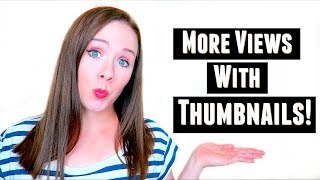
Trena Little walks through making YouTube thumbnails that get clicks. Capture a screenshot, edit your headshot in PicMonkey to brighten and sharpen it, then drop it into Canva with text. Keep text to 4-5 words max and always include a face.
How can you get your video to stand out amongst the millions of videos already on YouTube and have people actually watching your video? By adding a custom thumbnail. In today's video, I'm going to show you how I create thumbnails for my videos and how you can create a custom thumbnail template for all of your videos. Hey guys, my name is Trena and welcome back to another episode of Just.
The Tips with Trena.
If you are new here and you want to continue learning how you can use YouTube and video in your business strategy, make sure you click that red subscribe button down below so you don't miss out. Let me know down in the comments below. Are you currently creating custom thumbnails for your videos? Do you have a template or are you just winging it for every video? Let's talk down in the comments section. So the first thing I'm going to do is actually show you how I create my thumbnails and then make sure you stay tuned to the end of the video because I'm going to give you my top two tips on how to create a successful eye catching thumbnail.
So after I finish filming every single video, I'm going to make some random faces like this and this is where I'm going to get the images for my thumbnail. So I think that's good enough right there. I'm looking at the camera, I think I'm going to take a screenshot and the best way to do this on a Mac is to do a command shift 4 and that's where you can grab the screen or you can do a Command Shift three and just take a screenshot. So I'm going to get this picture right here. So I have that. Now I'm going to go to PicMonkey. So I use PicMonkey for all of my thumbnails. I just got started on PicMonkey and that's just what I've been using for my thumbnail. So I'll go to edit, go to my desktop and pick the picture that I want to use for this thumbnail. I want to resize this to 1920 by 1080 because this is the best image size for, for YouTube. And then there's some things I always do with every single thumbnail that will help your thumbnail stand out on YouTube. So the first thing you want to do is go to sharpen and turn up the sharpen a bit. And then one other thing that I always do is I will saturate my thumbnail. And I know this looks strange, but I'm going to do a couple other things, but saturated thumbnails just convert better on YouTube. It's been proven. So I will saturate my thumbnail. I'm going to go up to expand and I'm going to brighten up my thumbnail a bit too. So see, the saturation was kind of taken out a bit. I'm going to add some highlights and definitely add some contrast so that I stand out. And now I just go back and forth until I have the right color that I want for my thumbnail. Okay. So I think I'm going to go with that. The next thing that I do is all of my thumbnails have white backgrounds. This is a new strategy I've been.
Doing on my channel.
I'm keeping a consistent image across my thumbnail. So I'm going to make all of my thumbnails white to the background in the way I do. This is a paid for option here in PicMonkey. If you go to touch up, it's really random. I'll go to eye brighten. I will just get a large brush size here. I'm going to max out the lighten and minimize the fade. And as I go through here, you'll see that the eye brightening tool will make my background white. You can make the background any color that you want for your brand or just leave it as is. Then I'm going to add my text and I want my text to be really eye catching and be the reason why people are going to click on my video. So since this video is about how you can find tags to get more views and how to use SEO tools to improve your ranking, I'm going to use something grab people's attention. So once I have my text in there, one of the things I want to do is zoom out. So I'm going to use this to see what my thumbnail looks like even when it's small. Because if people are finding your video on mobile device, it's going to be small. As long as they can read it, it looks like it stands out.
I'm good to go.
I think it works. And that's basically the template for my YouTube videos. You could also take this edited photo and use it to canva to set up a template for every single one of your thumbnails. So what you can do once you edit this picture, you can save it to your computer, go into Canva and create a design. You can do a custom dimension and the dimension will be 1920 by 1080. Then you want to upload that photo you downloaded onto your computer. You can put it on here and say you don't have that white background. It's something different. You can maybe throw a border by grabbing a shape. Maybe your color is the gold that mine is. Arrange it to the back. Now you have a background. Maybe you want to tilt this a little bit so it looks off kilter. You can also use your text. Add a text if you want to. You can also turn that, maybe make it a little bit bigger if you want to as well. Go up to the font size. Make it whatever size you need to make it to stand out. Add a background to that.
Whatever you want to do.
If you have a specific template, say you want this background all the time. You can set that up. You could also do a overlay. So say you take one of these and you just make this transparent. So it overlays your video. It makes everything look more gold. And that could be your template. Maybe you have this guy make it this color transparent.
You can really do whatever you want.
Here on Canva and save it and then you'll have that as a template. Just remember to use some brand colors, brand fonts, keep it all related to each other so that if somebody finds one video, they'll be able to notice the rest of your videos.
Tip number one is to use your.
Face and your thumbnail.
I know it can be scary and.
You might think, I have a face for radio.
But it's been proven that people are more likely to click on a thumbnail with an actual person on it. It just allows them to connect with somebody on a deeper level and they're more likely to click on that video if your face is shown in that thumbnail. Whether you want to smile in your thumbnail or make a goofy face or point in one direction like I do with my videos, that's totally up to you. But really try to incorporate your your face and your thumbnail somewhere. Tip number two is to add text. So your title of your video has to be very SEO friendly. Whereas the text on your thumbnail can be eye catching and human friendly. And what I mean by human friendly is you don't have to worry about it being search engine optimized.
You can put text in there that's.
Really going to grab people's attention and make them want to click on your video. This is your opportunity to pitch your video and get people clicking. So one thing that you need to do with text is make sure it's readable. More than half of videos on YouTube are watched on mobile devices. So think about as people are scrolling.
Through their phone, how small those thumbnails.
Are going to show up in their search feed. You want to make sure that you can read that text as small as that thumbnail is going to be. So choose bright colors, maybe put a background behind your text. Just make sure that that text really stands out. You also don't want to repeat the actual title of of the video on your thumbnail. For what I said earlier, your title really has to be search engine friendly, whereas the text on your thumbnail can be whatever you want it to be to grab people's attention. And you also don't want to put a lot of text on that thumbnail, maybe four or five words max. Because again, these thumbnails are showing up on people's mobile devices and they get really small. So it needs to be readable. If you're ready to start using YouTube in your business strategy, make sure you grab my 10 step YouTube channel checklist right here. It's going to walk you through everything that you need to do to ensure your YouTube channel is set up for success and to start attracting your ideal viewers. If you like this video, make sure you give it a thumbs up, you share it and also leave me a comment down below. If you want to continue learning tips, tricks and strategies on how you can use YouTube and video in your business strategy, make sure you click that circle subscriber button right there so you don't miss out. Thank you so much for watching and I will see you in the next video. Bye.
More from Trena







Why Every "Business Guru" Suddenly Went All-In on YouTube (And What NOT to Copy)

