How To Make A Professional Looking YouTube Channel Banner
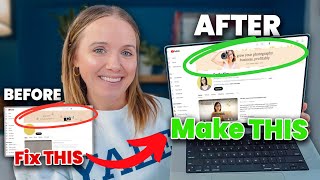
A tutorial on designing a YouTube channel banner in Canva. The speaker walks through design principles, shows real client examples, and explains how to upload it to your channel to match your branding and attract viewers.
Your YouTube channel banner could make you $3,000. Let me explain. When you have a solid YouTube channel banner so that when people come to your channel, they actually read it and they realize your channel is for them, they're going to be more likely to want to click on the links you have associated on your channel banner. This is exactly what happened to me last month during my launch. I had two specific people who clicked on the link on my channel banner and they bought tickets to my Evergreen and Evermore conference which were $10. And then those same two people then joined my YouTube coaching experience, which at the time was 1500 dollars pay in full. This is why you need to make sure your YouTube channel banner is optimized and set up to scream who your channel is for so they will take action. So what does your channel banner need to have and how do you that's what I'm going to share here in this video. The actual design and look of your channel banner is just a piece of having a successful channel banner. You actually need to figure out what you're going to put on that banner. Before we even jump into Canva or Adobe, you need to know what your channel promise is going to be or your channel value proposition. This is an exercise I do with every single one of my clients inside my YouTube coaching experience. Because once we know what the channel value proposition, we are going to put that on the channel banner and then that is our Guiding Light, our North Star for every piece of content that we create on our channel. Because every piece of content that we create needs to deliver on that channel promise. And the reason why it's got to be very clear is because if somebody comes to your channel, you've got to explain to them so quickly what you're going to do for them. And that channel promise does just that. Now when I work with my clients, I tell them we need to align your channel value proposals position with what you are accomplishing or what you promise in your course, your coaching program, your services, whatever that is. Because your channel needs to align with your offers. Because we want the same people who are going to subscribe and watch your content to align with who's going to buy or work with you. Now I am going to show some examples coming up, but there's a few more things I want to share that we need to think about for our channel banner before we start designing. Because having a really good plan for first is important. You want to make sure that your channel banner also stands out. It really sets the tone for your channel and your brand. So I do think it should align with the branding you have across the Internet, whether a website, your Instagram, wherever you're hanging out. But we also need to keep YouTube in mind as well. So having just white colors or just black colors is not going to be the best options because the background of YouTube is white and it can blend in, or if it's in dark mode, black and blend in. So you want to think about some colors that are going to pop and stand out. We also want to have pictures of ourselves on this banner as well. And I'm going to show you how you can add a picture of yourself and remove the background so that it looks good on your banner. The other thing you want to think about is the different dimensions this banner is going to show up on. And this part is so tricky because you've got to create a banner that is going to look good on a mobile device, that is going to look good on an iPad, on a laptop, and on a regular desktop computer. Now, I will say you may want to think about TV as well, but if we can focus on making sure it looks good on those other four first, I think it should do pretty well on a TV screen too. Now, before we start doing the actual work and showing you how to create this, I do want to share with you a few good examples of channel banners. And these are clients of mine. I've worked with them develop their channel proposition and I really want to point out what's really strong and what to think about when you are creating your channel proposition. I want to walk you through a few examples first and point some things out so that can help you then create your banner when we move to Canva to walk through the process. So obviously this is my channel banner and you can see very clear helping online course creators make more sales using YouTube. Now, my main offer that I have is the YouTube coaching experience and I specifically work with course creators. Coaches and Service providers use YouTube to generate leads. So that is very aligned with the offer that I have. You can see that it reflects my YouTube content. It has a YouTube play button here. I do have that. I have new videos every single Wednesday. And as I'm transitioning to new branding, this will be something that I will update. Because you can see the pink. I had a lot more pink in my content. If we scroll down to later videos here, you will see how these videos, the branding really did align with that channel banner. You see the pop of pink up there and the pink there as well. And then you have me right Here. Now let's look at another one. This is Christine from Move with Scoliosis. Now, Christine runs a membership specifically for people with scoliosis to help them do yoga to relieve back pain from scoliosis. And you can see here, very clear, it's yoga and Pilates for Scoliosis. You can also see here on the side, inspiration, education, movement, confidence. Now you're going to see when I walk you through setting this up, this is going to be a little bit difficult to align on different devices, but we'll talk through that. You can see as well if we look at her videos, how her channel banner pulls through her branding with her thumbnails as well. So it all aligns. And of course, there we see a photo of Christine. The next one is Christine, another Christine from Paid Copywriter. You see Write for a Living, Be youe Own Boss Land. Freelance Writing Clients. Very clear what you're going to get here. And again, if we look at her videos, she keeps it super simple, right? It's not plain white. There is this texture of these palm leaves and the shadowing, and it aligns with her branding, Right? It's kind of that darkish shade color. The text is white. And you can see how while it may not be exactly the same, it does align together. All right, now we'll look at another one, another client of mine, Hope, from Under the Median. She has had this channel banner for. For years, and we've been working together for years. Her value proposition is living with joy and abundance on a shoestring budget. New videos every Monday and Thursday. And we have pictures of her and her husband here because they're the ones that run the channel. And you can see the black pulling through with her branding on her thumbnails as well. Here is Emily Kim, who is a brand photographer. Grow your photography business profitably. Now, she says new videos every week, so she's not committing to a specific day, which is fine as long as you're consistent and you let your viewers know you're going to post new content every week. Fantastic. And then, of course, if we look at her branding, it aligns with her channel banner, too. The one thing I do want you to see is we're keeping this banner very minimal. There's not a lot happening on these banners. Right. There's a photo of the person, there's a little bit of text, and that it. We're keeping it really simple, and that's going to be very important when we start designing this banner. Here's another client, Jean. And now hers is different because she has an app and she sells the app from her YouTube videos. So you can see it really reflects the audio of the app. Live life with a calm gut, gut directed hypnotherapy and CBT for IBS and digestive health. So that's a totally different style of channel banner, but you can see how it reflects and represents what people are going to get here. It's more of an audio experience. And again, if we look at her thumbnails, they also kind of align with the branding of that banner. I love Jackie's because hers is very bright and stands out and it's clear that it is graphic design hacks for everyday business owners ready to stand out. She does have some things up here as well. Honestly, I would probably minimize that and not have it because the purple really is fantastic and stands out. And if we look at her thumbnails, we see how the branding ties in with her thumbnails as well. Now we're going to go over to Canva and you can do this on any graphic design site that you want. But I know Canva is pretty popular, so let's go over there and walk through this step by step. One of the best things to do is just go into Canva and type in YouTube channel banner to pull up templates. You are going to want to make the dimensions 2560 by 1440 pixels because it ensures your banner will will display properly on mobile devices, tablets, desktops, laptops, tv, all of those. Now, I recommend starting with one of these templates because as you can see, this little banner right here is going to be very important. We're going to share why. So I personally would suggest you do something that simple like this. So you can see this banner in the middle or here, or here, or even here. When we get something like this, there's not the guidelines that I want to show you that are going to be best to make your channel banner. So let's go ahead and use this one. I'm going to customize this template. Now, if you want something in the background here, I would honestly say the best option is a solid color. So you can come up here and we can change this to a gray, we could change it to a brown, but most likely it needs to be one of your brand colors. Most people are not going to see this at all. This is what shows up on tv and a lot of people don't go to your channel banner on tv. So let's not worry about this area right here. The three things you want to make sure are. On your channel banner is your logo, your value proposition and a photo of yourself. It's going to be very important to keep all of that in the middle of this channel banner because we want to make sure what we put on this banner shows up on mobile devices. And when you look on a mobile device you can see that that banner is very small and there's not a lot of space on the sides of it. So we want to keep all the important information right in the middle. So let's go ahead and remove these photos and I honestly think this is a great template to work with because it does have this banner for us to work within. So now the first thing we want to add is your channel name. So most of you know how to use Canva. So let's go ahead, get your text bar, use your font. So my font, I'm going to change the colors to my updated colors and this is kind of an updated color here, but we're just going to make it work for right now. I want to keep it centered so I'm going to try to find the center. All right. I don't need it. And now I'm going to add my channel value proposition. Alright. I'm going to not make this bold. So now some of this is just going to come down to preference and design. The next important piece to add is going to be a photo of you and then we can play around with anything else that we're going to add to this banner. So what you can do is upload a photo of yourself potentially. If you have brand photos, that would be great. Or a headshot or a full length shot would work as well. I decided to choose this photo and we can remove the background if you have the paid version of Canva. So as long as your photo is clicked on or you know, highlighted, we can go up to background remover and let Canva do its thing. And this could be a weird situation, but we're going to try to make it work. Now I'm going to align this to the left and make it a little bit smaller so I can put myself here and you can make it a little bit bigger. You want to make sure your face is going to be in that box because we're going to do a little bit of tweaking in the next step here. The next thing you can add is when you're going to post videos. This is a bit smaller in the center. Bring this down, bring this down. Now if you look at mine that I have initially, it's got this back here, I will say I had a designer help me with that. But we can mess around with this a little bit. I will just recommend that you keep this as simple as possible. So maybe we want to change this to tan or blue and we can change this color. You could also. So let's go back. If you wanted imagery back there, you could go to your elements here in Canva and type in, you know, coffee. Let's do coffee beans, an example. And then we would want to look for photos. Say we're going to use this. Now we could get the spoons right there in the middle and we want to position them to back. Alright. But we also want to get that darker color that was on top. So let's go ahead and copy this and make this the entire screen. Go ahead and move that backward. Alright. And then what we can do is change the color back to this and make a fade. If you want the spoons to show up a little bit more, you can click on your bar right here and make this a little bit more transparent. Alright. We just need to make sure it is very clear that they can see you, your value proposition and when your new videos are alright. Now the hard part comes to uploading and tweaking it on YouTube. So we're going to go to share. You want to make sure you're downloading it at the size I told you, 2560 by 1440 pixels. Let's download it. Now the way you're going to add this is you're going to go into your YouTube studio customization. Up here is your banner image. You're going to change it, you're going to upload it. Now it is going to show you how it shows up on all these different devices. Now what I might tweak is go back into Canva and move myself down just slightly so that my head isn't cut off right here. I believe this is a new YouTube option. So if this subscribe button does show up, we're going to need to move these things a little bit too. So I would move this guy up and move this guy up and move this guy down so that there was space for this subscribe. Now once you've made those tweaks, then you could come back in here and do that new version, see if it fits or if you need to tweak anything else to continue growing your YouTube channel. I did an entire video that's breaking down everything you need to do right now to grow a small YouTube channel. This is one of the most popular videos I've done done in the last couple of weeks. So click the video on your screen right now to watch it and get everything you need to know about growing a small YouTube channel in 2025.
More from Trena







Why Every "Business Guru" Suddenly Went All-In on YouTube (And What NOT to Copy)

