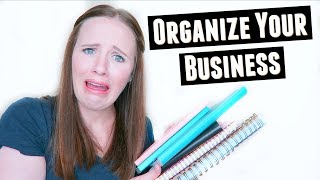
This is a YouTube video titled "How to organize your business - The best free productivity tool" created in June 2017. The content features a conversation between Trena Little and another speaker discussing productivity and organization using Trello. Trena Little shares detailed tips on how she uses Trello to manage her business, client projects, and personal life, demonstrating the tool's features and encouraging viewers to try it out. The video is instructional and aimed at online entrepreneurs looking to improve their workflow and time management.
Do you ever wish there was at.
Least two more hours in a day? Because 24 hours just ain't cutting it. Your to do list seems to be multiplying like rabbits and you've got 35 notebooks scattered everywhere with all of your to do's and you don't even know where to get started. In today's video, I'm going to show you how I'm getting more done in less time and how I've totally cut out the rummaging through all those notebooks. Plus the free productivity tool that has.
Seriously changed my life.
Hey guys, welcome back to another episode of Just the Tips with Trena where I provide online entrepreneurs tips and tricks on how to create a video content strategy that works for them and their business. Like I said, I'm going to be talking about how I am getting more done in less time. And the way I am doing this is by using this amazing new tool, Trello. Honestly, Trello has changed my life. And the best part about it is it's completely free. I'm still using the free version. There is a paid version where you get a little bit more customization options, but I'm completely fine with the free version and just using the colored backgrounds that they have.
I've been using Trello for about two.
Months now to not only organize my business life, my client projects, my work projects, meal planning, grocery shopping, entire life organization, but instead of me talking about its amazingness, why don't we jump on over to my computer so I can show you exactly how I'm using Trello to give me more time in my day.
So this is what Trello looks like on the outside. So it's basically set up by different types of boards right here. So what you're looking at is my week. This is the board that hosts everything I'm going to do this week. I also have a board for my YouTube video workflow, my current client, my blueprint, my YouTube calendar. I am going to get a little more detail here on one of these in just a second. But this is basically what Trello looks like. This is a board. I'm going to go to my YouTube video workflow. You can create lists and then within those lists you can add a card. Let's go here to add a list. So maybe this is when I want to do YouTube analytics. So that's a workflow process I want to do. At the end, if there are different steps to this that I want to do, I'll click add a card. So maybe I want to check Watch time retention. I also want to check subscriber growth. Spell everything right here. And I also want to check conversions, see how many people I converted to my email list. Now you have your different tasks within your list. You can always go into these cards, edit however you want, move it, change members. If you want to get that, you can double click it, add your attachments, add members, and then you just click.
On it, move it to wherever you.
Need it to go. I first start out by dumping all of my ideas right in here. You can create cards. You just click here, add a card and you can type in whatever you want it to be. Let's say I'm doing my Trello video for productivity. Then I can take this video. Once I thought of the idea, click on it, move it over to keyword research. Once I've completed the keyword research, then what you can do with the keyword research is you can just go in here, say you found one of the keywords you want to use, is how I get more done in a day, how I plan my week. Say those are your keywords. You add those in your comment section, hit save. So now they are saved on that card as you work through your workflow. So you can close this out. You got the keyword research. Pick it up, move it on over here. So once you do some research, you can determine what the video title is going to be. So say it's no longer Trello Video for productivity. You click here side, you're changing it to How I use Trello to get more done. So now you have your video title and then you can always go in here to add more tags. So productivity tips, productivity tips and tricks. So those are going to be your tags for that video. Then you can move on over to film. And now you know that's a video that you have to film next. Once you film it, you can move on over here to the filmed section. I have a checklist right here that I go through and you can create your own checklist right here. You go into the card add checklist. Maybe you make it editing checklist, click add. Then you can just go through here. Did you create a thumbnail? Did you have a call to action? Did you sync the audio? Found music? So as you get these done, you can click on them so that you can see what's completed and what's left to do. Then you can just keep on moving it through the process, uploading it to YouTube. I also have a video graphics checklist that I use. As you can see, you just Grab and move it right on through. You can also add multiple checklists. So if you go in here and you click checklist, if you already have a checklist on your board so you don't have to keep repeating it, you can do copy items from and so these are all the checklists on this board. So say I want to add the video graphics checklist to this card. So I click add and right here is where the video graphics checklist pops up. So that you know what you need to do for all the graphics. You can also add an attachment. So once you create your thumbnail, you can always add it to this card so you know where to find it. You can get it from your computer Google Drive. You can also set a due date. So say you want this video to go live. Tuesday, June 27, you can hit save. Now you have a due date. If you have a team, you can also add members to just this card. If you say you want to add somebody to just this card, just go ahead and click on their name and now they have access to that card. And that's basically how I use Trello for YouTube workflow. You can also see I have boards for each services that I provide. So my four hour intensive also for the YouTube bootcamp, so I know where we're at. It's also my blueprint for my business. So it has things like YouTube updates I want to do, website updates, my different workflows. I also have one for my mom channel, so video ideas that I want to do on my mom and lifestyle channel. I also have a board for my YouTube calendar. So everything that I want to do for my YouTube channel. You can also create one for your current clients. You know where they're at in the process as well. So that is basically how I use Trello to organize my workflow.
One other great thing about Trello is this sucker is an app so you can take it with you everywhere.
And I'm honestly opening up the Trello.
App all day, every day. Even if I'm sitting out in the living room with my kids, I'm like, oh, what did I need to do today? What was that one thing? I can pull up my Trello app, look at it, see, oh, I completed that and I can check it right off the list while on my phone. If you're interested in Trello or thinking about testing it out, I have a link down below that you can click on to test it out completely free. Like I said, I'm still using the free version myself, so don't feel like you need to buy a paid version, but just test it out. See if maybe it works for you. Maybe you can eliminate that stack of notebooks you have stacked on your desk.
I mean, what's the worst of trying it out?
It costs $0 but I would love to hear from you. How are you currently organizing your life? Do you use notebooks? Planners? Paper planners?
Asana Trello Let me know down in below, let's chat about productivity tools.
If you liked seeing these productivity tips from me, make sure you give this video a thumbs up and you share it on all the social media platforms below. Remember, you can subscribe to my channel by click this button right here and checking out my latest video right here. As always guys, thank you so much for watching and taking the time to consume my content. I really appreciate it and I will see you next time. Bye.