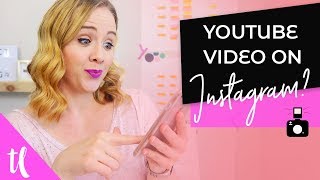
This is a YouTube video titled "How To Post YouTube Videos To Instagram" created on June 20, 2018. The content features Trena Little explaining step-by-step how she repurposes her YouTube videos for Instagram using the Planoly platform, including tips on formatting, scheduling, and maintaining an attractive Instagram feed. The video is instructional and aimed at helping creative entrepreneurs grow their business through social media content sharing.
To get more views and subscribers on YouTube, you've obviously got to tell people you have this YouTube channel. One of my favorite platforms to share my videos on is Instagram. In today's video, I want to share with you how I share YouTube videos on Instagram. Hi, my name is Trena, and on this channel, I help creative entrepreneurs like you get on YouTube to grow your business. And one of the best ways to grow your business is to get the word out that you have a business and what you do. And now, while I love using YouTube as my content hub, I love being able to repurpose content. One of the ways I do this is taking YouTube videos and sharing them on Instagram. Yeah, I share my videos on Instagram, but here's what I do. I format it specifically for Instagram, and then I use a platform called Planoly to really map out my content. So my feed still looks pretty even with these videos. Because you can pick a cover art for your Instagram feed. So you don't have to pick some random shot of you talking in your.
Video to mess up that feed.
Because we all know our theme is what's most important on Instagram. So why don't we get on my computer to show you exactly how I use Planoly to put my YouTube videos on Instagram to help get more traffic over to my YouTube channel.
So this is a tool that I use called Planoly that allows me to scan, schedule all of my Instagram posts, and it allows me to upload videos. That's why I really love Planoly. You can see what your feed looks like. These are all scheduled posts. These are all past scheduled. I haven't posted them. And this is what my feed currently looks like. So this is what a YouTube video looks like on my feed. So to upload that video, I've got to create a little clip because I'm not going to post the entire video. And I need to add this little image so it makes my feed still look pretty. So when I get the finished version, I'm just gonna leave the hook of the video, because I'm hoping that's enough to entice people to want to watch more of the video. So I'll just go in here. Extra time spent on it, so that you can start creating content for your. I'm gonna cut that right there. It's gonna delete the rest of the video. Then I'm gonna import the graphic that I have. So now the video looks like this. I'm spent on it. So that you can start creating content for your YouTube channel. Then when I can select a cover in Instagram, that's going to be the COVID All right? And I'm going to export this. Now I can go to add new media to my computer. Just going to find the Instagram post. Now, if your video is over 50 megabytes, it will not let you upload. So I'm going to show you on my phone how I do this really quickly. So a quick way to do this is go to your file, right click it, and if you have an iPhone, you can go to share, you can go to airdrop, and you want to make sure that your phone is on that you have it unlocked, and your phone should pop up and click that. And you're going to hear a notification from your phone. I'm going to switch to my phone and show you what I do.
So once you get the notification, you're going to hit accept and it's going to download to your camera roll. Then you just want to go to Instagram like you normally would. You're going to grab the post that.
You want, go to next, select cover.
Down in the corner, slide this bar so that your image is now the COVID so your feed stays pretty. And then fill out the caption and share it like any other post.
If you aren't following me yet on Instagram, make sure you go over to Trinalittle and follow me because I'm sharing constant updates on how I plan, plan videos, map out my content, and do all things YouTube. And if you need more tips on how to improve your channel, click the playlist on your screen right now. And don't forget to subscribe for more tips and tricks on how to use YouTube to grow your business. Thank you so much for watching and I'll see you in the next video. Bye.