How to rank your website higher on Google
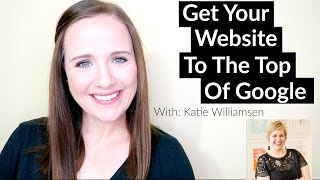
This is a YouTube video titled "How to rank your website higher on Google" created on May 11, 2017. It features a conversational training session with Trena Little, a video content strategist, and Katie Williamson, a web and social media strategist. They discuss SEO strategies, video content creation, embedding videos on websites, and practical tips for improving video and website ranking on Google. The session includes detailed explanations, demonstrations, and audience interaction, aimed at helping online entrepreneurs optimize their websites and video content for better search visibility.
Hi, everybody. Welcome to our training. Today we're going to talk about how you can get your website at the top of Google search results. Because who doesn't want to be at the top of Google on the front page? If you're new to my channel, I am Trina Little. I'm a video content strategist, and I help online entrepreneurs figure out a video content strategy that works for them and their business. Because everybody is different. Everybody's business is different, and no video strategy should be the same. So I'm not even going to like chatter here. We're going to jump right into the content, and I'm going to turn it over to Katie, who's going to give her side of this training, and then we'll pop it back over to me to talk a little bit more of video strategy. Take it away, Katie.
Thanks, Trina. Hi, everyone. I'm Katie Williamson, and I am a web and social media strategist, and I help creative entrepreneurs create awesome, amazing websites that convert and get more sales. So we're gonna start. Trina's like, I don't use slides, so I'm not gonna use slides either.
Oh, I hope. Wait, real quick, share this out. If you guys know some business besties or some followers of yours that are wondering how to really use SEO on their website and how to get ranked higher on Google, if you look below this video, there should be, like, social share buttons for Twitter and Pinterest and Facebook. Feel free to send that out. Also, give us a little thumbs up if you're liking what you're hearing. And if you're new and you didn't get the worksheet that we sent out with the email to the link, it's down below. So the link down below will take you will send you an email with the worksheet that's we're going to work through during this training. So I think that should be enough. And Katie, get back to it.
That's awesome. Yeah. Guys, make sure you get the worksheet because then you can fill it out and put all your important notes in, because Trina and I have lots of important things to say. So first off, what I wanted to say was, or go over is, what is SEO? So SEO stands for search engine optimization. And there's so much information out there. And search engine optimization is kind of secretive almost, or not search engine optimization, but search engine optimization is the process of optimizing your website or making it as search engine friendly as possible. So that way Google and Yahoo and Bing, they find your Content. And so that way, when someone's searching for a video content strategist, then if Trina optimizes her website awesomely, then she might come up first. And so if you come up first, that's page rank. And so coming up very first for a search term relates to page rank. And so search engine optimization, there's so much information out there about it because basically Google is like the big player. I think 85% of all web searches are done on Google, or maybe it's 80. So that's a really big percentage of searches that are going through Google. And Google doesn't let everyone know about how their algorithm works or the formula basically for how they're delivering search results. So because not everyone knows how the algorithm works because it's kind of secretive, that's why there ends up being so much information out there about search engine optimization and it can be incorrect or out of date. So basically you want to optimize your website because it's going to enable you to, for your ideal audience to find you. So the more you do for search engine optimization, then the people that you really want to find you and we'll be able to on Google. And so when you are talking about SEO and what Google's looking for, they are looking for the three things that they take into consideration the most. And there's a whole bunch of things, but the top three are content. So video is content. And so that's why putting video on your site is a really good thing. And Google, when they're talking about content they're looking for, they actually, like Google said this, they're looking for relevant, clear and informative content. So not just, you know, a bunch of junk that you put together. So they want it to be informational and useful for someone. So if you have a blog on photography, then you want your, any content that you put on your site to be informative and helpful to people. And so when you are putting content on your blog posts, photographs and videos, Google is able to see that. And the more content that you put on your site, then that gives Google the signal that you, it basically helps your SEO as well because it's telling Google that your website is active and there's like so many websites that are inactive. And so, you know, so if you're putting new content out there, then Google's going to look at that content. So that's one of Google's big factors when considering SEO. And then links. So that's another factor as well. And so when I say links, it's basically other people linking to your website. And if you have an awesome video or blog post on your site, then people are going to want to share your video out and link to it. So you know when you're creating amazing content then people are going to create links back to your site. And these links are definitely the quality Google's looking for quality links coming from awesome websites as opposed to quantity. So they don't. So they'd rather see links coming from active websites that are really quality over 20 links to kind of spammy websites. So that's definitely something to consider as well. When you put good content and good video out there, people will share that on their websites as well. And that's going to boost your SEO. And then the last one I just put on here because I think it's a little interesting, it's called Rank Brain and basically it's artificial intelligence and it's Google always their algorithm always trying to figure out and perceive the way someone's searching what types of search results they're looking for. So it's trying to interpret what you are putting in there as naturally as possible. So as opposed to just picking terms. So I live in St. Louis, Missouri and so if I'm searching for something, if I say coffee shop, then Google is going to take that information that I have and going to send me as top search results, coffee shops in St. Louis, that is going to send me coffee shops in Pennsylvania where Trina is, because Google takes that information. So it's always looking to try to give people relevant information to them. And so making sure that your content is using common language or things that people are searching for will definitely help that aspect of your website and your SEO. And then the other things to consider just for SEO is you want your website to be mobile friendly, you want your page speed to be as fast as possible. So meaning that your website loads as quickly as possible. And then Google is also not a big fan of pop ups, especially on mobile. So always take that into consideration as well. Okay, so Trina will convince you that you need a video on your site and so you make some awesome videos. And here's the things that you can do to really help your videos show up in search and optimize them. So first you want to think about your page title. It's best. So let's say that you're going to do a blog post with a video. It's recommended that you use the same blog or the same whatever you name your video. It's recommended to use a very similar name to your video title or use the same title, which is kind of nice because then you don't have to think of two different titles. So that's one thing that they recommend to help optimize that page. And then the next thing is the page description, which is also known as the meta description. And that's a little snippet that comes up when you're searching for something Google like the little search result and it will tell you about whatever the pages that you that search result page. And so for meta descriptions, first off, they do not affect your SEO. So I think that can be a misconception that people think that if they're using the keyword in there and whatnot, that that's going to make their SEO better. That's not necessarily true. It does not affect the SEO. But because people actually look at the meta descriptions, there are really good ways to. Trina's taking a picture. Because people look at the meta descriptions, it's going to affect your click through rate. So you want to make sure that you customize and personalize the meta descriptions for all their pages, blog posts and whatnot, especially your video. So if there is a video on the page, let people know in the meta description that you have a video. There's a video on the page that's going to explain or you know, a tutorial or a how to that's going to explain XYZ. Okay. So and then the H1 which is the header tag and sometimes depending on how your website is set up, it might be the page title or your post title, but you only want one. And it's recommended that that is the name the same as your video as well. So whatever your H1 is, then you want that to match your video. Okay. And then the next thing is thinking about a transcript or a summary after the video. So there's a bunch of different reasons why you might want to add a transcript or summary to your blog or to a blog post. And first off, it's recommended that a blog Post have about 300 words minimum in order to for Google to really pick it up and have enough content for Google to review. And so if you have a transcript or a summary of the video, then Google's able to pick all of that information up as well. And then that means that there's that content is able to be picked up in search and it's going to also make your website more accessible. And that means that if someone comes to your website who if they can't hear, then they're able to read the transcript and maybe follow along as well. And so in terms of web accessibility, Google also likes that. So if you're making your website more accessible for more people, then Google will boost or give you points, good points for SEO there. And then you want to make sure that when you are putting your transcript for your summary, make it look like a regular blog post. Don't just put a block of content bullet. Point things out and make it look like, you know, a blog post. So that way people can scan through and pick out the points and then maybe they'll decide to watch the video. So definitely do, you know, put a nice little summary in of your video. So that way if someone misses something or they're looking for something specific, then Google can pick up keywords that are said in your video and people can find different things in the transcript or summary. Okay, so now I'm going to show you guys how to embed videos in WordPress and Squarespace. I'm going to share my screen. Okay, so right now is it working, Trina? I don't really. I don't have that option that you told me to click.
Yeah, it's working.
Okay. Okay. I don't need my email. Okay, so what's it? We want to embed this video on our website. So now Trina, when she was talking about sharing, she said, you know, just click the little share button. So if I wanted to share Trina's video or put it on my website, it's the same thing. I click share. And then there's the HTML code right there that you can copy and paste. And you can also. It's kind of cool if you wanted to, you know, if there was like a snippet that you wanted, you can start it at a specific point so you can copy and paste this code. And then so first I'm going to show you squarespace. And so WordPress. And so all I did was from the back end of my WordPress site, I added a new post and let's call this Trina's video. And it's actually really simple to do. All I need to do is paste that code, that HTML into my site. And now it shows up. The important things to remember about embedding a video from YouTube into your site is, let's say that, let's see if we had a sentence. Trina's video is awesome. And then I put the video at the end of this line. It's not going to pick it up the same. This link needs to be on its own line. We'll see if it picks that up, it might need to be re pasted in. And then that works just like that. So you have to remember that your content or the video URL needs to be on its own line. And then the other thing that you need to remember in terms of sharing or embedding a video on your website is that if you're pasting this hyperlink in, if it turns blue or underlined like the way a link looks, then it's not going to embed like this either. So you want to make sure that are putting it in on its own line and keeping it the way you know so it's not hyperlinked. And so I'll hit preview over here and you will see that it is showing up just like that on my, on my site, on my blog post. So when I'd publish the post, then this video will be there so people can watch it. Okay, so next. So I don't use squarespace too often, but here's how you put it in. Here's how you could put it in in a Squarespace page. So what you want to do is you want to. So if you have a post that you're working on, so I call it Drina's video, and then you're going to click and you're going to get the video block. And all you need to do once again is copy and paste this URL. And then you're going to put the video URL right here. And it might take a second. And then it says successfully loaded. You can also add a custom thumbnail if you want. You can have the copy from the bottom of the caption from Trina's video showing up. So Squarespace in that respect has a couple more options than WordPress does, but I think that they both make it fairly easy to embed a video. And so I'll hit apply here. And now this is ready to go. Let's see. Can publish this and oops, I can't see the bottom. And I have no idea how we can see that page. But let's go home.
I use squarespace as well. So if it's like glitch, I can show from my screen when I talk because I use squarespace. Super easy.
This is bad. I'm like, I don't know how to use. But I mean, it seems fairly easy to get it up there. So I don't know where I put that blog post, but it's really easy to just put it in that little box and show that, yeah, that's What.
I do with all my videos, and it takes me like three seconds.
Exactly. And the other thing is, is that my YouTube channel is not as popular as Trina's. Oops, that's not what I want to go to at all. If you are trying to embed a link from your own video or put your own link on, it's literally you litter. You literally just want to take that right there and copy it. You can also click the settings and it will give you the video URL right there as well. So there's a couple different ways that you can do that because the little shares don't show up the same way that they do when you're in your own channel. But you can just take that URL and post it in there. Okay, I'm going to turn it over to Trina now so she can talk to you all about creating content.
Thanks, Katie. So I have a couple questions for you.
Oh, yes.
When it comes to, like, categorizing and tagging and all the extra stuff for a blog post, what's the deal? Worth it. Not worth it.
So, okay, that's a good question. So definitely categorizing is a good thing. But in order to, like, not confuse people, I'd say, like, keep it to six or less categories. And so when you're thinking about the structure or layout of your website, the categories are like your main things or like chapters of a book. And so then if you want to tag things, you can. And so those are going to be like sub points of categories. And be careful with. So whenever you add a new category or a tag, your website is going to create a new page, basically. So that way, like, if someone's searching and they go to all the tags, it's going to have a new page that's going to show all of the things tagged with video or whatever or whatever you tag your post. And so if you use a new tag on every single post, then you're going to end up with all of these extra pages that you don't need. And that's the same with categories, too, that you don't want to have like 30 categories because it's going to be, you know, a bunch of extra pages in your archives. And so when you're using the tags. So categories, when you're putting something together, you know, flesh out what categories you want to use right away. That's what I recommend. Or start with like four categories and then you have a little bit of room to grow. And then when you are tagging things, you definitely Just want to be careful because you don't want to have like 500 different tags because that's a lot. And it's just going to make your website unorganized as well. So they definitely like play off of each other, but categories are like the overarching hierarchy.
Got it. Okay, now I kind of understand that. All right, so guys, I'm going to talk about content, specifically video content, and two easy ideas for you to get started with. Like Katie said, it's so important to have video on your website to really start getting that boost in SEO. One of the first videos I suggest you tackle is an About Me video. One, because you can use it on your About Me page so people can watch it, get to know you better, connect with you faster. And two, you can use it as your channel trailer in YouTube. You're kind of killing two birds with one stone. And the video should be pretty easy for you to make since the topic you are talking about you're an expert on. Because who knows you more than you? So I would just suggest if you already have an About Me page, maybe deciding to do a little video about yourself. I wouldn't worry about getting super fancy with B roll. What I mean when I say B roll is like additional footage of you sitting at a desk typing away or you on a phone. I know you can see a lot of those, like not overdone, but productions of videos and you might think, well, if I can't do that type of video, I'm not going to stand out. I'm going to look unprofessional. But that's not true. Like if you can just get on the camera like this and talk to somebody, they can connect with you so much quicker and they're going to be much more willing to work with you because they feel like they're connected to you because they brought you already into the room with them by having you talking on video. So don't psych yourself out that you need like some highly produced video with like fade ins and transitions and music and flashing lights and all that kind of stuff. Just be you. And that's honestly what's going to connect you to a potential buyer and people want to know who you are. Plus adding it to your YouTube channel. If you don't know YouTube has a channel trailer section on your channel. So when new subscribers come to your channel, if they aren't subscribed to you yet, that video automatically plays and that gives that potentially new subscriber the opportunity to get to know who you are and what you're all about. So they're much more willing to click subscribe if they watch that video. So like I said, that video is going to kill two birds with one stone right off the bat. It's going to get that first video on your website, that's going to get that channel trailer up on your YouTube channel. And then the second video I suggest doing is a tutorial or something you're really comfortable talking about. I know it's scary to get in front of a camera. I know we are all our own biggest critic when it comes to rewatching ourselves on video and thinking we look like idiots on camera. But if you can talk about something that you know that because you're obviously a subject matter expert in something because you're running a business. So just talk about something you're comfortable with, it should be easier to flow better. Just forget you're talking to a camera. Pretend you're telling your friends what you do that you love. Whether it's social media strategy or blog strategy or whatever it is. Just pretend you're telling your friends your favorite way to schedule an Instagram post, or your favorite way to strategize your email sequence, whatever it is that you're the expert in. And also, tutorials are a great way. When you do a tutorial though, you need to make sure when you start the video that it's you. You just pop on the video real quick, introduce yourself and let them know what they're about to learn. Then I would suggest going on over to your screen and screen sharing because you don't want to miss out on that opportunity to connect with the person. If they see you, they're much more likely to connect with you than if it's just a total screen share tutorial. So like I said, just make sure it's you that it's the first thing that they see so they can create that connection with you. So now onto my three tips for how you can make video content easier, which I kind of already slipped in the last one. The first tip that I have is use equipment that you have. I know this is another myth when it comes to video content is that you need super fancy equipment. You need the DSLR camera, you need the special camera lens that makes your background blur out. You need the ring light that everybody's talking about. You need a microphone. Honestly, you need to focus on the content that you're providing and that's all people are coming to your video for. People also get hung up on editing. Don't worry about the editing. If you need to edit some to cut out your mistakes, that's all you really need to do. People are finding your videos based on searching how to do something or a pain point that they want resolved. And you need to make sure your content is there to show them exactly how to do what they're looking to do or exactly how to get rid of that pain point. And by, by you showing them how to do that or get rid of that pain point, you're instantly creating that connection with them and they're thankful for you. So that when they're ready to buy from you or purchase, when they get to that point, they're going to remember you and want to work with you before anybody else. So don't get hung up on the equipment. Use what you have. Start with your smartphone. I'm going to grab mine real quick and make sure my biggest tip, use this back camera. Do not use the front camera because this camera is a much higher quality than this camera. So all you need to do is set this guy up on like a book or some a shelf. I started out on a shelf. I didn't have a tripod. Just prop it up on something. If you want to make sure you can see yourself to make sure you're in frame. Grab a mirror, put a mirror behind the screen so that you can make sure that you're in there and just go to town making videos. You're not going to get better if you don't do it, which I'm skipping my tips. Tip number one was don't worry about getting the fancy equipment. Start with what you have. So tip number two I kind of talked earlier was talk on a subject you're comfortable about. That's the only way it's going to get easier on camera if you are comfortable with the subject that you're talking about. So whatever it is that you specialize in, start creating a few videos around that subject so that people can get to know you and see your expertise and you will feel a lot more comfortable talking when it's something that you know what you're talking about. Don't worry about creating like this epically long 20 minute video. I started my YouTube channel, I just did one minute tips. So I had so many tips on video and YouTube that I didn't want to blurt them all out in one like 20 minute video. I did just one tip in one minute and I kept sharing those videos one new tip two days a week. And that's how I started growing my YouTube channel and how I Started getting comfortable on camera, because guess what? We all aren't born natural on camera. And I'll tell you a secret. I only film my videos when my house is empty because I'm embarrassed when my husband can listen to me. So if you're feeling embarrassed talking to a camera, you're not alone. I'm right there with you. I make him leave the house because if he is here, I feel like I'm being more fake or more reserved on camera than if he's not here. So don't worry. We're in the same boat. I know what it feels like to be awkward on camera or just to think weird about yourself. Tip number two was to get comfortable on camera. And then tip number three was just practice. Get on Instagram stories because Instagram Stories goes away in 24 hours. Get on Snapchat. Snapchat goes away in 24 hours. I know quite a few people who have told me, Trina. I started on Snapchat because it went away on 24 hours. And I started getting better on video because I started to figure out how to hold the camera. My presence on camera got better because I was practicing, not worried who was going to find my video and comment on it and make fun of me because unfortunately, the Internet is out there and there are trolls. But start practicing on a platform that the video disappears in 24 hours. And when the time comes for you to post to YouTube, honestly, I have not had bad comments on YouTube. You find your people, join a YouTube pod like I have with my Facebook group, and you have the support of other people. So if someone does post something, you can delete that comment. You'll have your cheerleading squad behind you. That's there to boost you up and knock that troll down. Because, I mean, even if you're blogging, there are trolls. There are going to be negative stuff, but I wouldn't let that run your life, right? And like I said, I have never really received a lot of negative comments on YouTube. I've got a lot of, hey, subscribe to me and I'll subscribe to you, but let's just spam. So I'll run through the three tips again one more time. It was, use the equipment that you have, because that's just an excuse. If you aren't getting on video because you don't think you have the perfect equipment, that's an excuse. Use what you have. We all got one of these lying around. Tip number two was to talk about what you're comfortable with. Show your expertise on camera. You know, you know your stuff, so just let other people know you know your stuff. And then finally just practice. It's. I like to always refer to it as a bicycle. So you're never going to be comfortable riding a bicycle if you don't actually get on that bicycle, right? So just start creating videos. Just get out there. Trust me, your first video is going to be shaky. Your next one might be a little bit less shaky, and the next one might be a little less shaky. But until you start doing it, you get into a routine. You figure out what works for you. You know how to stand on camera, what to do with these hands, because you don't know what to do with these hands. I use them a lot, so that's my personality. But you start to figure out how to present yourself on camera. But you can only do that if you put yourself on camera. So those were my tips. If you guys have any questions, let me know. I haven't checked the chat box in a while. There is a chat box right to the right or left of this video. Give us any your questions, your SEO questions for Katie, video questions for me. Make sure you guys give this video a thumbs up if you enjoyed us talking here because Katie and I were giving you some great tips and I want to know that you guys liked it by giving this video a thumbs up. So drop in your questions and yeah, Katie, do you have any questions?
Well, I have a question for you. So what do you feel about like the front facing camera on computer? Can you do a video with that or do you, would you recommend using a smartphone?
So the top guy, I guess in.
The front facility, whatever, you know, the little camera that's built in here really.
Depends on your lighting. So the lighting is really what's going to make or break the quality of your video, even with a smartphone. So if you can sit in front of a window, that's where I'm at right now. I'm in front of a window. Plus my secret that's in my lights right up here is daylight balanced light bulbs. They are going to give you the more white light as opposed to the real yellow warm tint that light bulbs give you. And you can buy them on Amazon for like 25, $26 for a set of four. And that's really going to up your quality. That's the kind of light bulbs professionals use in professional lighting. And you can grab those for, like I said, 26 bucks. Put them in a lamp, put two lamps beside you, and that's really what's going to up Your camera quality, no matter what camera it is.
And get some of those. And obviously I don't recommend sitting with a window behind you because when you get backlit. And I have windows on the sides of me too, but nothing in front. But that's just where I chose it at my desk. And I don't want to move.
Yeah, just grab some daylight balance light bulb. There's also another great web camera that what I'm using right now to get more of an HD look. And I think that this camera was under a hundred dollars. It's a Logitech C920. I think that's what it is. It was under, like I said, under $100. And you can like take it off. It's just a little guy and I have it on a tripod right now and you can take it off and add it to another tripod, move it around to your house, just plug it into your laptop or into your computer and it's kind of a two for one er, where you can go live in HD and you can also pre record your video as an HD as well. For a camera under $100, it's a deal. You can't be.
Alana wants to know or Elena. Alana, she said you need to learn how to screen share on video. So how do you screen share?
So the one way that you can do it for absolutely free is here on YouTube. So YouTube Live, you can do it privately so that the video does not go live. And I can actually show my screen here. If you go into Google Hangouts and let me go share my screen here to see if I can show you guys. If you go into Google Hangouts, let me just walk you through the process here. If you have a YouTube channel, which we all should. Right. You go into creator studio. I actually showed Katie how to do this earlier.
I get confused.
Yeah, what you'll do is you want to go over to live streaming. Don't worry, you're not going to actually go live. You're just going to use it to do a screen share. You want to go to events and if you want to do it right then and there, go to new live event. And you don't have to fill out any of this information because it's not going to go live. You. You see it's listed as private, so nobody will see it but you. And then you can just go live. And once you go live, a Google Hangouts will come up. Let's go back looking like this. And this little. Where'd the little guy Go. Oh, no. This little arrow guy, if you click on that will let you screen share. And then you can do your presentation on screen through Google Hangouts. And then you can always download. I'm stuck now. You can always download that video from YouTube as well and plug it into any editing software that you have. Or you can just go on like this, introduce yourself like it's your video. Run through your whole video and then it's on YouTube. You don't have to edit. But I use a program called Screen Flow for my screen sharing. And it was like. Want to say it was a hundred dollars. I'm not sure, but that's what I use.
And if you are on a Mac, you can use QuickTime. Oh, yeah, that one's like a really easy way to do it. You can screen share. Yeah, you can do pretty much anything on QuickTime. And I also. If you're on a Mac, you can also use. If you have slides or something, you can also use Keynote and that actually like, will record. So, like, if you like, when I go through a presentation, you can record with Keynote as well. And actually it makes it really easy because you can start and stop at each slide. So if you screw up, like I always do, you can just record the one slide as opposed to having to start from the beginning. So those are two of the little things I use. But screenflow has some editing capabilities in there, right?
It does. You can edit videos in Screenflow as well. But yeah, QuickTime is a great free option. I actually use QuickTime to record all my audio for my video. So my video file and my audio file will be separate. And I use QuickTime to do all the audio stuff.
And so where do you put everything together then?
I edit in Final Cut Pro, but I just upgraded to Final Cut Pro at the end of last year. I've been using Imovie since I started on YouTube, you guys, it's free on Mac, it's free on my. It was free on my laptop. I just use Imovie. And to tell you the truth, a lot of popular YouTubers still use iMovie. So I mean, it's not a terrible software to use and it's free.
Awesome.
Yeah. Anybody have any other questions? Because we don't want to just hang on here and keep you guys. We all know everybody's got stuff going on and everybody's to do list is a thousand times long. So if there aren't any questions, you guys, we are going to let you go. And thank you for.
Let me add one more. Sorry.
No, go ahead, Katie.
Let me add one more thing. So obviously we're Talking about using YouTube and putting everything on YouTube and so another option could be to upload your videos to your hosts and whatnot. But I do want to say YouTube. You know, using YouTube or another video platform is a lot better because. Or not a lot better, but unless you have really fast hosting, it's going to make your page slow down. And so, you know, having something built like YouTube or Vimeo or whatnot, it's just gonna be a lot faster. And so don't try to upload your video to WordPress. And I don't think you can even try on Squarespace, they don't support it. But definitely use a platform like YouTube to host your videos as opposed to try and host them yourself.
Good idea. Thanks for shouting out YouTube there. Spectralight photo had a question on how do you let your network know that you are going live? So Katie and I actually started promoting this workshop last week. We had a lead page that we filtered people to so that we could send them our worksheet. So if you didn't get that worksheet, there's a link in the description box below. Just send us your email real quick and we'll send you that worksheet that went through this training. So Katie and I promoted it for about a week that we were going to go live and what we were talking about. Also, if people are subscribed to my YouTube channel and they have notifications turned on, they will be notified when I am live. And then I also optimize this video the same way I would optimize any of my other videos so that while I'm live I can start ranking at the top of YouTube search results for my keywords and phrases that I optimize my video for. And I will leave this video up for a couple days so that people who haven't watched it they still have the opportunity to find me in search results as well, to listen to my content and get the worksheet too. So that's kind of how I get viewers on this video. I do get a lot more of replays and later on watches because I know a lot of people have stuff going on during the week. Some mom business owners, it's around nap time so they're trying to get some stuff done, put kids down. So I do get a lot of replay videos and I do get a lot of search videos. So people who are searching what I optimize this video for find it. And that's pretty much How I get my views and I tell my Facebook group and I tell people who follow my Facebook page as well, as well as all my other social media platforms that I'm going live at 1pm on a certain day and that's how I get people over here.
And Alana wants to know how you tag your YouTube videos.
So I do a lot of research on my videos before I even create the video. When Katie and I started talking about this, I kind of started researching, you know, what was ranking in YouTube, what were some keywords and phrases that people were actually searching in YouTube. Define the right phrase so that when people search it, my video will come up. So I go into TubeBuddy. I use a tool called TubeBuddy to find my tags and I will use those tags in the description box of this video to explain what the video is about and in my title and one tag that I always use is my name and my channel name, which is Tips with Trina. So that if anybody searches me specifically on YouTube, this video will come up. And I also tagged Katie in this video. So if anybody searches Katie on YouTube, this video should come up as well for her. Wow, I need that. Yeah, I mean, it's a pretty cheap option for a camera and I'm really surprised at the quality. Like I said, I just am in front of a window with my daylight balance light bulbs. I will tell you, they are a little weird in your house. At first you kind of feel like you're on the spotlight a lot, but my husband's gotten used to it. Gives you good lighting for those Instagram pictures too, let me tell you. Selfies, I love it. Great with this daylight balance light bulbs.
Let me tell you, I can't wait to get it. When I move in my new office, I'll be rocking them.
Spectralight asked if I take down the video a few days later, edit and re upload it? No. So if you take down the video at any time on YouTube, you're going to lose those views. And YouTube recognizes videos with views as quality content. So the more views you get, the higher YouTube is going to rank you. So if you pull that video down, you're going to lose all of that traction that you've already got from those views and those likes and their shares. So I definitely don't suggest taking it down. If I decide to take this video down, I will just put it on unlisted or on private. That way if it's private, nobody can find it. If it's unlisted and Katie and I want to share this link to to just our email list, you know later on down the road we can share them the link. It's unlisted and they can only watch it that have the exact link. So definitely don't delete a video once you put it up and you start getting views on it because you're just totally going to lose all traction that that video had.
But if you wanted so you could leave it up and then put it on private or unlisted and then if you wanted to use it later.
Or.
Download it and then edit it so that way you can put it on later too if you wanted.
If you wanted to do like a highlights video and edit it. One thing I use unlisted for is in my email funnel so I will have certain training and certain videos just for people on my email list and I'll have an unlisted video that just they will get.
Yep, I do that too.
I'm disconnected from the chat right now so I'm gonna refresh see if we have any other questions. Questions, good questions.
Let's see. Spectralight photo said nice job with your show today Trina and Claire said thank you both for the valuable information. She got a lot from this.
Thank you guys so much.
Yeah, thank you guys.
That's everything. Thank you for watching and yeah, be sure to check out Katie, follow her on social media. I will put all her links in the description box below. It's not there right now but I will be updating it after we get off here. So follow Katie. And if you have any questions about the equipment I talked about or what I use, I do have links to those as well in the description box. So thanks guys.
Thanks. See you guys later.
Bye.
More from Trena







Why Every "Business Guru" Suddenly Went All-In on YouTube (And What NOT to Copy)

