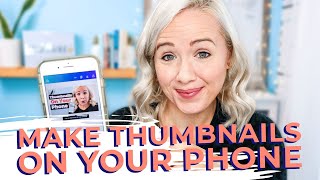
Trena Little walks through making YouTube thumbnails on your phone using Canva and Lightroom. She shows how to edit photos with presets and design thumbnails that actually get clicks, all with free apps.
Let me show you how to make better thumbnails. Thumbnails people will actually click on by using just your phone. And I'm going to be using two apps that are totally free. My name is Trina. If you are brand new here, I'm a YouTube strategist, and this channel is for content creators, online business owners, and entrepreneurs who are wanting to grow their business without burning out. So to have a great YouTube video, you need to get people to click on it. And it's all about the thumbnail. So I'm going to show you my entire process for how I create thumbnails for my channel using just my phone. So I'm going to go ahead and make sure that I record my screen so that you guys can see actually what I'm doing on my screen. And then the two apps I will be using throughout this tutorial is Lightroom, which you can use for free on mobile and also Canva. So the first thing I'm going to do is get a picture for my thumbnail. Now, I am taking this video with this angle, but I want to get my thumbnail with the blue background because the blue background really makes my skin tone pop. So I'm going to turn my chair around and grab a couple photos and I will show you those photos that I took for my thumbnail. Okay? So you can see the different photos that I took for my thumbnail. The next thing that I'm going to do is I'm going to put a preset on that. So what that means is when I add this photo to Lightroom, I already have a filter selected, so to speak. I bought my presets from Kathryn Manning over at the Content Book, but there are so many Lightroom presets that you could purchase at a very great price. And the reason why I bought presets is because, first of all, I don't like editing my photos. So if I can streamline that and get a shortcut 100%. The second thing is because it creates consistency with my photos. So if you look at all my thumbnails recently as we painted this office, you'll see they all have a similar lighting and a similar look. That's because I started using the presets then, too. What I will do is I'm going to go into Lightroom. You can see here all the presets that I've been using, so it creates that consistent look on my photos. I'm going to then pick the photo that I want to use for my thumbnail. Let's go with this one. And then we're going to go to the preset. I'm going to pick the one that I use all the time and hit the check mark. Now, I do still need to do a little bit of tweaking to this because you can see it is very bright and it just needs a little bit of tweaking. So one of the first things I do is I go to light and I'm going to pull down the exposure just a little bit. I'm also going to go over to color and see if I can pull down the vibrance just a little bit to pull out that orange. The next thing that I want to do is make my face look a little smoother. You follow me on Instagram over Irinalo. You know that I'm currently dealing with trying to manage my rosacea right now. So one thing that I will do is go into effects and I will go to clarity and just kind of tone that clarity down. You can see how it kind of smooths out your face. So if you have any, you know, zits or any, like, skin condition, you can use that clarity to kind of smooth your skin out a bit. You can also take the texture down a bit as well because it continues to give you that airbrush look on your face. One thing that I'm also trying to tweak, because I usually use my camera to take these. And for this, I use my phone to show you how you can do this, because I've done it before, so the lighting is off a little bit. I'm going to just make a couple more tweaks. I'm going to turn the sharpening down just a bit. And then you can also use smoothness as well to kind of smooth out your skin and hit the arrow up. And I'm going to export it to my camera roll. Now we're going to add it into Canva. So again, Canva is a free app. They do have paid for options. But what I'm showing you here today, you can use the free version. What I'm going to do is I'm going to come up here, search. I'm going to search YouTube thumbnail. You could totally take any of these as a template and get started there. I'm going to go ahead and do blank. I'm going to let it access my photos. I'm going to go to Uploads, Upload Media, because I need to upload that photo. So if we go to Photo Library, grab the one that I exported. So now we're back here at Your blank template. The first thing I'm going to add, I'm going to do plus and I'm going to add an upload, which is this photo. So once it's on here, I'm going to go ahead and drag this out so that it fits the entire thumbnail template here. And you see it's going to take a little bit of moving to do. So we're going to go ahead and move that up so you can see the majority of my face right there. The next thing I'm going to do is now I want to add probably a block in the background to make my text pop. So I'm going to go ahead and do elements. I'm going to grab a shape, I'm going to change the shape's color to black. I'm going to make that just a little bit smaller, move it right here. Then I think for the text, which I've already determined, I was going to put thumbnails on your phone, I'm going back to add. I'm going to add text. I'm going to pick my text for my brand. I'm going to go ahead and type this in, I'm going to highlight the text, thumbnail, hit this arrow button to change the text. I'm going to make it white, I'm going to move it up here and then I want to add a drop shadow. So I went over here to effects. I'm going to add a shadow. I'm going to slide over here because I want the shadow just to be my pink color, my coral color. And then I'm going to come back here and zoom this in a bit so I can see it better. I think that looks good. Now the next thing that I need to do is up the font size. So now what I need to do is get that in the middle. Perfect. All right. So I got all the text positioned how I like it. Now I want to add just a little bit extra to make it stand out. So I'm going to try to find a phone emoji or a phone icon. The way you do that is you come back in here to plus and then you're going to go to elements and you're going to look at cell phone. I really like this one. I won't have to do much editing to this. Alright, Then you can see that we have the thumbnail already done. The next thing you're going to do is hit this export arrow and you'll want to save as an image and it's going to save it to your camera roll. If you go into YouTube studio, let's say you have a video to upload and you go to Edits, you can go directly into your camera roll and change your thumbnail. Now I also just released a video on how to create your YouTube channel banner in Canva as well for free. It's on your screen right now. Click on that video to see how you could do this for your channel banner as well. Thank you so much for watching and let me know below. Did you just create a thumbnail in Canva too?