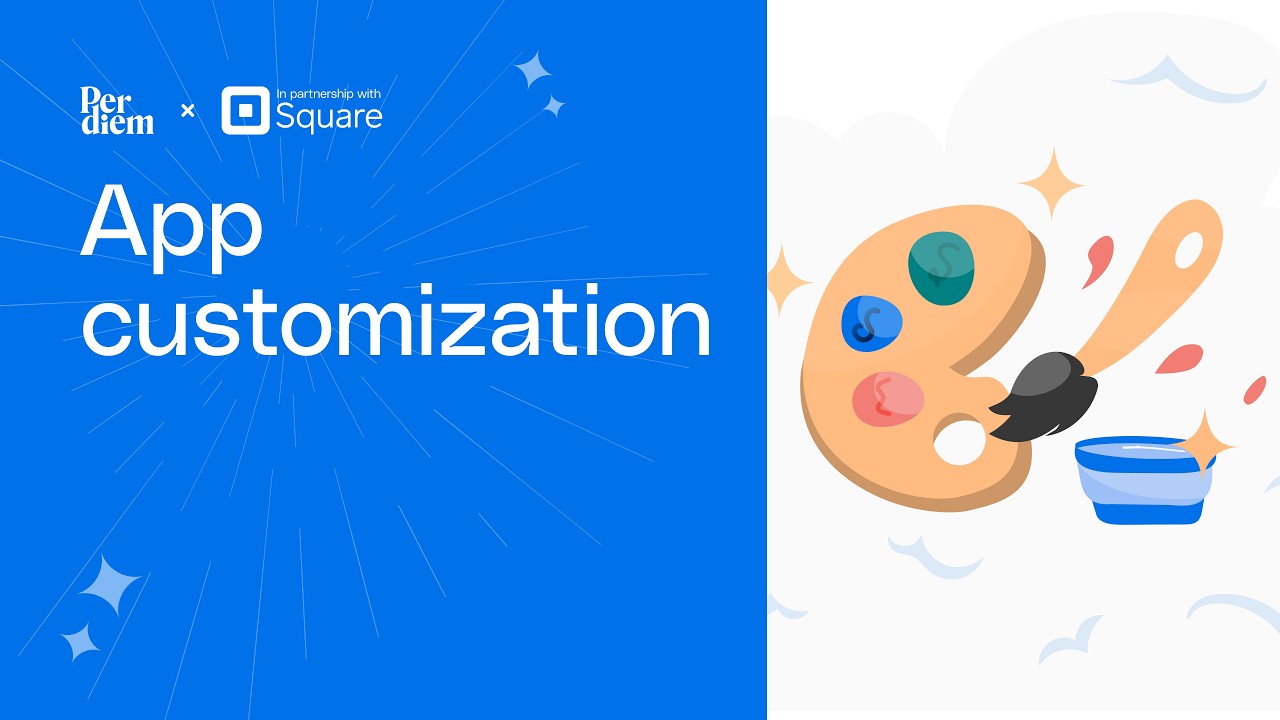
Perdium's no-code customization dashboard lets restaurant owners brand their app and website without developers. Change colors, fonts, and logos globally, tweak individual screens like menus and promotions, and see changes instantly across iOS, Android, and web.
Chapters
Your app should feel unmistakably yours, not like a generic ordering platform. App customization is how you make the Perdium mobile app and web ordering site truly your own. Your colors, your fonts, your logo, your layouts. App customization lets you personalize the entire look of your branded consumer app and web ordering site. Colors, fonts, logo, layouts, images, and screen-by-screen tweaks. That gives your customers one cohesive brand experience, whether they're ordering on their phone or their desktop. And a well-branded app builds trust. It reinforces your identity and makes customers feel like they're dealing with you directly, not a third-party platform. You'll find app customization right in your dashboard sidebar. It's organized into 3 areas. First, Styling—your global look. Upload your logo, choose your brand colors, primary, buttons, icons, and text, and pick your fonts. These apply everywhere in the app. Second, Pages—your per-screen controls. Customize the home screen hero section, reorder sections like Promotions, Delivery, and Pickup, Adjust your menu item layouts, set up your onboarding slides, and fine-tune screens like store credit and subscription. And third, components— reusable blocks like referral banners and landing pages, where you control the background images and colors. Every page has a live mobile preview on the right, so you can see your changes before you save. The editor is fully visual. Click an element in the preview or use the controls on the left. Save and your changes take effect immediately. Customers see them on their next app refresh or visit. Once you save, your customizations flow into both the native mobile app, iOS and Android, and your web ordering site. Customers see your logo, colors, and fonts across every screen: home, Menu, Cart, Checkout, Order History, and Loyalty. The layout you choose—single column, double column, or list view—decides how your products appear. And your hero background, onboarding images, and referral banner all reflect the assets you upload here. One thing to remember: here, you're customizing the visuals. To change the actual words customers see, Greetings, button labels, screen titles, you head to Settings, Language Preference, Customize. That's where your text lives, and it works hand in hand with these visual settings. That's app customization—a branded experience that looks like you, on every screen and every device. Link below to see it live.