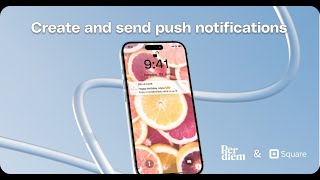
Tomer Molovinsky walks through sending push notifications in Per Diem's merchant dashboard. Create a notification under Marketing, target all customers or specific groups, schedule it, use templates, and preview before sending. You can also send individual notifications from the Customers section.
Chapters
Keep your customers engaged and informed by sending push notifications directly to their devices through your Per Diem mobile app. Here's how to set it up quickly and easily. After logging into your Per Diem Merchant dashboard, head to the Marketing tab on the sidebar and click on Push Notifications. Next, click Create a Notification. You have two options, Send to all customers or Send to customer groups. If you choose the latter, simply select the group of customers you wish to target, set the date and time for when you want the notification to go out, and enter your message. You can choose from existing message templates to make it even easier. Once you've crafted your message, you can preview how the notification will look before sending. Once you're happy with the message, hit the Send button and your notification will be delivered directly to your customers devices. If you'd like to send a notification to a specific customer, go to the Reporting tab. On the sidebar, click on Customers and find the customer you want to message. Click the Action icon next to their name. Select Send Push Notification and set the date, time, and message before hitting Send.