Colin Brown shows how to build a custom GPT that helps set 2026 business goals. He uses Claude to write the prompt, then builds it in ChatGPT's GPTs interface (paid subscription required), configuring the name, description, instructions, and conversation starters. The finished GPT asks about what you do and who you serve, then generates a detailed goal plan.
Chapters
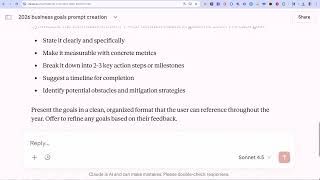
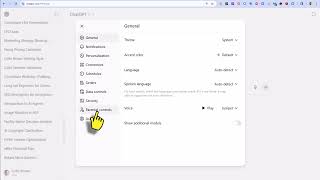
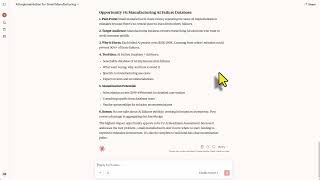
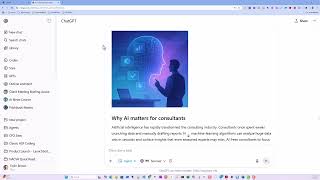
In this quick demonstration, I'm going to show you how to create a custom GPT. And because it's a new year, we're going to go ahead and create a goal setting custom GPT so that you can set amazing goals for the new year. So what I'm going to do is I'm actually going to hop on over to Claude. And what I'm going to do is you'll notice here Claude does a great job of creating prompts for me. So I'm going to create a very simple prompt. I'm just going to say, write a professional prompt that I can use to create business goals for the 2026 year. Have the prompt ask questions to the user so it can be used in a custom GPT or Gem. Gem would be the Google version of a custom GPT. So it went ahead and it created this great prompt. I'm very happy with those questions. And then I'm gonna hop on over to ChatGPT. And what I would do is I would go over to GPTs. Now you do need to be aware that you do have to have a paid version to be able to do this. Create your own GPTs. And I believe you have to, to be able to use GPTs, you have to have the paid version as well. I may be mistaken on that, but in this case, I have the lowest level here, plus version. And in any case, if you'll click on Explore GPTs and then click on Create, and in this case, you can just stick with Configure, and you can give it a name, a description, some instructions, and some conversation starters. Now I've already created this, so I'm going to go ahead and go over and see if I can edit this. To edit your GPT, you'll want to go back over to Explore GPTs, then click on My GPTs, and then I can click on this pencil here that says Edit GPT. And here it shows in the configuration option, it shows the name, the description, it's created an image for me automatically, And then all I did was enter in the instructions that I copied over from the prompt over on Claude right here. So I just copied this, cleaned it up a little bit. I've got some conversation starters that I could take out of there, or I could leave those in. I think I like those. I'm going to leave the recommended model that the user will use any model they prefer. And I think that looks good. So I'm going to go ahead and click on update. And by the way, you can also share this, which I am going to do. And I've already shared this. I'm putting that link in the description below. Clicking on update. And then we'll go take a look at the GPT. And here it gives me some starter questions. And then it's just going to run through the prompts that I've set up automatically. It's going to ask me what I do and who do I serve and what products or value do you provide. It's going to ask me a bunch of questions and it's going to develop a very detailed plan for the year 2026. So this is my gift to you. You can go ahead and check this GPT out. And that is how, in a nutshell, how you create a very good GPT. Hope you have a great new year and reach all of your goals. Talk to you soon.