Colin Brown breaks down Microsoft 365 licensing for Copilot across three families: Individual/Family, Business (Standard, Premium, Basic), and Enterprise. Copilot costs $22/month as an add-on with a limited-time discount. Check your subscription at m365.cloud.microsoft and verify Copilot works in Word and Excel.
Chapters
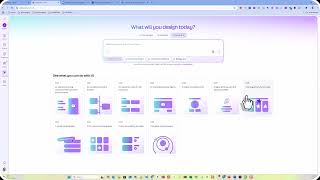
Today I'm going to take on my most challenging topic, and that is figuring out if you have Microsoft Copilot on your computer and if it is the right one for your business. So let's get started. To begin with, you're going to need to know and understand Microsoft's licensing for Microsoft 365. There are 3 different plans, and within each of those plans there are many options. You have Business, Individuals and Enterprise. If you have less than 6 employees that need Microsoft Office apps, the best option that's going to give you the best bang for the buck is going to be under Individual. If you're going to have more than 6 or less than 300 employees, then the Business plan or option is going to be the best way to go. And then for those that have greater than 300 employees or licenses, then you'll want to go with the Enterprise option. Each of these are different subscriptions for Microsoft 365. They can also have somewhat different views, and I'm going to try and dissect the complexities of Microsoft's licensing structure and help you figure out which is the right way to go. The information provided here is as of the date of this video being published in 2026. They've been tweaking their licensing and will continue to do so. I tried calling Microsoft to confirm this information was accurate but was sent to an AI chatbot, so my information comes from what I can find on Microsoft's website. And I could not find any good YouTube videos with relevant information. So let's get started with business, since most of you probably have the business plan. You can compare the various versions by simply going to this page I have listed, and it's going to show you all the differences between the various licenses. Now, in addition to the Premium and Standard and Basic versions, you also have the options to choose from, including Teams or removing Teams. And then of course, if you want to add Copilot. So Copilot is not by default added to it. You do have a limited version of Copilot, but to have the full-featured Copilot version, you will need to add this Copilot option. And you can see they do have a special limited time discount offer, so about $22 a month to add the full features of Copilot in all of your Office applications— Word, Excel, PowerPoint, so forth. So for the most part, the Microsoft Business Standard option is going to work as long as you add on the options with Teams if you use Teams, and then of course also plan with Copilot as well. On the Enterprise side, you're going to need to talk to your Microsoft reseller because it is an enterprise enterprise sale, it is going to be managed by Microsoft's Team Enterprise and by a large IT department. So the last one we want to talk about is individual. So if you have less than 6 employees, this is probably the way to go. And I'm going to try and explain this licensing as well here. Now for me, I have a small team. So this Family option has been the subscription that I've been using for the last couple of years. And it's worked out great. It has all the features and options that you want, has all the, applications that I need to use, and it does have Copilot with it. It does have a limited or step-down version. So I'm gonna show you a table that shows how that works out. But I've recently upgraded to the premium version and it has the full features of all the options that you can find in Copilot. So here is the, here is a table that shows you the differences in the plans with the AI credits and limits that they have. So If you are on the family plan, you don't get agents, but with the premium plan, you get 25 tasks per month, which is basically what you get with ChatGPT as well. So that's a pretty good deal. Doesn't have the analyst, but that's just because it's coming soon. They've got researcher is gonna be available for the premium version and deep research. They give you a lot of those. You also get 10 tasks in actions. You can do all the audio stuff. You've got Copilot in the 365 apps. You'll notice that you had 60 credits per month with the family plan. But in any case, if you go to the premium, it's really the way to go. You get agent modes, you get the draft and rewrite, rewrite and summarize and analyze data. You also, you'll see here that you get the Copilot function in Excel, and it's not available in the others. Now it's interesting because I, when I did upgrade to the premium version, I still didn't have the Copilot function in Excel. And my guess is if for the most part, if you go to Excel right now and you try to implement the Copilot function in Excel, it's not gonna be available to you either. So I've made another video that will show you how to implement that Copilot function in Excel. As long as you are on a premium version, this method should also work in the Business Standard as well. You shouldn't have to have the Business Premium, but you will need to have the Copilot option for the Business Standard license. So hopefully that makes sense. I know it's a little bit confusing. It's confusing to everyone. So anyway, you do get access to voice and photos and vision, and you do get priority access and exclusive advanced AI features. So if you do have less than, you know, 6 licenses, this Microsoft Premium is the most cost effective and will give you the most bang for the buck. Now let's hop on over and show you what it should look like when you have these licenses installed properly. Okay, I've opened up a web browser and I've gone to m365.cloud.microsoft. You will have to log in to your Microsoft account and it should come up and look something similar to this. You're going to see it says M365 Copilot. You're going to have a chat just like you might see on ChatGPT. You may or may not see these agents, but more than likely today— this is a new feature— agents and conversations and pages, notebooks and create. Got additional apps that you can add that come with your subscription. This is a new option, it's called Office Agent Frontier. If you want to subscribe to that, I can show you some examples of how to do that in a future video. And then of course you've got access to all of your apps. Now if you're not sure about what license you do have, one thing you can do is you can go to the bottom, find your name, click on it, click on View Account. It's going to show you what license or subscription that you are subscribed to. You can look at this here, or you can also click on that as well. Now, in the event that it does not show your subscription, it means that it's being managed by someone above you. So typically an IT person or a Microsoft reseller, but that is where you can find out what subscription you do have. Make a note that when you're at the m365.cloud.microsoft, these apps are the web versions. These are not the desktop versions. So what you'll want to do, make sure that you have installed your desktop apps by simply clicking on Install Apps. You'll notice that you've got the Microsoft 365 apps that will install it on your desktop. And then we have an M365 Copilot desktop app as well as a mobile app. So if you've installed these, you'll, you're going to know if you have by simply coming down here, going to your search bar and typing in Copilot. And you'll notice there is a Copilot app, which is just the chat. And there's also a Microsoft 365 Copilot. So if I click on this, I'll show you the difference between the two. You get this view here. That is the desktop app version of Copilot. The other option that you have I mentioned was M365. So if I go to M365 Copilot, I am now using the desktop version, not the web version. And so when I open up these apps, it's going to actually open up the desktop version of Word. And of course, all of these, you'll know that you've got Copilot working is because when you open up your Word document, see Copilot here, you chat with it, ask it questions, have it help you write your document. Then of course, if we go to Excel, it's going to open up the Excel desktop, and I'm just going to demonstrate it because I told you I would. If I type in equals Copilot You'll notice I have got the function Copilot, and in the next video that I create, I will show you how to get that added to your account. So there you have it. That is how you verify what subscription or license that you're using. If it doesn't show, you need to talk to your IT department or the person that you bought your Microsoft license from. And then I've also shown you how to verify that you have the right look and feel or the right apps that have Copilot integrated with the Microsoft Office applications. If you see something that looks different, then you'll need to talk to your IT person and get that resolved so that you can feel confident that you're using the up-to-date version of Copilot with all its functions and features.