Colin Brown demos rtrvr.ai, a Chrome extension that uses AI agents to automate web tasks. He configures a Yahoo Finance scraper to find companies with over $10 billion revenue and 10% growth, then watches it automatically log in, create a Google Sheet, and populate it with ticker symbols, market caps, and P/E ratios.
Chapters
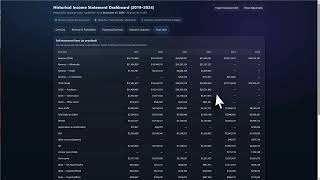
Alright, so today I have an interesting find and I'm gonna demonstrate how you might use this. We're gonna go ahead and go to rtrvr.ai. That's rtrvr.ai. And this you'll want to open up in a Chrome browser because it is a Chrome extension. When you go to that site, you'll just click on Install extension. Now, maybe before we get started about what we're going to do, the question is why we're going to do it. This is a new Chrome extension that has agentic, so agent properties using AI, so it can go out and do all kinds of interesting things for you automatically. So for example, I've already gone ahead and installed the extension. Once it's installed, you might need to go over to your— this little puzzle piece here and make sure that you've added the extension so that it's visible. And you just click on that. You click on that once it's installed, and that will make this agent available. And when you click on it, it pulls up this box that allows you to interact with your agent. So some other things you can do: if you click on Exchange, you'll see some agents that's already been developed or some workflows. So for example, there's quite an extensive list here. You can put any of these to work. And of course you can create your own. You can scrape the web, you could scrape competitor sites, all kinds of things. The one I have running right now is this one, stock data from Yahoo Finance. So what this is going to do, I clicked on view., and then I clicked on Add to Library. When I was ready, I just put in this link right there, and what it's going to do is it's going to go out and it's going to find all the companies with over $10 billion in revenue and a 10% growth rate and sort them by PE ratio. So I went ahead and turned that thing on, and it's been running for a little while. I paused it, but I want you to see it running. But basically let's go to the top here. And I just, you know, go— went to this site and then it ran. It's, you know, I just clicked on run. Now I could have changed the, the input, so I could have said over 5 billion or, you know, and a 20% growth rate, for example. But let's go ahead and let it resume. It's running. It also wanted to connect to my— since this is going to create a spreadsheet in spreadsheet in Google, it needed access to my Google account. So I did have to log into my Google account. Let this run. Basically, it's going through all the steps automatically without you having to do it. You could do this by hand, but it would take a long time. And this is just going to do it as an agent working for you and finding all the data that you need. So I'll go ahead and it's just going to sit here and run as it goes through it. It's scraping the site from Yahoo data. Okay, here we go. And it says that it has successfully applied the filters. It's found those, found all the information for us. I'll go to our sheets. Okay, so it actually created the sheet automatically for us. So let's just take a look at that. And there you go. It gives you the source of the website, the symbol, the name of the company, market cap, the PE ratio, and so on. It created the spreadsheet exactly the way it was told to do and did it automatically without me having to lift a finger. So I could go ahead and put in a different prompt at this point, and you can see some examples. So give this a shot. It's a very interesting new tool that I'm going to start utilizing quite a bit to scrape websites and do a lot of research for me automatically.