Customize your live launch intro video
Saleh Amiralai shows how to customize a live launch intro video template in Canva and upload it to StreamYard. The template includes a countdown timer, workbook mockup, motivating quote, and a meet-the-coach slide. Download as MP4 and add it to StreamYard before you go live.
Chapters
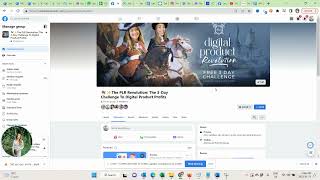
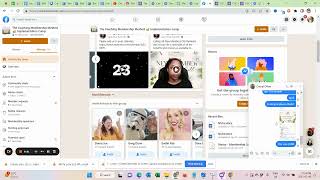
Okay, so in this video, we talk about our live launch intro video, and I made you a template for this, and I show you how to customize and upload it first. Let's be clear about what that is. So I just show you from our last challenge. Jessa always makes them for me, and I'm so infinitely grateful. So I tried to give you something similar, but, like, obviously, Jessa is just an absolute genius. Okay, so I just show you quickly what it is. So before you go live, you basically go start this intro video, and then you go live. So you have about roughly three minutes for people to be able to join, let them know they can hear you. So it's kind of filling up that live lounge, so you're not necessarily starting to an empty room. It's also not bad if you're starting to an empty room, right, because most people will catch the replay. But this just gives you a little bit of engagement in the beginning. So I'd quickly show you what that looked like for the last challenge. Just a brief party.
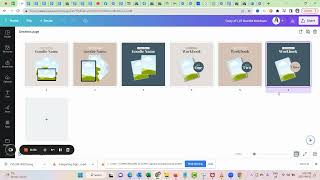
So there are different parts in here that I want you to look at. The welcome video consists of different components.
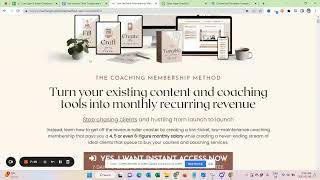
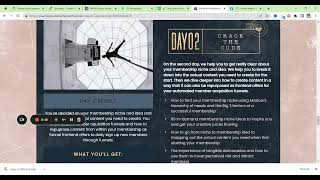
I noticed this because it's the third challenge. So these are kind of the things we always have in there. So first we have. And I played for you now in the canva. First we have the kind of announcement of the live launch event.
So here I would love for you to just, like, we have this. This graphic in here.
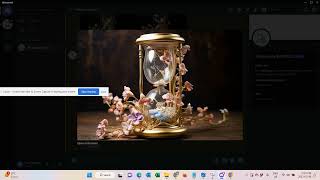
Our, like, main challenge visual. And. And I. I will probably also work on a training on how to use AI Mid journey to kind of create your main visual and then ideate the brand from there. But you would want to have, like, your main visual in here. So let's say.
This is your main visual. Just.
Let'S say this is your main visual for the lifelong challenge. Then you would want to place it here. So let me see. Or let's say it's this one. Right?
So you have place here to.
Add that main vibe from the live launch event.
Say.
So depending on, you know, what size you have available, you would probably want to play around here with the formatting. You totally can, right? So you have all the options. This is to present your challenge well here, right? And you can also, of course, create, like, a.
Banner outside of this and then place it here so it fits this perfectly. So just play around a little bit with this. But the key is that we want to have, like, your main challenge visual here and the introduction, and we want to start, like, with building up excitement.
Then it's showing you and the.
Main giveaways from the challenge, the free days. And we have a timer.
So this is all prepared for you. So you just really need to adjust the colors. Those are like all split up to reflect the seconds. So if you would change the length of some element, you just need to take that into consideration when editing. Right. So if you would now want to make this 10 seconds, you would just need to make sure to adjust the seconds here. But it's a total of 10 seconds. So you just need to let people know where in the countdown are we. Then after the countdown here.
We should have a mock up of your workbook and kind of the hey, don't forget to download the workbook.
Next. Next we have a motivating quote. So this can be a quote of yours. This can be a quote that fits the challenge really well. This can be a tagline. For example, I let ChatGPT help me formulate this quote. So this can also be a tagline related to your challenge that you have in here that should motivate people and gear people.
Here. Again, like reiterating what we will be covering.
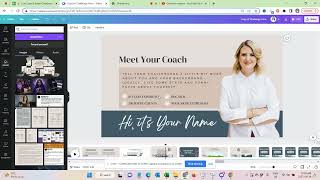
Then we have meet the coach section.
So here would be great if you could tell your challenges a little bit about yourself and your background. Ideally give some stats and some funny facts about you like, like I have 10 years experience, so many happy clients, your dog, mom, whatever you have in here. So just make sure to use this space to create a little bit of relationship.
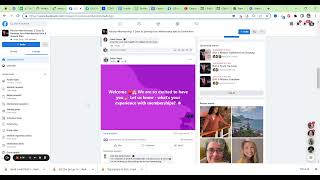
So here you see that one was just for letting people, you know, starting to comment, driving, engagement. And then basically we start.
We start again, but it's a different music, a different. So first we have suspension. Now we have a little bit upbeat and excitement here. You see there's another countdown where now we don't have a minute anymore. So we just have two seconds.
So again, if you alter any of the lengths before that, you would need to adjust that. I would recommend just sticking with the lengths to make your life easier and then.
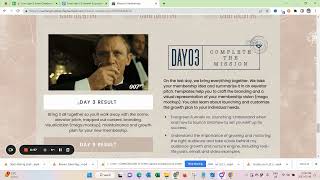
The reminder to download the workbook. So this is similar here we just have another different quote.
So here I chose if you want things you never had, you need to do things you never did just to, you know, here we want to really encourage people to try something new, be enthusiastic about it. Really kind of aspirational, inspirational vibe. With the challenge again, you can replace this here how you like.
Are you excited for the major takeaways and wins in the next few days? Again, set expectations.
I got it out to share with you, please. So here you Would want to briefly repeat your main challenge promise and let them know. Okay, you walk away. Full clarity and a vision. You have taken the first steps. You haven't. You have the exact action steps. You avoid the common pitfalls. You can, of course, customize this.
Okay. And then we just have.
So then we have just like the last piece of engagement. Okay, so this. These are the kind of the slides in here. All you have to do is switch out the colors and upload yourself in here. If you don't know how to do that. For example, let me show you this as well. So.
Here'S an image of myself.
You upload it. Then you have the background remover.
Ideally, you take a picture of yourself with a white background, right? To avoid, like, any cutout mistakes that it has.
So I would definitely choose a different picture of myself here. But this is just to show you the technique of it. I would take one that is, like, nicer and more sharp and apply what I would always also do like here. Typically, I would do that before uploading the image in canva. But if you only have Canva, I would also make sure to really up the brightness a little bit and the contrast, like to really, you know, make the image also nice and stand out. Okay. So it's as easy as that to replace yourself in here or replace the lady here with yourself. And having like a nice picture of yourself here that works can really change the whole game. So, for example, this one here, I think is a lot nicer. It's. It's not from a screenshot, from an actual video, it's actually.
Focused.
So, you know, when we take something like this.
Maybe.
To make sure it's not cut off, like, weirdly.
But that makes a huge difference already, right? And here's why I said pick a white background when you create your picture. Because here, you see this is still coming from the background. You can. With the background remover, you can also go in and edit some things.
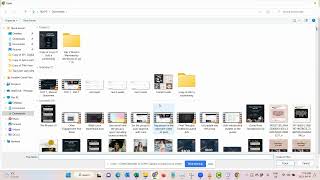
Like here you can click erase. And for example, you can go in here and make sure that this is gone, done, apply. So you can still tweak things here, right? But just make sure to have, like a nice picture of you here. Maybe take some selfies or have somebody taking a picture of you when replacing the image. Okay. And then when you're done, what you have to do is just click on download. Download. This is an MP4 video and download. And then we have to come to Streamyard. So I.
Did that before. Now we can come.
Here, video clips, add a video clip.
Downloaded this before. So now it's uploading this.
And now, as I said before we go live in the challenge, we want to click here.
And I'm now in the record studio, but the live studio just, you see here, go live.
And then right now, it's processing. But what you can do is then just click on the video. It will appear here.
And go live. This is the default video that's always in there, but it's just better, right, if you have a custom video here. So now it's here. Let me show you. Quickly.
Click on here, and then click go live, and then you're good. Okay, that's it for this video. Thank you.