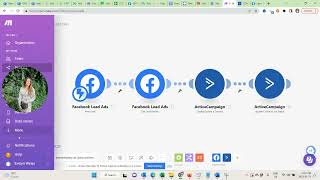
Watch how to connect Facebook Lead Ads to ActiveCampaign using Make. Set up a trigger for new leads, map the email field, subscribe contacts to a list that sends them a free planner and follow-up emails, then test it with Facebook's test lead tool and add error handlers so one bad lead doesn't break the whole flow.
Chapters
Now you've published your lead generation campaign and it's in review for probably up to 24 hours. We can use the meantime to integrate your Facebook lead form with your email marketing tool because if you don't do that, your leads will actually not get into your tool and they don't get the freebie delivered. So what we need to do is we need to use a tool to connect both. I personally recommend make, which used to be Integromat because it's free for up to 1,000 operations and after that it's only $9 a month versus Sapir, which is $29 a month. So go to www.make.com and create an account or if you already have an account, sign in.
And we already land in the right tab and we need to say create a new scenario.
Name the scenario. So free planner lead pen.
And then we can start creating our scenario. So here we would want to search for Facebook.
Lead ads, new lead.
Add a new webhook free planner.
Okay, we would want to reconnect our account.
And if it's working we should see our page.
Here we have Eva is coaching.
And now we can select the form that we just created. Save.
Okay, the next module is again delete at and now we want to now that we've connected the form, we want to actually get the lead details.
Our error validating access token. The session has invalid change your password in Facebook or Facebook has changed the session for security. Security reasons value must not be empty.
Let's see if we can reconnect here.
Yes.
Selecting the form. And now we need the lead ID.
Which is this id. Okay, the next step is connecting your email tool. So I personally used activecampaign but MAKE has almost all of them.
In here. And what we want to say is we want to create or update a contact.
Now we need to select our.
Tool. So here it's this is my account. Typically you will have to log in to your account and find your API keys. So somewhere in your account setting, no matter what email tool you use, you you will find API keys and this is how you need to actually connect it. Let me actually see if I can add a new connection.
Here you see it says API key account name. So here you see this is active hosted and here's the API key. So you would just need to come here to developers and then you see the API keys. I don't necessarily want to update this right now, but instead just use my existing connection.
Now we have email, so now we just need to map the fields email is this one. We don't have first name or anything else.
Perfect. And now what I want to do is I want to actually subscribe the contact to a list because the way I've set up my automation is that as soon as somebody is subscribed to a list, that subscription to that list triggers sending out that email. So what we want to do here is.
You could also work with tags for example, but I personally want to add the list.
So now we have planner.
It was a free coaching business planner. So this is the list and here you see contact id. So here I want to say Map.
ID status active. Okay.
So now we've created this scenario. The next thing I need to do is actually need to go to Facebook's developers tool.
And test the leadout. So this is just a URL you have to be aware of because here's where you can test this. So now I need to find my page amongst all the pages I have access to.
And now we have the free business planner.
This is the form we created. Now what we need to do is we need to come here and we need to say run once.
So now this is waiting for data.
I can now preview the form and I'll just do Evelyn test one.
Next.
Now I experienced the form the way we've set it up. I submit the form, it's on its way. Do you want more free resistant tips? That's awesome. Now we go back to make and now we see all of those things happened. It created or updated the account and it added it to a list. So now we actually need to still go back and verify if that's true. So what I want to she is 111 I think.
And here we have Evelyn test 111 today it's the 23rd of January and you can see it was just created and if I click here I should be added to the list. Coaching business planner. And here I show you my automation.
Here you see it's a free coaching business planner.
The way I have set it up is as soon as the contact subscribes to the list it sends the email. It waits a day and then it starts to send a promo email sequence upselling into the my mini membership coachgrovehub. And after that it starts with a nurture sequence just resending some of my best, most valuable nurture emails newsletters that I had sent out. So this is how it flows. As soon as somebody becomes a Coach GroveHub member in activecampaign you can work with goals, they exit the sequence. So then they because they enter a new sequence, which is the upselling sequence into the main membership.
So we're almost done now. This works beautifully. But sometimes for some reasons we can have an error right? Facebook server can take too long to respond. Somebody can enter a wrong email, a spam bot can try to access or to enter the emails and then MAKE would just stop the scenario and you would never turn it on again. So what you need to do in that case is you need to add error handlers at every step of the automation and tell make to ignore the error. Which means it doesn't proceed.
With the current email that has some sort of.
Error in it, but it doesn't stop the scenario. So even if and there was this module needs to be deleted. Even if.
There was an error, the next person entering the email on your ad will still go through the automation. So now it's perfect. All we need to do is turn it on immediately as data arrives, save and we're good. You have successfully integrated your lead form and lead generation campaign with your email marketing provider.