Learn how to set up custom redirects in Pardot to track which prospects click your links and automatically trigger actions like adding them to campaigns or adjusting their scores. When someone clicks the custom URL, Pardot logs it and can instantly add them to a list or send a notification.
Chapters
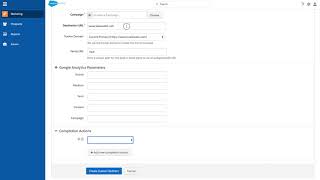
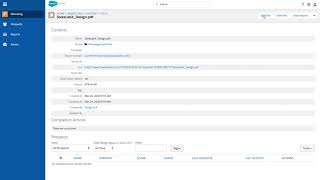
To create a custom redirect, you can go to Marketing Content and custom redirects. Once there, click on Add Custom Redirect. Custom redirects are great for tracking where link clicks are coming from or to do completion actions based on a specific link that you are sending out to various inputs, social media rep signatures or assets that you plan on individually sending out. To set up a custom redirect, simply name your custom redirect, put where you want the redirect to go, and what do you want the redirect to be? A very powerful aspect of custom redirects are completion actions. You can add them to a CRM campaign, adjust the score, assign to a user, and all sorts of automation based on them clicking that specific link. Here you can see that we're sending them to our main homepage, but if they come through the specific custom redirect, they will be added to a specific CRM campaign or they would be added to a specific list or sending a notification to the assigned user. Custom redirects are a great way to check for traffic, set up automation rules and completion action. Once created, simply start using your custom URL instead of your destination URL.