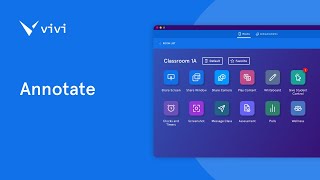
This is a YouTube video titled "Annotate" created in May 2025, providing a detailed instructional explanation on how teachers and students can use Vivi's Annotate tool to capture and annotate classroom display content using the Vivi whiteboard features. The content is a single-speaker instructional guide focused on the functionality and usage steps of the annotation tool.
Teachers and students can use vivi's Annotate tool to capture content from the classroom display and annotate on it from the VIVI whiteboard. In order for Annotate to be available, Share Screen will need to be active with the content you want to annotate showing on the classroom display. Once sharing, select Annotate from the Floating Toolbar. A screenshot will automatically capture the content and make it the background of the whiteboard. The Whiteboard toolbar will become available with options for the pen, highlighter shapes, and so on. Annotate the screenshot as desired. Note that you will be actively sharing your screen while annotating so that students can view the display and take a screenshot from their own device. Once complete, the annotation can be saved by selecting the More Options menu. If it is not saved saved before exiting the whiteboard, the annotations will be lost. To return to active sharing of content, select the back button in the upper left to annotate While using a version of the Vivi app that does not display the Floating toolbar or while not being the user who is actively sharing, click and hold on the Screenshot button once it turns into the Annotate icon release to begin annotating it.