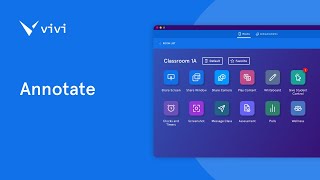
This is a YouTube video titled "Play Content" created in June 2025, providing a detailed instructional guide on how teachers can use the Vivi app to display and manage multimedia content such as videos, images, PDFs, PowerPoints, and Google Slides in classrooms. The content explains features like playing online videos, managing playlists, and using the miniplayer for multitasking. It is a single-speaker instructional presentation focused on educational technology usage.
Foreign tool is designed to help teachers display multimedia content on classroom displays without needing to mirror their own device. With Play Content, you can share videos, images, PDFs, PowerPoints and Google Slides and arrange them into playlists, all from the same tool. While sharing content, your device is freed up to go on with other work to use this feature. Once connected to a room in the Vivi app, select Play Content to play an online video. Paste in any links to online video or audio files such as a YouTube video, and then select Play Link or Drag and Drop files into the lower box. Allow the file to process, which should just take a few moments, then select Play from Start. Files from Google Drive can also be added by selecting the Google Drive icon in the lower right. If using for the first time, you will need to log into your Google Drive. You can then select the file and click on Add to queue and then Play from Start. Once the media item is playing on the classroom display, the content can be managed using the controls in the Vivi app. If playing a multi page PDF, PowerPoint or Google Slide, use the Next button to move forward with the media item playing on the display, Vivi can be switched into the miniplayer. To switch into the miniplayer, select the icon in the lower right. This gives a minimized version of the Play Content tool which floats over any other apps on your desktop. To return to the full view, hover over the content Preview, then select the icon in the upper left. Use the Stop button to stop displaying the content and the Clear Queue button to play new content. Multiple files can be added to a queue to include links to videos. In a queue, paste in a link, then select the Add to Queue icon. Use the Add Content button to include more video links or to drag and drop in other media files. Once a cue is ready, select Play from Start to Begin. A cue can be saved as a playlist by selecting the Save as Playlist button at the top. These playlists will appear on the left hand side and can be loaded by selecting them.