Logging Into the Vivi App
4 Apr 2025 · 2 min
2:07
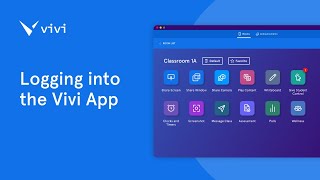
A walkthrough of how to log into Vivi and set up your classroom. Shows where to find your organization, select your class, and use features like favoriting rooms and setting defaults.
A walkthrough of how to log into Vivi and set up your classroom. Shows where to find your organization, select your class, and use features like favoriting rooms and setting defaults.
Foreign Logging into the VIVI application as a teacher is simple and straightforward. Once the VIVI application has been downloaded to your device, you will see an icon on your desktop that looks like this. Open the VIVI app. You may be presented with a screen to select your organization. This is usually your school or district name. Select select this to move to the login screen. On the login screen you will notice your organization at the top. If the organization is not correct, you will need to select the green link to switch organization. If this is your first time logging into VIVI and your IT administrator has not provided credentials, click Sign Up. On the next page you will need to enter your details, select I'm a Teacher and enter the presenter code. You can obtain the presenter code from your IT administrator. If the Sign up button is not present or if your IT administrator has provided login credentials, click Login, enter the credentials provided by your administrator and select Login. You may be presented with an end User License agreement. Select I Agree to Continue. Once you have logged in, you will move to the next screen which shows all available buildings and rooms with a VIVI connected. There may be some differences in the appearance of this screen depending on how your organization is set up. Use the drop down arrow to expand the location options. Then locate your classroom by scrolling. Select the Classroom and then double click or select Join. You can favorite your classroom by clicking the star icon to allow for faster access to your VIVI classroom in the future. You can also set a room as default to automatically connect to that room when you open the VIVI app instead of selecting the room each time. To return to the Rooms page, select Room List. Favorite and default rooms will be shown on the right hand side. Additionally, VIVI can detect other nearby devices via Bluetooth. These will be listed under Nearby Rooms.










