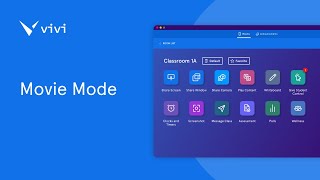
This is a YouTube video titled "Movie Mode" created in April 2025, providing a detailed instructional guide on how to use the Movie Mode feature in the Vivi app to enhance media playback quality during screen sharing sessions. The content is a single-speaker instructional explanation without conversational elements.
When playing media items through Share Screen, Movie Mode can be utilized to improve the playback quality of the video and audio. To use Movie Mode, open the website or file you wish to share to the display. Open the Vivi app and select Share Screen. When Vivi shrinks into the Floating Toolbar, extend the toolbar with the arrow and select Movie Mode. This will create a 2 second delay between your device and the classroom display to assist in improving the playback quality. To turn off Movie Mode, select the Movie Mode button from the extended Floating Toolbar. If using the Vivi web app or sharing from a device that doesn't shrink into the Floating Toolbar such as an iPad, click Share Screen. The Movie Mode button will be found along the bottom of the Vivi app. Select this to activate. You can now begin playback of the media content. To turn off Movie Mode, return to the Vivi app and select the Movie Mode icon from the bottom of the app.