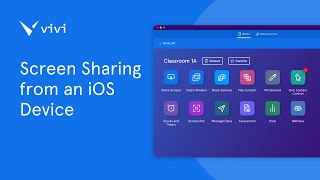
This is a YouTube video titled "Screen Sharing from an iOS Device" created in April 2025. The content is an instructional tutorial explaining how to share the screen from iOS devices using the Vivi app, covering two streaming methods: WebRTC and AirPlay, with step-by-step guidance on settings and usage.
Foreign can be used on a wide range of devices, including iOS devices such as iPads or iPhones. In this video, we'll be looking at the two different ways of sharing from an iOS device. The two methods of sharing from an iOS device are WebRTC and AirPlay. To switch between these in the Vivi app, select the Settings cog in the upper right corner. Make sure Video Settings is selected, then use the Streaming method. Drop down to select your preferred streaming method to stream over WebRTC. Once WebRTC is selected in Settings, use the X to close the Settings menu. Once connected to a room, select Share Screen. A pop up will appear indicating you are going to be broadcasting your screen over vivi. Select Start Broadcast to begin. After a short countdown, your iOS device will begin sharing to the classroom display. Tap anywhere on the screen to hide the popup. To stop sharing, use the Stop icon in the lower menu of the Vivi app to stream over airplay. Once airplay is selected in Settings, use the X to close the Settings menu. Once connected to a room, select Share Screen. A pop up will appear instructing you to open the screen mirroring menu and select your classroom. Drag down from the upper right and select the Screen mirroring icon. Wait for your classroom to appear. This may take a few seconds. Then select the classroom from the list. Depending on your organization, you may need to scroll to find it. Allow AirPlay to connect, which may take a few moments. Your iOS device will begin sharing to the classroom display. Tap anywhere on the screen to hide the screen sharing menu. To stop sharing, use the Stop icon in the lower menu of the VIVI app.