"Configure Teams for Payroll Control Center in SAP EC Payroll: Step-by-Step Guide!"
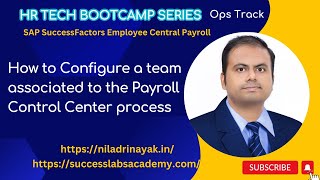
Dr. Niladri walks through configuring teams in SAP Employee Central Payroll's Payroll Control Center. Teams route alerts and tasks to the right payroll or data owners based on payroll area and policy ID. The demo creates Team A and Team B, assigns leads like Adam1 and Linda Lewis, and validates setup with the Check team tool.
Chapters
So welcome to another exercise of our EC payroll. In today's exercise, we are going to configure the teams and all and we'll learn about the team and why it is needed. And in the previous exercise we talked about the policies and how to add policies to a group payroll processes that we talked about. If you have not done that, you just complete those exercise. And in this exercise we'll be focusing more on the teams. So what is a team? So you might be thinking, so if you're having a team in a typical payroll environment for organizations, so you'll be having sections in my system already, the teams have been already configured. Okay? So in a typical payroll environment, you will be having some people managing the data part of it. Some people in the payroll organization, they talk, they do all kind of a taxation point of view, all the statutory requirements, they complete that part of it. So if it's a small organization, you may not have a big team, maybe one people or two people handling everything. Let's say you are having an employee head count of 300 to 500 people, you may not be having a big team. In that case, you may not require all these things. But in case you're having at least two people, three people in your organizations who are handling the payroll part of it. So definitely this feature will be helping you, okay? So that if any issue comes in, so you can assign that particular issue to a particular team member. Suppose if you're having a data issue, you can assign it to a payroll data officer or a person who is handling your HR data. You can assign that team member. If you're having any issue related to tax or any other statutory compliant issue, you can assign that particular task to that particular team member. So that is the intention behind configuring the team. Okay, so we have a two things here. Manage teams and my teams, just as I have mentioned, manage teams is for the entire organization, my teams. Suppose you are handling a particular team that will be allocated to you. So in my setting at present, I do not have any teams. So for the reason it is showing no team available. Okay, so now let's see what this exercise is all about. So this is the configurations. This is a simple. And there are two things also. Whenever you are setting up a team, you need a team lead and you need a team members, okay? Because you one person will be the team lead who will be allocating the task if any issues or alerts. Alerts we means if any issue is happening, those things, we call it the alert, okay. So that you Must be having a team lead and you will be having a team. You will be having one or more team members to whom you will be passing on the alerts. Okay, so that is the. We will be covering here. Now coming to this exercise, particular exercise number six. Okay, so what we're trying to do, we will be creating in this exercise teams for different processes, right? And in this exercise I say the payroll administrator, he will be creating two different teams, okay? And one teams will be two. Two different teams will be assigned to a particular process which you have just seen it and team management only Payroll Control center. And one is a team name A another is. We'll be. There's some details are available. So who will be the what policy? What who will be the team lead and who will be the team member? Okay, so we have already standard employees, okay, we'll be using those data for our convenience. Okay, so then we will be checking out how does it work. Okay, so with that note, so we will be going to create teams now. Okay, so in the manage teams for that we have to go to the Manage Teams ui. And who will be having access as a payroll administrator? I will be only having access here. Okay, so who, if you're playing a role of a payroll administrator, then only you will be having access to this particular configuration, right? So if I go to the manage teams here, right in this UI, right, so you will be having. So J11 so you can see if there is already teams available. You can show in active. Okay, so already there are some teams are available. Team A is already allocated. Okay, but if I go to my process, okay, so my process is this one, Z11. Okay, so there is no teams available. Okay, so as a payroll administrator, what I will go, I will go to this particular process. Okay, particular thing Z11. Okay, there is no teams available. I can see that. I will simply click Edit button here. Okay, so what I'm going to do, okay, I will be adding a new team here. Okay, so there's option called Add new team Activate Check Team setup. Okay, so this is again very trick, little tricky one just to follow what I am explaining. So what I will do, I will be. I already taken this step. Then after that I already selected the process. I will be creating the first team. My first team is team A let's say. Okay, and the what are the criteria? These are the criteria we will be following. So let's see that. So adding a new team and all the details, I will be filling it here. So let's say my team name is Team A. Okay, then you can see there is a two here. What is two? If you are not fulfilling certain criteria, it will be giving an error. So at present now became one. Because I already saved it. Okay, it's already saved now. So now what are the criteria? So the next part. Next part is the team criteria. Based on particular criteria this teams will be allocated means you'll give an alert. And also what are the criterias? So if you see the guides, if you see the criteria, we have two criteria. One is a payroll area, another is a policy id. Okay, so we will be choosing the payroll area. Our payroll area will be choosing. So where is the payroll area? This one. Okay, so I will click the plus button here. So I'll be choosing the payroll area which is relevant. So this is the monthly payroll for us. So I will choose in that particular payroll area. Okay, so any error coming to this under this payroll area, then only this team will be getting the alert. Suppose a person is belonging to different payroll area. 12, 13, 15. Like that those error will I will not be interested. Okay, so that is why this criteria to be maintained here. Okay, so now after doing this, so your policy ID also so we have definitely your policy id. So which policy ID I need to choose whatever the policy ID we have created. So this is the policy id. So this is the policy we have created. So I'll be choosing that one only select it. So this two criteria we have fulfilled. Now once it is done, payroll area policy id. Okay, so now I will be allocating the team lead and team members as well. Okay. Because without that there is some human intervention needed. Otherwise will not be working. So I will be choosing the team lead whom. So I'll be choosing a team lead. A person as a. Just a minute. Team lead will be Adam1 Adam. So I'm working with this. So this person will be the team lead for my process. Okay, so once it is done, the next part is. Team members. So for convenience I will be adding only one team member now. But you can add more in a real time scenario. So I will be adding the team member Linda Lewis. Linda Lewis will be my team member. Okay, Sorry. So I have to add it actually not from here. So basically I have to. I've done a wrong here. So I have to click plus button here. Then only I have to add it here. Okay, so not directly from the search button. Okay, so it's very careful. So I have to use this plus button. I'm using Linda. Linda Lewis. Okay, so C is the team member to whom I can this team lead can allocate the any alerts coming up and all. Okay, so that is the way we have to do. So now I think we are okay now. Okay, so we have a team name. We do have a team criteria. So there are other criteria as well. But I'm not making it complicated. So in this exercise we just added policy ID and basically the payroll area. That is enough. Okay, so team leads. We do have a team members as well. So now as a next step, what we are going to do is once it is done. Okay, so this is already we have done. Add a new team and everything we have done. Then the next criteria is on the EC homepage. Choose payroll from the home drop down and we will be going to this one. Okay, this is already we have done. Add teams and policies. This is solution part. Okay, so this is something already we have done. Okay, Attribute teams, team criteria, team leads, team members. The second team is already create means this is already we have done. Okay, now we will be going to the the first up of creating the first team. We'll be going to the team setup again now. So we will going back to the setup. Okay, so you are still here. And what I'm going to do now is choosing the wet opera. So now chooses a check team setup. Okay, so we will check. There is something called check team setup. So once it is done we will validate. Okay. Okay, so at present it is showing the following team criteria not assigned to teams. All alerts. What it is saying is. Okay, so there is some issues. Okay, Criteria not assigned to teams. All alerts with this team criteria will not be assigned to a team. That means something is missing in our configuration. Okay, so that we need to check. Okay, so let's validate that Check. Check team setup. Manage team. So what is missing? Let's see that Team A is there Team A. This is there. Now going back Edit team. Okay, I have not chosen the right team. So I will be checking this one. Okay, Check team setup. This is not active. So we will make it active. This is my team A and attributes. This looks good. Team criteria. This looks good. Team leads. This looks good. Then edit team setup everything. I will activate it. Activate team. So I will say that I will activate this team. Okay, so this is now has been active. Okay, so this is the way you can activate a particular team. Okay, so this is one part. Now coming to the next part. Editing the team setup. Choose team setup to discover which team not criteria. So this is a troubleshooting part. They have done it. Okay, so then The C has to name the new team, which is team B and assigned to a new team. Now the team is so and so. Okay, that is fine. Okay. To discover all these things. Okay. So what they are saying is they are going to. They're asking us to create another team actually. So team A is fine. So similarly we have to create another team, team B. And after doing that there is some checkpoint. Okay, so we will go to that part of it. Let me check. Because this is the before we go to the payroll process part. Okay. This is something we have to do. Okay, so this part is over. This case, in this case two different policies and assign the time criteria. So for now we have okay to even for one team is enough to start with. The first team is created and the same processes they are following, they're saying you can create also another team here. Okay, so same process. I will creating another team. Let's say like this. And the name of the team I will be giving a team B. Okay, Team B and the team criteria also I can put it like that. So let's say selects all the remaining options, edit team, setup screen jobs, two different policy and assigns the term criteria to the team. In the following pop up, you just assign to a new team. Then CS define the name of the new team. Team B choose assigned a new team. Now the team B is created for team only team lead and team member are maintained. Okay, that is fine. So for us it doesn't matter as such because only we are having two people. Okay. And you assigned to a new team. For now the team is created for team B only the team lead, Linda Lewis. Okay, so in the previous one which we have seen, it was a little different. Team lead was Adam 1. Okay. And team member was Linda Lewis. Okay. But for team B, what they are saying is a little opposite one team lead will be Linda Lewis and team member will be the. It's a swapping. Okay? It is swapping between these two people. Okay. So because these people may be handling different scenarios, right? So what I will do the opposite one. I will do it. It is may or may not be necessary a real time environment whenever you're working. Right? So but for this exercise point of view, we will be following the code here. Whatever the things they're asking us to do, we will be using that. Okay, so policy IDs. Again, I'll be using the same policies IDs. No, they are saying to use a different one. Okay. So I'll be using the different one. If I have followed the exercise correctly, I Did the team and the center is in the team which is A B and assigning new team members and all the things what they are saying. Right. So now here what I will do, I will select this latter also we can change it. It's not a hard and fast configuration. If you want to. If you mistakenly added some new different policies, you can always remove that also. Okay, so there is a flexibility, right? And payroll area. I'll be choosing the same one. Okay. And team lead I will be using here as a Linda Lewis. Linda Lewis will be the team lead for this kind of alerts and team members will be here. Adam. Okay, so now once it is done then we have to check the as usual setup. Okay. So we will go and check the team setup. Okay. It is not active setup is correct, you can see that. But we have to activate it. So simply we'll be activating it Z11 setup activate. So it's done. Right, so now this is having two teams depending upon your scenarios which you will be going to discuss in the upcoming bootcamp session. Right? And I'll be informing you what are the next things steps to do. But with this, this exercise has been done. Okay, so we are able to create the teams based on the criteria and the second team is created. Okay, so now what they are saying for the for the two new teams configuration check. We have to do check team setup already we have done. Okay, and what they are saying is this is already correct for activating. We have already chosen the activate option. Okay, so now going back. Okay, almost this is done because this step will be return to the payroll control center team configurations by choosing the back button. Okay, so this is again we have already completed it. Okay, so what you have understood in this exercise is how to configure a policy groups which you have configured for the mass data. So summary of it. And we've assigned to the pre payroll process. Okay, and already the basic setup we have done for the one click monitoring and all these things. Then also we've created two different teams so that whenever any alerts coming up, we will be able to assign those specific alerts to the specific team. Right? So with this almost we have completed how many if you have remembered six exercises we have done for today in this boot camp. So I'm sure you something some value we are able to give you. So we hope it was useful for everyone. And in the next session, in the next videos, you know we will be talking about we will starting the actual run payroll processes. Okay, how do you run the one click Monitoring that is simulation payroll run. Then we will talk about your actual payroll run which is your production payroll run. So we will be starting with that exercise. So for today we have completed six in the. In the still now we have completed six exercises and in the upcoming videos we will be starting with the so we have a total 18 exercises. Okay. And almost 1/3 we have completed. If you're attending live and if you're watching it in YouTube or if you're watching already completed up to this. Congratulations to all of you. So six exercises almost successfully. Everything is done although there were hiccups in the initial but we're able to figure it out. Thanks for your contribution to this session. And in the next videos we'll be starting with the actual exercise number seven. And most important part is the eight. Nine, ten. Okay. So once it is done, your actual payroll you will be learning as a payroll administrator. You will be 100 confident how to run a payroll. Okay. In employee central payroll in success factors. Okay. So once it is done then we will be going further to understand the subsequent payroll processes and off cycle payroll processes payroll auditing. So there are many more other exercises. So have patience on this and definitely go through the videos. I will be selling the recordings and if you are watching live and people who are watching in the already watching in my platform. So you will be put your questions, comments. If you're not have any questions. Okay then we will be happy to take those questions as all so thanks for joining the sessions. Any questions, feedback? People who are watching live you can stay and others you can leave. Yeah. Any questions, any feedback? No, all nice. Got to know like the basics of how you end user use factors.
More from Dr.

SAP Procurement with SAP LeanIX x SAP Signavio Webinar | Architecting the Future of Procurement

Global Compliance Navigator by Dr. Niladri Bihari Nayak | SAP LeanIX Sep 2026 Contest Entry

SAP LeanIX to SuccessFactors integration Webinar | Architecting the Future of Work

2027 Leadership for Enterprise Architects : What Changes ? | Architecting the Inner Transformation

Reporting in SAP LeanIX Webinar | Architecting the Future Autonomous Enterprise

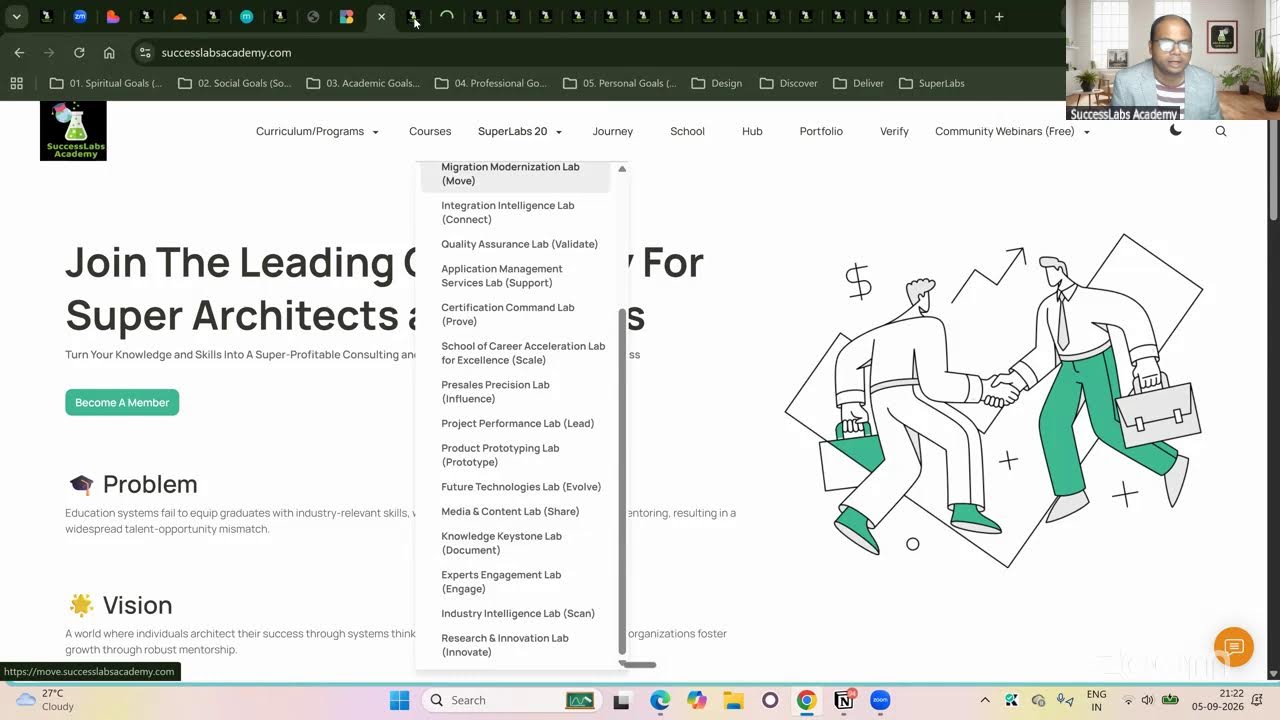
20 SuperLabs for Architecting the Future Autonomous Enterprise (Business Arch & Enterprise Arch)