"One-Click Monitoring to Resolve Payroll Alerts & Errors in SAP EC Payroll!"
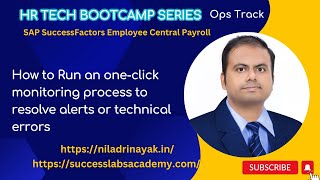
This content was created by Dr. Niladri Bihari Nayak ☁. This content was uploaded by Dr. Niladri Bihari Nayak ☁. This is a YouTube video titled "One-Click Monitoring to Resolve Payroll Alerts & Errors in SAP EC Payroll!" created on August 3, 2025. It features Dr. Niladri Bihari Nayak ☁ conducting a session as part of an HR Tech Bootcamp series. The session focuses on SAP SuccessFactor Employee Central Cloud payroll, specifically on one-click monitoring processes to resolve payroll alerts and errors. The video is instructional, guiding viewers through exercises related to payroll monitoring and error resolution.
Chapters
Hello everyone. Thanks for joining in. So welcome back to the another series of HR Tech Bootcamp focusing on SAP SuccessFactor Employee Central Cloud payroll. So in the previous sessions we have completed almost six exercises. We have tried to learn processes, policies and the basic data stuff using the data replication monitors. And if you have not done that exercises, don't watch this video and you complete those six, all the six exercises which you have completed already and complete those then you start watching this video. Otherwise there is no point, there is no point in being watching and all those videos. Right? And if you're live just to watching live in YouTube and all, just follow the pace of the hackathon for this particular boot camp and we will be having a longer version of the hackathon in the coming days but it will be helping you and to enhance your skills particular skill set and do not miss any of the boot camps. Okay, so this boot camps will be definitely helpful. So now let me continue with that what we have done so far. And I will be logging into the system and then we will be starting the remaining exercises. We will continue from there. Just give me a minute. So in today's session so we will be focusing on one click monitoring process which is also known as a payroll monitoring or your payroll simulation process. People who are coming from on premise background in SAP HCM payroll. So we will continue with that and then if any issues coming up, those alerts and all how to resolve that we will be coming across that. Right? So with that let me share my screen and we will be continuing with those exercises. So let me go back to the screen. Okay, so in this we will be talking about today run one click monitoring process. If any issues coming up, how to assign those alerts and technical errors. And we will be also looking at productive payroll process subsequently. Okay, so I'm not going through the theory part of it, you can read it through how does it work and all. And there is a something called enhancement. There's a step category in the object type which allows to define the links to be displayed in the steps. This step link will be visible in actions section of the step app. So this is something new we are going to observe anyway, right? And we will be seeing that as well. So there's a link which will be coming across right. And this in this today's sessions we will be focusing on only one exercise that is how to run a one click monitoring process to resolve any alerts or technical errors. Right? So for that matter we would be logging as a payroll process manager and see Once the payroll process manager or the payroll app. Okay, so CE wants to run the pre payroll monitoring process to identify the alerts, if any. And CE assigns alerts to team members who can solve those alerts and all. Okay, so solving alerts is not part of this exercise. Only thing is, this is another step which we'll be going through another exercise. But for this exercise, what you're going to do to start the pre payroll monitoring process, we need to check the MY process and what are the upcoming processes. We will be monitoring that for the month of January. Then we will be going ahead with the particular pre payroll monitoring process. So at present I have logged in as an administrator, if you can see that, right? This is an administrator I have joined. Okay, I think I have logged. Let me check it out. Yeah, I logged in as an administrator. So I will be logging as a payroll process manager. I think I have separate id. Just let me check it out. Just a minute. I have a ERP user employees admin user team lead. Okay, so anyway, so I will be able to do this using this as well. Okay, so what I will do, I will be going to the process. So I will be checking the upcoming processes here. So what they're expecting us to do. So I have a group number Z11. So I have something called pre payroll monitoring process. We have a posting payroll results, bank transfer, productive payroll, all the four things, whatever to be expected. This is for January. I do have a three. Okay, one, two, three. I do have. Right? And what I can do pre payroll monitoring. This is something I can move into. This is already in my upcoming processes. Okay. I will be moving into the current process. So this will coming up. Okay. As well as I can see that all the three, four processes what we have, right? It will come to my processes. Okay, so all the things we will be doing to do and let's see. And there is no upcoming processes now. And I will be going to my active processes. Active processes. And inside that we will be having. You will be having here, let me go there. Basically if I go to pre payroll monitoring process here, okay. I can see those things. So if I talk about January, I can see a lot of things are here. But let me focus on one thing. Z011. Whatever is there in the J1 1, I will be focusing on that. That is my group number. So this is my pre payroll monitoring process. Posting payroll results. All the things are here, right. So if I go for here, right, pre payroll monitor. Okay, so what is the next. So as usual we will be following the guidelines what we have here. So let's follow that whether it is having similar thing or not. Okay. On active processes, we have start to plus out of four processes. And automatically when you select this now all four steps included, it will be displayed which you are already observing. And okay, so this is something we would be looking at. Okay, so this is the process we need to follow. And we've already selected this already you have done. Okay, so when you start automatically the create taste payroll data. Okay, then we will be seeing that there are four steps or four views you will be seeing at Create test payroll data posting simulation. Initiate policy monitoring. Right? So now let's see that. Okay, so in our case also same thing is coming up. Create payroll test payroll data posting simulations, initiate policies monitoring. Isn't it? So if I go here, scroll down a bit. Okay, so this button, so you should say something called refresh button is there. We will see that this is swing completed, right? Create. Okay, if I see here, this step is already completed. Okay. So if you refresh it the program details, everything is coming up here. Simulation payroll run everything. If you want to monitor everything, you can just like the payroll log what you see there, right? So you can see that all those things coming up, selected personal number, number of periods. Okay. Total number of error messages, three and everything. And if you click additional details, some additional details are coming up, right? And it will be taking you to the payrolls that particular spool request actually, by the way. Okay, and you can go further, but I'm not going through that details here. This is not the intention of this session. So I will be going back to the our payroll stuff. And yeah, so this is the simulation payroll run which we have seen. Okay, this is the first step in this particular one click monitoring. Right? So once it is done, okay, this is already done. So it is expected that automatically to be done. So create test payroll data has been finished successfully. And there is no entries on the messages tab. Choose program details. Okay, so if you go further. Okay, so program details. So you can see the messages. There was nothing but in program details. We have already seen this, okay? And also in the contact details, this is the person who is the payroll administrator or the payroll manager who is running the payroll. So here the Emily sees running the payroll. So for that reason it is coming up here, right? So that is why we are seeing all these things. So now after going through this, so we have to go to the next step. Choose back button to the return to the process steps overview. So if you're going back Again, so here we will be looking at going back. So we can see almost three out of four process has been done. Okay, so we have a test payroll data. This is already done. Now if anything to be done here like a posting simulation and all this is already done. So this is again this you can control by the way. But this also has been the simulation has been done and initiate policy. So whatever the policies has been there and against that whatever the validation data needed. So this is something also done. So this is something monitoring is open. Okay. So if any policy violations happening and all it will tell us, right? So what I'm going to do here. So then the first step is finished successfully. Second post simulation automatically started and all the things are done. Okay. So this is. We don't have to worry much. Okay. And if you want to see the posting details also you can always go here and check the details. Okay. So if you're curious to know, you can always go there check the program details simulation posting as well as the display posting document. Okay, so that has been also done. I can see there is no errors as such. Okay. So for two persons and and evaluated and selected already. Okay. And if you want to see the further, you can always go to the additional details and it will take you there. Right? So now after it is it is done. So what it is going for it is then the display document also you can similarly go there and you can say see the. You have to see the posting all the details. Okay? Simulation posting and everything. Now as a next step, what you're going to do is. So let's go to that exercise file again. So after doing all the things. So we have checked the refresh button and check validation rules and everything is completed. Now we are seeing that after initiate policy new is completed. The last step is monitoring. And if you click 5 alerts are generated and you assigned to the right time according to Manage Team functionality. So we will be seeing that. So we have not seen this how it is work working. And what I'm going to do is I will be going to the monitoring part now and I will start monitoring this. Okay, So I can see there are three alerts. Okay, so there are three alerts. And if I go further, It is in progress again I will refresh it. Still I can see it is in progress. So process it will take some time like you see. And there are three alerts. Okay, If I can see that. And what are those three alerts? So you can see based on my mini. Actually this has been assigned. If it is A data related error. Because in the team whatever the policy, if you remembered in the previous session, we have allocated if it is data related issues. So those three alerts it will be going to the team A and if it's something else it will go into the team B. Right. So based on that it has been allocated the this alerts has been allocated there. And if you want to see further, I can go deep dive. Okay, so what are the data issues? If it is a employee missing, employee is missing the main addresses or employees missing the main band details. Those are the errors. Because this has been as data related issues. We have assigned to a team named team A. So the team A has been allocated for this. Okay, so the team the team member is Linda Lewis for who is responsible for it. And the team lead is the Adam. So Adam actually has it's automatically assigned to it. And what you can do that has been assigned to team. So you can see that those are actually who are the team lead and who is the team and all. So you can see that I verify that these are the L already the alerts are there and already has been part of the team A activities. Okay, so if you want to see further. Okay, so this is for a team A and if you go out for a team B. Right. This one error, this is a little different types of error. This is related to more of a pay variance or employees has been gross pay over the threshold a particular amount. This is a 1 error for overall threshold amount. It is exceeding 10,000 US dollar. Right. So this is another type of error. And for this you can see that again the opposite one. The team lead here for this kind of issue is Linda and the team members Adam here. Okay, so what we are going to do in this next step. So we have seen that the start after clicking the start button the the alerts number of alerts are displayed. And in our case it is actually not five what they are saying, but it is showing actually three distributed across two teams. Two and plus one. Okay, three alerts. I can see it here. Okay, so this is how how it has been. Okay. If I want to like refresh it also there are three alerts only I can see that. Right? So now what I'm going to do is the next step. If I go to the next step, choose start number of alerts. I have three alerts by the way. And after a team the number of related alerts are displayed. A team with two and another team with three alerts are affected. Right. So to assign the alerts to the Teams choose Start all and confirm with. Okay. Okay, so at present the teams are not allocated by the way, but I have to click Start all here. Okay, so what I will do, I will click Start all button. So I will click OK here. Okay, so now let's see all teams have been allocated, okay, so if I go here, okay, so now the team has been allocated to those errors and all if I go to the my teams. Okay, so for this, So we are in the process sections. Okay, so what I need to do I have to log in as those respective team, right? So what I need to do is the next step. So this part is done. Okay, we are done with this particular part of the exercise. So we have to return to the pre poll monitoring screens and team A has been assigned to alert and B has been. They are saying three alerts. Okay, so what I'm going to do is I will go to the pre payroll monitoring screen once again. So let's see this one. Right, so this has been our active processes. I will go to the pre payroll monitoring process and from here if I can see there is no alerts here showing zero because the team assignment has been already done. Okay, so if I go further I can see the team. Okay, team A has been allocated here, I can see that. Okay, so if I go further there are one. This is the one thing has been already allocated, okay, it is inactive. Okay, so this is the team, okay, so already has been allocated. If I go back to the other one, sorry, actually I'm looking at the Wrong one says Z02. I have to look at the Z double one by the way. So I have to look for Z double one. Okay, which is our one. Okay, so sorry for that. So I will go for Jet11. Jet11 prepayroll monitoring. We have a three alerts by the way. Okay, and if I go here so J11 and if I can see that the three, three alerts and it has been how it has been distributed, you can see that. So the team A assignment a bit two for team A, one for team B. Okay, so very carefully notice that whatever the allocations we have done it. Okay, so this is coming here. Okay, so I will be again emphasizing this. So let me annotate it and so that you can notice it. So we had a three alerts and we've already assigned two alerts to the team number A and one alert is allocated for team number B. Okay, so this is how the alerts have been allocated all the three based on the type of alerts because we have Put the criteria and in the policies in the earlier one. So that is something accordingly this is appearing here. Okay, so now coming back to our story. And this has already been done. Team A has been assigned two alerts in case of B. It is actually one for us anyway. So in case the system doesn't show progress at this stage, this exercise, you might need to refresh the browser. That's fine. It's already done. And other than that, we also see there is an analytics part of it. The employee count analysis and payroll analysis and text amount analysis. Okay, so this is where the you can see how many active employees we have two employees in our dummy example. And. And if I go here again, there are new hire sales showing 2. So if you carefully observe it. So in your actual project you will be having the actual head count. Okay, so you can see the statistics here in the monitoring that we have active employees too. Here we can see that active, you know, new hires too. Right. And if there is no employee who are leaving the organization, there's no attrition. So that is also you can observe here in the monitoring section. Okay, so that is something it's good to know. And you can very. You can go there and check it out as well. So this is something maybe you can be interested. So after looking at this, we will be going back to our alert sections. Okay, so what is they are saying is. So once it is done. Okay, so in the alerts sections. So choose D A and details about the alert and play basing the number of added this to choose back already you have done it. Okay, so now what they are saying is it includes conclusive exercise. Do not try to other possible options. Proceed. The alerts. The alerts are not yet resolved. So this is a. We have to stop here just we like to understand allocation of those. So basically how to identify those alerts Understanding those alerts. And we will stop this exercise here and in the upcoming exercises we will be talking about how do you solve this alerts and all right. And after. Before that there is something again a conceptual thing productive payroll process. Same process we have to follow for your typical production payroll as well. So I'm not going through that. So you can go through this and you can always look into it. Okay, so there are certain details they have given here. So how we can also details Microsoft Teams if you're having and you want to integrate. And you can also check those viewpay statement and everything that is something they have given you. Okay, so this is not. I'm going to cover so you can have to. At present I do not have a Microsoft integrated and definitely you can look into it if you're using. So at present also demo environment doesn't having the jewel and all. So you can always use the jewel AI assistant here and all and for any kind of this such thing, right? So after seeing this all the stuff, right? Then we have all the things, right? Then we understood that how to check this error and all. And now same process we may follow for the productive payroll as well, right? So once it is done, then the next upcoming exercise we will be trying to solve the alerts which are generated from the payroll processes. Okay? So hope this session was useful. And this exercises with this we have completed that exercise and in the upcoming sessions we will be talking about how to resolve those those alerts as a part of the payroll processes. Okay? So that is something we have to perform. And after doing that alerts and all solving then we will be looking at how to solve those alerts, right? Then that is the upcoming exercise. So stay tuned for that exercise. That's exercise number eight we will be doing in the upcoming session. That is a how to assign the NALA to the payroll administrator, right? So till then, goodbye and we will be seeing you in the next session. So thank you very much. If any questions queries you can always ask in the chat. And if you or you are watching the YouTube, put your comment and if you are watching in from my platform, put your comment as well there. If any questions you do have, right? So till then see you there. Take care. Bye bye. It.
More from Dr.

SAP Procurement with SAP LeanIX x SAP Signavio Webinar | Architecting the Future of Procurement

Global Compliance Navigator by Dr. Niladri Bihari Nayak | SAP LeanIX Sep 2026 Contest Entry

SAP LeanIX to SuccessFactors integration Webinar | Architecting the Future of Work

2027 Leadership for Enterprise Architects : What Changes ? | Architecting the Inner Transformation

Reporting in SAP LeanIX Webinar | Architecting the Future Autonomous Enterprise

20 SuperLabs for Architecting the Future Autonomous Enterprise (Business Arch & Enterprise Arch)