A Conversation with Dr. Frank Buck about his new book, Get Organized Digitally
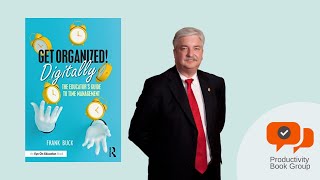
Dr. Frank Buck, a former band director turned productivity coach, discusses his new book on digital organization for educators. He breaks down his system using Remember the Milk for tasks, Evernote for notes, Google Calendar for scheduling, and automation tools like IFTTT. Buck chose Remember the Milk for its due-date handling, repeating tasks, search, and email integration.
Chapters
Welcome everybody to Productivity Book Group. I'm your host and facilitator, Ray Sidney-Smith. Thanks for joining us here for Productivity Book Group's author interview series, which brings readers and listeners in touch with new and interesting authors, and of course, their books in the productivity genre. I try to interview authors that we read or will be reading here on Productivity Book Group, as well as others that you may not know about, and they're worth sharing with you. And so of course, these interviews are in between our normal group discussion format episodes where we get together and discuss productivity books as a group on Productivity Book Group. Today, of course, I am really delighted to have back on the show someone you probably already know fairly well, which is Dr. Frank Buck. Most people are overwhelmed by the amount of paper and digital information in their lives. Frank Buck makes organization easy so you can increase productivity, decrease stress, and enjoy life. Global Gurus has ranked Frank number 1 in the world in the time management category for 2019, 2020, and 2021. Winning streak there. His career path took him from band director to principal to central office administrator, and now to productivity coach, writer, and speaker. And Frank has recently put out the book Get Organized Digitally, and the subtitle being The Educator's Guide to Time Management. But I think it's a little bit broader than that. I know it's focused on educators, but really anyone can get so much out of this. And so with that, to Productivity Book Group, Frank.
It is an especial pleasure to be with you, Ray. I always enjoy talking about other people's books, but now, you know, just to have the opportunity for the two of us who both read the book, obviously, and just work through some of the things that are special to me, that have made a difference for me, that have made a difference for other people I've worked with, and that I hope will make a difference for thousands upon thousands of thousands of people around the world with this new book.
Absolutely. I'm really excited to dig into the materials here because first and foremost, you have a book called Get Organized, and now you have Get Organized Digitally. I'd like to talk a little bit about that, and then we'll go through kind of the book. The book is broken up into 4 parts, the 4— the 3 main parts being the digital task list, then going into the idea of digital notes and digital documents, and And then rounding out your digital treasure chest, as you talk about, which is digital calendar, email mastery, and some automation features there. Let's, let's start at the beginning, which is, you know, filling in any gaps in terms of your bio that folks might not know about you. And then what led you to go from getting organized, you know, generally with the Get Organized book to get organized digitally?
Well, of course, for my bio, I started my career as a band director. I thought I'd be a band director for 30 years. Got interested in going into school administration. And one of the things that throughout those years as a band director, and then especially as an administrator, were— was how much success in the job had to deal with just being organized, being able to meet deadlines, being able to accomplish things, not be overwhelmed, making time a friend. So, I was always very interested in the productivity space. And for me, I think the thing that really thrust me into it, aside from just being organized personally to taking that to other people, was when I did my doctoral dissertation back when I was an assistant principal at a middle school. And so, the dissertation was entitled The Time Management Practices of Alabama— Study of the Time Management Practices Principles. So I'm having to, of course, read everything on this subject and so forth and so on. And one of the things that I did during that time was to put together a little workshop based on the things that I was reading. And so, so started doing that kind of on a small level. It tended to grow and grow and grow. And then also one of the big ahas during that time was there was so much out there written about time management in the business world, but so little directed toward education. So educators were having to take business books and make it applicable to education. So along the way, I wanted to sort of go the other way. Let's write something specifically for education, but that is also applicable to everyone. So if you came to one of those early workshops, you'd hear all about the Daytimer. Everything was pencil and paper because that was, that was the day and time. As my work has gone, I guess with each succeeding year, it's been more digital. In 2001, I laid aside my Daytimer personally in favor of the Palm. We all remember the Palm, don't we? Graffiti on those, you know, that little screen, that little plastic screen, and it was synced to Outlook. So my calendar, my tasks, my contacts, my notes suddenly went from being in a book to being all digital. So when I came out with my first book, Get Organized, back I think 2009 or so, it really walked both sides of the tracks. In fact, there was a chapter on, hey, here's your signature tool if you want to do things with paper. So here's how to use a paper planner. The very next chapter was, here's your signature tool digitally. So here's how to take a handheld device, sync it to Outlook at the time. And then when I did the second edition of that book that, that you referred to, it was even a little more on the digital side. We dumped the paper planner pretty much altogether, but we did still talk about filing papers, how to keep up with the papers side of your life. Well, this little thing called the pandemic hit. And suddenly, if it hadn't been for technology, we wouldn't have had school at all. If it hadn't been for technology, many of our jobs wouldn't have happened at all. And so the editor I had worked with on the last book came to me and said, would you consider doing a revised edition or a whole new book just looking at the digital side of things? Because that has now become so important to everybody, so vital. To everybody. And so hence this brand new book. When you read both of them, aside from one being all digital, the other big thing that you're gonna see is in Get Organized, I wrote that as a book that you could pick up 50 years from now and it'd still be right on target. I think 50 years from now we're still going to be dealing with some paper And we're going to be dealing with digital things. Now, the specific software we use right now, we probably won't be using then. So as you read that book, you won't see the word Apple. You won't see the word Google. You won't see the word Microsoft. It talks about practices and principles with a P-L-E, principles with a P-L-E, as opposed to the school principal, that are going to be eternal. Rather than specific tools. With the new book, I went absolutely the other way. I know there are going to be things that are going to be out of date because tools change, and we'll simply do a second edition. But this book is right now, right here, the latest and greatest of what I'm working with and what I'm teaching. So it's a real nuts and bolts, just Start at the beginning and go page by page and implement the things that you read that you think will help you.
Fantastic. And so you talk about some of my favorite tools in the book, and we start off at the beginning with a little bit of a story. You give a vignette and you follow this story of Sheldon and his experience. And so I, you know, recommend to folks to pick up the book and kind of go into that story. But the tool you choose is Remember the Milk. And I'd love to hear just a little bit of background in terms of what led you to Remember the Milk. I know it, but I think listeners may be interested in knowing the story and where you, where you came to with regard to the 7 essentials you talk about when it comes to choosing a task manager. I think that's really helpful in the book. And, and then what you think is the, is the greatest value that you find in utilizing Remember the Milk in your own productivity system.
Okay, well, first of all, let's start with those 7 essentials, and really 6 of them would have been the same things I would have told you back in 2001. You know, a lot of people use digital things and they call it a digital to-do list, and it's really not. You know, they have a little sort of digital Post-it note. This is great for the grocery list, but it's not so great for keeping up with the things you need to do 2 weeks from Thursday and the thing you need to do every year on July 1st. So I want to have note, I want to have a due date field where I can put a task, assign a date to it, sort that thing by date, and it really gives me what I had with my paper planner. Here's what I need to do, and it's organized by date. Second, it's got to support repeating tasks. There's so many things I did in the field of education. I tell people education's probably the most cyclical field that we have. There are all these things you do at the beginning of the year and the end of the year and those major projects that happen about the same time every year. Each one of them carries all these little things to do. Well, if you can capture those things one time, give them all a due date, and tell them to repeat every year, you've got it. Third thing I want to see is a little note section for each task so that when I sit down to do that task, if there's information that I need to have at hand, like a link to a Google Doc that I need to pull up, or information about how to do a particular report when the task is to do that report. When I see the task, I also see that helpful information. Fourth, the ability to search. Yeah, I've got my tasks in order, but what if something happens and my day changes? What if a particular colleague walks through the door unexpectedly, how quickly can I see a list of everything I need to talk to that person about? Let me just search for that person's name and then there are all the tasks that apply to that person. Fifth, it's got to all sync. If my information is only on my phone, it's not going to— I don't want to type all day, two thumbs on a piece of glass. And if my information's only on my computer, then I'm lost when I get up from my computer. I want it to sync everywhere. Number six, it's got to talk to my email. How many How many emails do we have that are tasks? You read 5 paragraphs and you realize, "Ooh, I need to call Bob about this." I want to be able to forward those emails to my task list. And then last, the thing that you wouldn't have heard me talk about in 2001 that has become very important over the years, voice input. The ability to take that device out of your pocket and instead of typing with 2 thumbs on a piece of glass, You're speaking, and voice recognition has gotten so much better over the years. So those are the things that I'm looking for. That's the criteria that I use. So back in 2001, it was the Palm synced to Outlook. Then the school system where I worked bought BlackBerrys for all of the administrators. Didn't have to recopy anything, just sync the BlackBerry to my Outlook account that was already existing, and then there it all is. Retired, and then, you know, one thing led to another. Went to an Android when BlackBerry sort of went out of vogue, so to speak, and wanted to go to all cloud-based. So with my tasks, I went with ToodleDoo. Didn't have to type anything, just an export from Outlook, an import to ToodleDoo. And then when some things changed at ToodleDoo and it was no longer something I felt like I could go with, I spent a full day kicking the tires on Remember the Milk, Asana, I looked at TickTick, I looked at Todoist, and the winner turned out to be Remember the Milk. In which case you then said, Frank, I've been trying to tell you this all along, because Ray, I know you had been a Remember the Milk user and had always talked about that. What I didn't realize was During the time between when I first looked at Remember the Milk, like 2007, 2008, somewhere in there, and when I looked at it again a couple of years ago, boy, it went through a major, major upgrade. I think around— was it 2016?
I, I think was somewhere around there.
Yeah, yeah, yeah. I mean, visually looks so much better, the capabilities of it. So, um, you know, and I have been very happy with it. To me, one thing the keyboard Keyboard shortcuts are so nice. You know, I've got this list and I can multi-select very easily. I want to take this task, this task, this task, this task, and move all 4 of those to a week from Saturday. I can do it with a couple of keystrokes and move all 4 of them. Or I want to move them up or down on my list just by changing the priority. The little notes section, not only does it have a little notes section, but it's automatically date and time stamped., and then you can add another note or another note, and it date and timestamps all of those for you. And the free version is so robust. One thing I was really surprised to find was you think about how many other people you work with in your life— spouse, a principal with the assistant principal, the principal with the school secretary, coworkers— and how much time you spend delegating things to each other through Post-it notes, emails back and forth, where that other person has to take that input and then somehow tweak it to put it in their system. You know, I send you an email and then you have to read that email, decide what needs to be done, and then somehow put that on your task list. With even the free version of Remember the Milk, being able to delegate tasks to another person who also uses Remember the Milk and is in your Remember the Milk contacts. Very surprised that that was in a free program.
Yeah, I really love Remember the Milk for so many reasons. I mean, you talk about in your 7 Essentials the ability to communicate with email. What I really enjoy about Remember the Milk is that it extends that to calendar, contacts, your your email, of course, and your notes. And of course, you and I are both Evernote experts, certified by Evernote to help people with Evernote. And so, the idea that it can connect with Evernote in such a seamless way— so for anybody who doesn't know, in Remember The Milk, in essence, once you have bound Remember The Milk to your Evernote account, all you need to do is click the reminder icon in Evernote. Any note then becomes an item inside of Remember the Milk, and then they are bound together and you have just a little Evernote icon in your Remember the Milk task, and you can click on it and it opens up Evernote. It's incredibly handy for so many different things, and it actually ends up being a very fundamental piece of my own system. So I really love the, the connection there. So we talk about Remember the Milk, we talk about the idea of organizing your inbox and, and, and really managing those components of that. In part 2, you start getting into digital notes, and of course you've chosen Evernote.
Talk to us a little bit about the process of explaining Evernote today versus you would have maybe a couple of years ago.
Gosh, well, of course over the last couple of years Evernote has added so much with the— with Evernote Home giving you that dashboard where Here is my calendar, and it simply reads off the Google Calendar. So I'm not having to create a whole new calendar, it's just reading off of Google Calendar. It allows me to attach notes to that appointment. So for example, this interview that we're recording right now, well, I put it on my Google Calendar and it's got the Zoom link in that Google Calendar, which means it's also on my Evernote calendar right there on that Evernote Home, that dashboard. But to go a step further, one click on that appointment, this interview, and it allows me to create a note in Evernote that's already titled and date and time stamped. And I can take any notes about what we might want to talk with you about this morning, so that when it's time for the interview, I'm just clicking right there on my calendar and bam, the note comes up. So Evernote Home, Evernote Tasks, we talked about Remember the Milk. People now have the ability to, with the paid Evernote account, to, if they wanted to keep their tasks within Evernote, they could do that. Gosh, over the last several years, Evernote Templates. Where you've got a particular form, or it might be a meeting form that you like, that you're able to save that and just use it over and over. You have so, so many things. To me, I think the big thing about Evernote, not only the last several years, but gosh, I think I had an account going back to about 2009. But you know, I was one of those people that when I first saw Evernote, I said, I don't need it. And one of the reasons I wrote so much about Evernote in this book was I think so many people are in the same boat as I was originally. Because what people said was, hey, it's a way to organize your information. And I said, thank you very much, I don't need it. My digital information is organized. I have little folders inside folders inside folders on my computer. But they said, ah, but you can take it anywhere. And I said, thank you very much, I have Dropbox. So anything I want to have from anywhere, I can just put it in Dropbox and I'll have it from anywhere. But here's the kind of situation that all that fell apart. You know, I go in a store and let's say I'm shopping at Home Depot for new ceiling fans, you know. And so you go in and there's a couple that you like, so you You do what anybody would do in this day and time. You pull out your phone, you take a picture of them, and now they're in your phone. Okay? And now a helpful salesman comes down the aisle and he's talking to you about all the different makes and models and the sales they're running, and he's talking so fast you really can't grasp any of it. So you say, "Hmm, I've got a little voice recorder on my phone. I'll just turn that on and grab his voice, and then I'll have that when I get home." And so you do that. And then there's some other things you want you want to jot down models and prices. Well, every phone's got some kind of little, you know, the little yellow legal pad looking thing on your iPhone. Everybody's got some kind of little note-taking something. So you're taking some notes there. So now you've got the photos there in your camera roll with your other photos, you got the voice note in your voice recorder with other voice notes, and you got these little notes that you've typed now in a third place. So The 3 things are 3 different places, and how in the world do you all gather them together in one place? How do you even remember what you did? With Evernote, you open one note, take the photographs, hit the little microphone icon, record the guy's voice, type if you want to, or hit the little microphone icon, talk into your phone, let it turn it into text for you. It's all in one note. You get home, it's synced with Evernote at home. You look in your Evernote inbox, you've even forgotten that you went to the store to look at ceiling fans today, and there in your Evernote inbox, there's this note that's a reminder of, hey, here's what I created today, and you just make decisions about what you want to do about it. Now, I couldn't do that with my folders inside folders inside folders. So I realized right then the difference between digital documents, that Word document that I want to be able to pull up later, and digital notes, those living, breathing things that keep me from just having to remember everything. And I want to be able to put my hands on it when I want to put my hands on it, not search through 3 layers of folders, but just hit a— type in a search term. Evernote's search capability is just— it's fantastic. And the way that it it wants to organize notes, rather than the notes being alphabetical, Evernote really likes to organize them by what I accessed last. Because so many times, the note I need right now is the note that I was just working on last night or 2 days ago. So to be able to see my most recent notes just right there, right together, It sort of works like my brain works. So we devote really 2 chapters in the book to Evernote. One to help you really get it set up. What notebooks do you need? What tags do you need? And then a lot of stories in there. For example, we talk about how a principal who's going into classrooms and observing and wants to take notes, go into the classroom, create a new note. I can type notes, I can take a photo. If there's something, maybe I'm going into the 7th grade choir, I could hit the little audio and actually record the choir singing. And when I talk to the teacher later about what I saw and what I heard and everything, everything is there in that one little note. Or as I'm just going down the hall visiting a whole bunch of classrooms, just, you know, a little bit back to back, I just create a note. And then as I come out of each classroom, just a couple of sentences about what I saw in that classroom, because you're not going to remember the next day exactly what went on before. So, so easy to just record the things that are going on. And really throughout the book, there's so many vignettes, because I really want people to understand the problems that people have and how the tools I talk about can transform and make that problem go away.
I really enjoy Chapter 6 where you talk about the concepts of finding digital documents. Of course, finding digital artifacts within Evernote especially is just so powerful. And what I really think folks should check out is really the concept of linking between notes. How you're able to link both, say, Google Drive documents or even embed Office documents, PDFs, what have you, audio, video into your Evernote notes, and then you're capable of providing links to them, both private links for yourself, individual links for users of Evernote, and even if you don't use Evernote, you can go ahead and link to your notes so that you can share them with people who are not even in Evernote. It just sends them to a webpage where they're able to go ahead and access those notes. So some really good nuggets in there, I think, relating to that. So, as we round out the book, you get into Part 3 and 4, but Part 3 in Chapters 7 to 9, and we start talking about some, maybe some higher-level things, right? When you're talking about your digital calendar and getting that structured, but the email mastery chapter and the digital automation chapter, of course, speak to me because I think of all the various ways in which I love to organize. What are some little pieces of the puzzle that kind of came together for you as you were building out the email mastery and the digital automation chapters? Were there pieces of your system that you thought, oh wow, this is really unique or interesting that kind of evolved from that process?
Well, you know, back in 2001, I think the thing that made me lay aside my paper planner and go digital was how email was not interfacing with that book. So much information was coming to me digitally, especially email. And when you only get 3 emails a day, you can print them out and handle it with the rest of your paperwork. Now when you get 103 a day, that's another story. Digital problems require digital solutions. So way back in 2001, I was realizing with Outlook that, hey, here's an email. I can click and drag that email over to the Tasks button in Outlook and it automatically creates a new task for me. It's like different parts of Outlook were talking to each other. So way back then, I figured out a way to, hmm, let me look at my email. Well, some of the things in that email I'm hanging on to because they relate to events. Here's a place I have to be this date, this time. Here are the directions on how to get there and where to park, and here's the agenda, blah, blah, blah, blah, blah, blah, blah. Well, I learned to put that on my calendar by just dragging it over there. We've already talked about Tasks, you know, how I could just drag those. Reference information. Gosh, this is good information to have later. Oh, it's a cookie recipe, and these will be delicious cookies, but I don't want it sitting in my email forever. Back in the days of Outlook, I was just dragging it to an Outlook note today, I can forward it to Evernote. Way back in the day, here are all these emails I'm just hanging on to in case I ever need them again. And people have thousands of those. If I ever need it, ah well, it's here. So I figured out, well, I could just create one little folder and just drag all that stuff there and then search that folder if I ever need it again. Well, here now I'm using Gmail and and I just archive all those things that they don't have any more action on them. I've done what needs to be done with it. I'm now just really saving it for documentation purposes, or if I for some reason needed to access information, I can just archive it. And by the time you work through those things, what to do with things that need to go on the calendar, they're event-related, what things have action on them, they're tasks, what things are reference information and what things are, I just need to save it because I need to save it for archive purposes. Now your inbox is empty. You know, you get all those things gone, it is now empty. To see the delight on people's faces who had thousands of emails when I walked in their office and then have like 2 emails when I leave, you know, the 2 that just came in that need some action. And it's so easy. It is just dirt simple to do. So to be able to share that with people, for many, it is just a real epiphany. And then another thing that has really become more important to me during this pandemic and when so many of my appointments are now online appointments where it's swivel, where it's not get in the car and drive an hour somewhere. And so I want to schedule my meetings where I'm in— if I'm going to that part of town, let me try and schedule all of that part of town meetings together. Now, it's swivel 90 degrees and talk to you in Pennsylvania. As soon as this meeting is over, I might talk to somebody else in California. So Calendly or any other auto-scheduler, but I use Calendly. I use the free version. Instead of all those emails to say, "Oh, hey Ray, we need to get together. How's Tuesday at 9 for you?" And then 2 hours later, get an email back, "No, Frank, Tuesday's no good. How about Wednesday at 1?" And then I email back, "No, can't do Wednesday at 1." And then I give you the heavy artillery, "Well, Ray, I got Thursday morning at 8, 8:30, 9, 9:30, 1, 2, and Friday, da, da, da, da, da. And then when you email back between all that, the one time you select is the time something's already gobbled it up. And then we're back to square one. So these days, when I need to schedule with somebody, I just send them my Calendly link. Calendly looks at my Google Calendar. It knows when I'm busy. And so people click that link, they see when I'm free, they click a time that's good for them. Calendly already knows it's good for me or it wouldn't have served it up to them. It puts it on my calendar, sends me a little notification, and all I have to do— oh, and by the way, I have it set up so that it not only puts it on my calendar but then turns around and sends them a Zoom link to the meeting. So I don't even have to create the meeting. All I have to do is show up and click the link and I'm in the meeting. So, for the school leaders, for that principal who's trying to schedule all these end-of-the-year evaluations with teachers, and he's also got to be present in all these little IEP meetings, and here's the poor special ed teacher trying to schedule times when the special ed teacher and the parent and the principal can all meet together. Well, it's easy enough to be on the phone with the parent, but then you've got this unknown variable. This time that's good for the teacher and the parent, is it good for the principal? Now with Calendly, you know you can be on the phone with the parent, click the principal's link, and the teacher can say, "Mm-hmm, oh good, yeah." Thursday at 8, he does have free. Click. It's now on the principal's calendar without having to knock on the door and say, oh, by the way, how's 8 Tuesday morning for you? Can you pencil that in on your calendar? It's all handled automatically. Such a time saver. I really think these days any professional, anyone who's involved in a lot of meetings, Having an auto-scheduler like Calendly is just a treasure and one more reason for your calendar to be digital. Because the auto-scheduler ain't going to work with that paper calendar that's sitting across your desk.
Yeah, I know that when I first started, the idea of using this kind of scheduling application with other folks in my world, people bristled at it. They were, oh, I don't really want to use this kind of thing. And just to see the change over the last several years, I've been using some form of scheduling application for probably close to, I don't know, 7 or 8 years now. And so, way back then, you know, people would, oh, you know, like they would be a little bit weird about it, right? They just didn't understand the technology. Now, it seems so just a regular normal thing. I think that it's getting to be very, very easy for people to understand what you're doing when you send them a scheduling link. And I have to do a lot less apologizing to people, you know, do you mind using my scheduling? Like, people just are aware of it and they're like, send me your scheduling link so I can schedule in your calendar. And it's been really, really great. One thing that you—
yeah, go ahead. Yeah, it has really moved from a what's that and sort of being like people being offended by it, you know, are you so high and mighty that you can't have a little conversation conversation with me on what's good for you and what's good for me. Well, I mean, those pleasantries are fine, but good gracious, the amount of time that it eats up. Right now, there are 12 schools that I work with in a particular grant, and right now I need to set up a meeting, a Zoom meeting, with a contact person in each of those. Without Calendly, it would probably take me a week to call those people and finally reach them, or emails back and forth with, "Oh no, this time is—" As it stands now, that's going to be one email with all of the email addresses in the BCC line, one message that, "Hey, I'm trying to schedule a meeting. It'll take us about 30 minutes." Here's my link. Hit Send and I am done. I just saved myself a week and all the stress of, gosh, who's going to be in their office now? So I just sit back and wait for all the little notifications to roll in. This has been added to your calendar. This has been added to your calendar. And I know that there's not going to be any conflict because Calendly is not going to let somebody sign up for a time that's already been taken by somebody else. I think the third— here's the third stage that I'm waiting for— is for those people who are clicking on my link and scheduling a meeting to go, tell me how you did that. Is that something I could do as well? And the answer is yes. And so when people read the book and they get to that part and go, that's how he does that, And he's doing that for free, and it's so— oh gosh, it looks so easy to set that up. Let me give that a try. Game changer, game changer.
It saves people so much time. I did, I did want to just step back a moment for folks in the email mastery chapter. When you talk about Gmail, understand that Gmail can also utilize other email services, so you can put your potentially education or work email into Gmail, even though you may just have an @gmail.com account. You can actually utilize your, your IMAP email inside of the Gmail interface, and then it becomes available on your phone and otherwise. And then you get all of the features of Gmail, which is really, really fantastic. I want to snap forward to the digital automation. You added a chapter on automating some of your personal productivity tools and talk to us a little bit about what led you to want to talk about that.
Years ago, I stumbled across, upon If This Then That, which is ifttt.com. There's so many things that we do that don't require really any talent. They just, it's just doing the thing. For example, let's say I'm a principal and I have an Instagram account for the school and I also have a Twitter account for the school. I put something on Twitter or put something on Instagram, turn right around and put the same thing on Twitter. And that's kind of my workflow. Put it on Instagram, turn around, put it on Twitter. I created a little if this then that applet that said if I post to Instagram with this certain hashtag, you know, the school hashtag, then on my Twitter account Publish the same thing, and there it is with the picture and the tags, the caption, you know, everything. I have some little automation set up so that I can be sitting on the couch in my living room and say something to the Google Home and it enters something on Remember the Milk. For example, if I say, okay Google, Wednesday blah blah blah. Then a little applet creates a task on Remember the Milk, gives it a due date of the upcoming Wednesday, and whatever the blah blah blah I said was, that's the name of the task. And I'm not even picking up my phone. So, you know, there are just so many things where you have digital tools and the digital tools can start to talk to each other.
I find that to be just the most powerful component of all of the various ways in which we can do automation is the voice input to move things around between the various tools. But I do appreciate the, the fact that there are some more basic items within all of this, just utilizing the integrations between tools that are already— they're integrated in. So like Feedly with Evernote and or Feedly with Buffer, if you're using that for social media management, there are all of these integrations that are pretty much caked into the tools you're using. Gmail has add-ons. Google Calendar has add-ons. If you're using these pieces, start to think about how the tools integrate with one another so that you actually can create those compound benefits of using tools together. I really wish that all of our tools talk to all of our other tools all the time.
Absolutely.
It would just make our lives better. As we wrap up, up, what does the future hold for Get Organized Digitally for you? What would you like to see, say, maybe in a future edition? I know that you just got this book out, but I'm really curious. What are the pieces that are going to need update? What are the pieces that you might think would come in a future edition for you as we come to a close?
Gosh. Well, we know that Evernote is going to continue to innovate, and so a next edition would, of course, take all of that. Into account. Who knows if Remember the Milk will continue to be the best place to organize your tasks? Yeah, who knows? It, it may be, you know, some other competitors that, that I would include, or something instead of Remember the Milk in a future edition. Things like, you know, I talked about Calendly. Well, just between publishing the book and now, Calendly has introduced a new feature where you can schedule group meetings. Like if 10 of us are trying to all find a time when we can all meet together, think about the difficulty there. But it'll, it'll do that for you. So it's really going to be a matter of keeping up with where we are at that future point. And between now and whenever the next edition comes out, those who are readers of my blog and that go to my YouTube videos. I try to do a YouTube video each week. For those that are keeping up with me through my website and on my email newsletter, I'm able to talk about some of the things that are happening that maybe didn't make the book or have changed since the book came out or will be changing since the book came out. So that, that's going to be the place to get the latest and greatest until we can get it in print and out in a book for everybody.
And I know that you have a little bit of a surprise, a gift for folks who are listening today. Do you want to explain what you're doing for folks who are listening to today's episode?
If you have already bought the book, either the paper copy or the Kindle version, because it's available on Amazon, you know, Kindle. If you buy the book either through the publisher or through Amazon, if you've already bought, or you do buy through Valentine's Day. Send me some kind of proof of purchase. It could be a screenshot of the confirmation or your little email confirmation, you know, or a picture of you holding up the book, whatever. Just send me something that kind of shows you actually did buy the book. My email address is just my first name, Frank, at frankbuck@gmail.com. Org. So not.com but.org. frank@frankbuck.org. Email me, and what I'm going to send you is— we've been talking about Remember The Milk— I have just finished an ebook that's for the advanced Remember The Milk user, for that person who pretty well has it down and they're thinking about maybe upgrading to the Pro plan. You know what features are in there, and they really want to take things to another level. That ebook, I think, is about 40 pages long. I mean, really nuts and bolts. I'm gonna monetize it a little later, but for you it's free. So get the book by Valentine's Day, and the ebook I will email to you as a free gift for kind of being on the early side of things here. Wonderful.
That's really lovely. And thank you for doing that for listeners. And so with that, how can folks keep up to date with your work generally in the world? And then we will close out.
Okay. FrankBuck.org is my website. So go there. And first thing you do right there on that home screen, you're going to see a place where you can get on my email list. You're going to get 2 things right off the bat. One is the first chapter from the last book that I did that's going to get your desk clean because I know we've been talking about digital stuff, but we all still deal with the paper. This is going to get your desk clean once and for all. And then a few days later, you're going to get an ebook on Remember the Milk that's really aimed at the beginning user, how to set things up, a good methodology. You get those 2 gifts free., and every week you get an email from me letting you know new content that I have posted, things that I'm doing, and little tips. Yeah, when I read something that is meaningful to me and I think other people would enjoy this as well, that gives me a way to share that with other people. So frankbuck.org, get on the email list, start going through all the blog posts. You know, you could binge on those for a while. Just the things that you're looking for, a little search window where if it's Google Calendar things you're looking for, search for that. If it's Evernote things you're looking for, search for that. Remember the Milk, search for that, and it'll pull up the posts that relate to that particular subject. So we look forward to seeing a lot of you over there on the website.
Well, fantastic. Thanks so much for joining me in this conversation about your new book, Frank. This has been a pleasure.
Pleasure. Oh, pleasure as well. All, all mine. Pleasure's all mine.
Thanks. All right, everybody. That was Dr. Frank Buck. He's the author of Get Organized and also Get Organized Digitally Now: The Educator's Guide to Time Management. And so with that, we just have a couple of quick announcements as we close out. One is our next productivity book group reading discussion will be on The High Five Habit Take Control of Your Life with One Simple Habit by Mel Robbins. We're going to be doing that discussion on March 30th of this year, 2022, at noon Eastern. And you can find all the details by going to Productivity Book Group and clicking on productivitybookgroup.org and clicking on the upcoming books page. So just click on upcoming books and you'll find out details to all of the discussion items. You have to scroll down and there's a calendar event link there. You can click on the calendar and it can add the calendar with Zoom details so that you can join us. All of our episodes are archived on productivitybookgroup.org. So, if you want to go back and listen to my original interview with Dr. Buck about his first book, Get Organized: Time Management for School Leaders, you can— that second edition, you can go ahead and find that in the archives under episodes. Okay? So, all of our calls, all of that stuff is there. And I know that the podcast feeds of some of the podcast apps don't have all of the episodes, right? They cut off at some point, but all of them are on productivitybookgroup.org. Group.org. I want to thank you for listening to this episode of Productivity Book Group, this author interview series episode. I'm Ray Sidney-Smith. Here's to your productive life, everybody. Take care.
More from Raymond
The Checklist Manifesto by Atul Gawande MD Productivity Book Group Made by Headliner
First Things First by Covey Merrill and Merrill Productivity Book Group Made by Headliner