How to Set Up GTD in Trello | Step-by-Step Guide for Getting Things Done
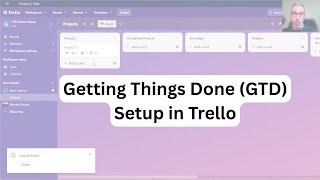
Raymond Sidney-Smith builds a Getting Things Done system in Trello using three boards: Next Actions, Projects, and Weekly Review. He shows how to set up labels, automation rules that auto-assign tasks and move cards between boards, and email reports for upcoming work.
Chapters
All right. So what I wanted to do today was to walk through a, I think, as simple a setup in Trello as possible using the principles of Getting Things Done. And so I'm hoping that this edifies everybody a little bit about how to utilize Trello better, but also, and most importantly, it hopefully informs your way of using your own GTD system. No matter what tool you use. So this is not specifically a Trello tutorial. So I'm going to walk through fairly quickly some of these items that are Trello specific, but I am going to show you really how I'm thinking about the, the implementation of Getting Things Done into a Trello system. And so I use Trello right now as my primary Getting Things Done, next actions, projects, and otherwise lists management tool. And I find this to be really useful. So I'm going to be showing you most of what I do just in terms of the setup, and then I'm happy to answer questions as well, whether you're here or after the fact, you know, if you're watching this in the, in the replay. So you can see here that I have a workspace dedicated exclusively to this particular thing, but you could add these 3 boards to any existing workspace that you have. Uh, it's obviously better if you have the non-free version of Trello, but here I've set this up in the free version and it can run in the free version. You're just going to be limited to the number of automations that we're going to be talking about later. That's, I believe, 250 automations per month, I believe it is. So either way, what I've done is I've created 3 different boards and I have a little cheat sheet here to my left on my other screen just to kind of walk through the things that I've done. But starting off, I've created a Next Actions board, a Projects board, and a Weekly Review board. And this will come into play in a short while. But the idea here is that my Next Actions should be the place from which I'm driving my everyday activity. Throughout the week. And then Projects Board is where I'm checking in with those things that are projects. And as anyone who knows me, I've talked about before, I think of anything above Horizon basically 2 as being a project as well. So if you think of anything from the Areas of Focus and Accountability all the way up to Principles, Purpose and Principles, those are all really projects to me in my mind. And so I, I manage them as projects. And so I put them into the Projects Board. You could, in theory, create a separate board for each of those, you know, horizons. I think it's overkill, right? Because it's just a list. So I park those inside of projects. But again, if you want more separation, you could technically go ahead and create the additional boards inside of the workspace to go ahead and do that. So let's start off in the Next Actions board. And just from a quick action perspective, I would automatically star this board so that would always show up at the top of your list of boards. When you're in Trello. So I would just star that board. Um, and if you need to, you can star the others, but I just find that finding my next actions really quickly by making it the first thing that I see is really helpful. I'm currently using the Trello desktop application. This is sitting on the Windows desktop computer that it's in front of me right now, but you should be able to do this in the web browser and in the other applications across the other operating systems pretty much the same way as well. So we're going to go ahead and create a few different lists and, uh, and then work through those various lists. So first and foremost, I want to create an inbox, and that's obviously for capturing new items. A Trello board has its own email address where you can email into that Trello board. So that means your next actions list is going to be able to be processed both from emailing it directly into the inbox or setting options within the automations, that is within the board, to be able to move things automatically from your inbox to your actions list if you need to. So we're going to go ahead and create a next actions list. I've also named these so that I'm able to differentiate them when I'm moving things across different boards. So they have slightly different names so that I'm able to do that. And then we have Completed, and then Later. Okay. So what this does is this just gives us a very, very clean set of lists to work off of. And so the idea would be is that if I had a new action that I came up, some new open loop, I would put it somewhere in here into my inbox. Now that could be, you know, call Susan about TPS report. And when I then go through to clarify my inbox and organize, I would, I would potentially start thinking through what this particular open loop really means to me. So for example, the TPS report may need some kind of overall review and approval. It may spur another project altogether. And so this inbox gives me the ability to keep creating the additional items as I'm clarifying what that one particular captured item may be. And I think a lot of people tend to think about when they're capturing as being that captured item needs to be processed clarified and organized into some other place, but in reality, it should be a jumping off point for the actual work that needs to be done. So think about it from that overarching perspective, and I think it starts to help you ideate more within the inbox list. And I know that sounds like it's making more work for you, but it's actually clarifying more work for you, which then creates less problems down the road. So this might also mean that you have another project that kind of spurs from your thoughts here, which may be that there's a quarterly report for, you know, marketing department or whatever that might be, right? And which means that that project itself may need to move. So you can right-click on something and click Move. And that can of course then go to our Projects board within this GTD demo. So I can go move that to the Projects board, choose the appropriate list for it. There's no list right now, so it can't move there. But you get my point, right? Like we can go ahead and now decide based on this where things can go., but we can move things directly from the inbox to the appropriate board and list it belongs to right there from the inbox if necessary. All right, I'm gonna go ahead and just archive that so we don't have to deal with that. Uh, but you know, say that we have a particular, uh, task like this and we organize it. I can say, you know, uh, 202-555-1212 is Susan's number and, uh, I wanna be able to just talk to her about a few things here. And so I make some notes here, right? You know, bullet point 1 needs revision, you know, update stats, those kinds of things, right? And once I've got this fully clarified, now it just moves into the next actions list. Now, of course, this is a next actions list, and we want to be able to appropriately engage with that work, which means that we need probably some level of context. So you can go ahead and now create labels to determine that context, I like to go in here and create some labels that help to define the work that's going to be done. This is for efficiency as much as it is for engagement. So don't think about this really as, as a, a mechanism for being able to be overly finite about all of the things. So the fact that I start every action that is a call with call and the person's name and then their phone number removes my need for a separate next actions list in Trello because, uh, for calls, that is, right? I don't need an @calls list because I could type F and type in call, and I'm going to now automatically get a filtered list of all of the calls on my next actions list. So you see how easy it is for you to be able to summon that kind of thing just by having the appropriate consistent naming of your action verbs at the beginning of your next actions. So this really removes a lot of that kind of headache. Plus, you're really working from a week-to-week perspective here. When it comes to the Next Actions list. So I'm moving anything that's not happening this week from Next Actions to Later. And that Later list is manifesting that list of anything that's gonna be beyond the next week that's imminent work that needs to be done. So here, once you click Escape from the filter, so just to go back here, when I went to filter that list, you just tap the letter F and that opens up the keyword filter. So for me to be able to filter for the word call, all I have to do is type the word call and then take my fingers off the keyboard, And obviously the search then executed. Now to get out of this, I'm just going to click Escape to leave the filter window and X, and that is going to go ahead and remove the filter completely. So now I'm back to the full view of all of the actions on the list. I'm going to go back to labels because there are some labels that I do want to create that are not related to this. So first and foremost, we're going to create a label called Today. I liked having a Today label because there are things that need to be done today, and I want to be able to very quickly and easily be able to know those things are happening. And so, uh, again, uh, just not that this is the overall arching Trello tutorial, but Trello gives you the ability to go ahead and automatically label, not automatically, manually label, uh, cards within your boards through the numbers on your keyboard. So 1 here is the first label, which happens to be the green label, the one that I created that says today. So just by hovering over the card, I can label and unlabel that card with the today label. Now, if you ever see your labels like this, which are little green, uh, um, you know, markers, you can actually just click on it and it will expand, expand and show you the actual label name, uh, if there is one. So I like being able to just do that. I'm going to leave them expanded so you can kind of see this. Next, I'm going to create a label called agendas. I'm going to create my next one for work. I like having a label that's specifically dedicated to focus work. So if I need to be able to spend time really, you know, focused on a particular project or problem, I want to be able to have that identified so that I spend the amount of time necessary and the appropriate amount of attention on that item. I like differentiating my work between work and personal. I know that really doesn't matter, but I just happen to like it, so I'm going to do that. And I like to track my volunteer time, so I create a label for volunteer. Again, here you get to decide what these these particular ones are and you can create new labels. You only have the ability to use this number keyboard up to, I believe, 9. So 1, 2, 3, 4, 5, 6, 7, 8, 9 on your keyboard. And then you are manually labeling these by either clicking on the pencil icon and then choosing the label or clicking on the card and choosing labels from here and checking them off in terms of the left hand, in terms of these left-hand little checkboxes on, on the label items. I like having the ability to say, okay, this is, uh, an item that needs to be done today. It's work-related, so it gets a 3 and it automatically labels those things, uh, what they are. Okay. So this gives us kind of a layout for how we can move things around in terms of actions. If this was not being done today, say I need to do this next week, I'm just going to drag this to later because I'm going to have looked at this during my weekly review and then determined that it was an action that needed to be done in the coming 7 days and therefore be placed back onto the next actions list, but I don't want it cluttering my next actions list, um, on a general basis. Now, once I've called Susan, so this goes to my next actions list. I call Susan, I talk about the TPS report, everything gets done. I just place it into the completed list. The reason I have the separate completed list and I just don't immediately archive it is that I actually want that data to be looked at during my weekly review. And it's kind of motivating for me to see all of the work that I've accomplished throughout the week. So the completed list kind of fills up over the course of the week and I'm like, yeah, rockstar. I got all this stuff done. I feel good about it. And then during my weekly review, I can go ahead and just see that all of those things are attended to. If there are new items that are birthed from those actions, right? So I see that I called Susan about this item. Well, now I know that there's something else that needs to be done and I didn't actually capture that into my inbox. I could do that now, uh, during my weekly review and then archive the list of completed actions from the weekly review board. So. Those are creating all the lists and labels here in the Next Actions board. What we're going to do now is we're going to go back to our GTD workspace and here and boards. And so we're going to go to our projects board and now set up the lists for those as well. So here again, we're just going to create a series of lists that help us manage the various projects. Again, like I said, you could have multiple boards. I just like the simplicity of having a few. My first one is going to be a projects board. This is of course Horizon 1. I need completed projects because again, as I complete things, I want to be able to review those in the next weekly review. And if I archive them, then they're out of sight and out of mind, and I want them to actually be present and visible for me to be able to review in my next weekly review. I moved some days and maybes to the projects board because I don't want them on my next actions list explicitly. I think it's too much clutter, but you could have these some days and maybes on your next actions list if you really feel like the majority of the some days and maybes are not projects and they're predominantly actions. They can be either. And so you really need to determine how much of any one is going to be worth you putting into your, your peripheral vision as you're looking at your next actions board. I tend to have projects as my some days and maybes. So I just put them here. You know, there are occasional actions on some days and maybes, you know, there are things that need to be done at a date or time certain. Those tend to be in the calendar if they're actions. And then the projects tend to be here on the board. Okay, so we have Somedays and Maybes also. As, as many of you know, I separate those. Somedays being things that will be done in the future, right? So there's some condition or time precedent and then they become active. Maybes are wishlist items, you know, it's, uh, it's the stuff that you, you may, would, could, should do and you have there on the list. Next, I'm going to create all of the other horizon lists. So I have an Areas of Focus and Accountability list. And this again, the old terminology being the roles and responsibilities. You can call this Horizon 2, whatever you'd like to. I'm going to just scroll over here to the right so you can see. I'm going to create a goals and objectives list. This again is Horizon 3, so 1 to 2 year goals. We then have visions. These are 3 to 5 year type projects, and then purpose and principles. And purpose and principles for me, which is Horizon 5, really happens at every stage of every project. So those tend to be embedded in the projects. But this is really nice if you wanted to be able to put together a card that had various types of principles that you wanted to use on an ongoing basis related to life and work. So I like having the ability to kind of put it here if you want it to be here. And that's pretty much as simple as it is. I don't over-manufacture the list here. I don't think there's a reason to do so. But here, your projects would be then resident here on your projects list. And within the project, you would have kind of an objective for the project, right? So you would put in an objective for the project, you would be able to attach any resident documents or items related to it. You can, of course, attach Google Drive links, you can attach all kinds of things here. You can also attach other actions or projects. So if you really wanted to, like, for example, this Project A might be related to an action that I have in my next actions list. Say this TPS report, this overview, overview, I think I meant to put quarterly review here, but quarterly review and approval. Say that I needed to relate this to Project A, I could easily do that just by, see down here you have these recently viewed items., but I can search for it as well. But here you can see Project A, this is a card on another board. I can go ahead and attach that card here and now I have a direct linkage between the action and the project. So where some people want to have an, an action identified for every project in their system, you can actually create this kind of, uh, connection. The good thing about this is that you don't have to go now to the Project A, card and connect it also here, right in Trello, they give you the option to go ahead and connect and relate those both cards. So I can go here, if Zoom would let me, I can go ahead and click relate the cards. And now those cards are going to be connected to one another. So if I go now to Project A, you can see here now that I did it twice by accident. You can see here now that I've automatically related those cards to each other. So it automatically created this linkage. So all I have to do is click here, it takes me back to that board, board and to that card that I was on so I can quickly get back and forth between various items that are related. So I have multiple actions that are related to a particular project. I can go ahead and add that related card on the other board to that project that has all of the embedded project support materials, perhaps a status, you know, I might put many times in my projects, I'll put like a project status update directly in the, in the comment or activity comments of the, of the card. And this really helps me make sure that I'm keeping on top of all of the various items. I very infrequently use checklists because I find that they're not visible. And I like the idea of the personal Kanban approach, which is, you know, keep your work in progress visually present, right? So you want to visualize your work and then limit your work in progress. So you can't get everything done and you need to be able to limit that work in progress to be able to actually make progress on more than you think you do. To do. So the goal here is for me to be able to keep it all visualized. So if I do create a checklist for a project like this, it'll just basically be created here, you know, and I'll typically call this Project A Checklist. And then in here, I will be creating the work. So Task 1, Task 2, Task 3. And, and when it's ready to be activated, I'm going to go ahead and convert this to a card, which here now creates the card itself, but I'm going to go ahead and move it to the appropriate board, which is Next Actions, and then add it to the actions list, the Next Actions list, so that I can go ahead and have it in the right place, right? So it's about just making sure that you're, you're creating the work in the right places and then moving it where it needs to. But that's very rare. Sometimes I will just copy the action here and then, and then go directly to the board. So I'll just go to Next Actions and then it'll go either into the inbox if it needs to be processed or directly to Next Actions. So I can just copy and paste it if there's really nothing more to it than just the action itself. So it can be very helpful in terms of doing those pieces. Okay, so projects board is all set up now. Very simple, right? Very easy. You have your items here. You can actually provide yourself with a little bit of guidance so you could create a description card. Here, if you wanted to be able to provide a little bit more, you know, just information for yourself around your areas of focus, you could create all of the areas of focus that you have here. So you could say like husband, you know, father, brother, sister, whatever it might be. And then identify your goals. What are you going to be doing on an ongoing basis as that particular role, as that responsibility, right? And if you, if you're a strategist for your company, you know, like what does that really mean? What is, what are the metrics that you're holding yourself to? To on every month, quarter, day, whatever it might be. And so you can go ahead and track those items. And, uh, there's a pin option where you can pin items to the top of a list using one of the power-ups within Trello. So you could potentially do that as well. So lots of ways in which you can kind of manufacture these lists so that they're more useful and visually appealing for you. I like making particular projects colored. So you have the COVID option within the card and you can say, I want this one to be, say, red, and I want the whole card to appear red, you can also use images. You can see here now that this card appears as a full color. And just for everyone's edification, you can see here that I've turned on the colorblindness, the accessibility tool. So you can see that these have little dots or slashes or whatnot. And it's just so folks who might happen to have some kind of colorblindness or accessibility issue can determine what color this card is or which card this is based on not being able to see visible colors. Okay, so, so yeah, so I like having the, the option to have, you know, like the red card represent particular types of projects, green cards represent particular types of projects, and so on and so forth. So you can color code some of these very easily. All right, we're going to move on to our weekly review board. And this actually came about because OmniFocus has this really wonderful and thoughtful capability that allows you to go ahead and kind of have a facilitated weekly review process. And I was jealous. So I thought, well, let me create one that I could use, that I could have. And I wasn't really able to manufacture that in any other tool. I kind of wrote a lightweight JavaScript version of that in Remember the Milk, but I'm not that good at JavaScript. So I didn't want to spend the time and energy to kind of get to that point. I think I will at some point still want to write that because I think it would be really kind of just fun and nerdy to create that in Remember the Milk. Milk. But for the most part, I wanted to be able to do it lightweight and really quickly. And so Trello gives me some or many of those capabilities. So what we're doing here in the weekly review board is creating all of the lists that are in all of the other lists. So we are, we're just basically duplicating those. So I'm going to very quickly do this. Note that, again, I named some of these a little bit different, so that I I could determine the difference between them. So like this.inbox actions and so on and so forth, they're mildly differently named just so that I'm able to determine the difference when I am selecting them from lists across the boards when I'm doing the automation. So we have an inbox actions, completed actions, completed projects, and then all of the other various lists. So I'm going to put a dot in front of all of these. And we're gonna just quickly create these. Somedays.maybes.projects.areas of focus and accountability. Goals. Visions. And purpose and principles. And again, I don't need these to be all that descriptive because, you know, I can, I can rewrite these over time. But in general, I just want to know what these are so that I can go ahead and map them. So now we have 3 boards. We have next actions, we have projects, and we have weekly review. So in order to be able to do some of these things just a little bit more fluidly, I like to use the automations functions within Trello. So Trello gives us the ability to create create very different types of automations, rules that allow you to basically automate actions based on some kind of trigger. You can also schedule these items so that they happen on a regular basis. You have buttons both on the card and on the board. And then you can email reports based on the activity of a particular board at a set time, say, once a week, once a quarter, once a month. So what I did was I created a few things. One is, and this is just for you to get some idea around it, is that I created an auto-labeling of certain things so that, for example, I could create an auto-label and just do this for, just for ease of doing this. I'm going to, I'm going to create a new automation. And the new automation is going to be such that when I create a card, right, so a card is created in the board, right? So when a card and I'm going to say here, let's see. Yeah, when a card is added to the board and we're going to do this. Sorry, this zoom is always in the way. And so when I create a card that's added to the board, I want to make sure that the content, content of the board is changed. Oh nope. Where is it? We want to add or remove a label. So here on the add or remove, I want to go ahead and add this particular label. But I did this wrong. So I'm going to go back here. So the trigger actually is that the content of the board, when a name of a card starts with, I want to say contains the word today. Oops. Then I want to be able to go into that particular, for that card, I want to go ahead and make it add the label today to the card. Card. Okay, so this can be for any number of things, right? But just as the most basic example, that means that whenever I email a card into the board, when it's added, if it has the word today in it, it's going to automatically label it today. Now I could do more than that, right? So go here to the ones that are enabled in this board. Okay, so I see here that that's great. I can go ahead and say anytime I email a card into the board and I have the word today in it, it'll go ahead and label that today. That'll give me a very quick filter. But I actually want to add more to this. What I want it to do is I want it to actually go ahead and move the card to the top of my list, right? So I want to be able to move the card to the top of the list. Let's say actions to next actions list. I want it to move it to the top. And I also want it to go ahead and add a due date, right? So I want to set a due date. And I want that due date to be 1 hour from now, right? So it gives me this ability to say, I'm going to get a notification from Trello. If I email a task into Trello, I want it to be able to set a due date. It could be a start date. It could be not in an hour. It could be in 2 hours. It could be whatever. But I want to set something that tells me that I'm going to get some kind of notification that before the day is out, this thing needs to get done, right? So you can do all of that in one fell swoop. And now I save that rule.. And you see here I have the option of, um, email to board. And you can see that there's this email address that I can go ahead and, uh, utilize. And when I email into the board to this email address, if the subject of the email has the word today in it, which I'll make sure it does if it's something that has to be done today, I can just email myself a task and it's auto— automatically gonna be doing that. But more importantly, if I just write in, you know, call Susan today about the TPS report, when I do that, because it's anywhere on the board, you can see that it automatically was tagged, labeled as today, it got the due date listed there, and it's due in an hour from now. So it really speeds up my checking myself, making sure that I'm getting things done. And it's going to go ahead and ping me because I have my notifications set up that, you know, I'm, I want to be alerted when things are due at a particular, at a particular time. So this is just a really quick way in which you can give yourself notifications for things that does require you to turn on notifications in the, in the application you're using or in your browser if you're using Trello web. And then of course, if you're using Trello mobile, you want those notifications turned on in Trello mobile and you want to be logged into the application as well. But just to give you some ideas about how you can automate some of these pieces. This takes us then onto the weekly review workflow that I was talking about earlier. So because I've created all of the lists on the weekly review board, and I'm not going to do this, uh, you know, uh, all told, but I just want to show you what I'm, what I'm talking about. What I did was on the next actions list and on the projects, I'm sorry, next actions board and the projects board, I have created a an automation that basically moves all of the cards on all of these lists to the weekly review board, right? So what happens is I've gone in and I've said scheduled, and then I'm creating an automation for the schedule. And that automation is going to say every doo doo doo Uh, no, it's every select days at a particular time. So it's every Friday. Let's see, what did I do? It was every Friday at a time. Yeah, so every 1 week on Friday morning at— I do my weekly review at 7 AM Eastern, right? So every Friday morning at 7 AM, all of the items that live on all of my cards, right? I go ahead and move them all. So I go ahead and say move all cards from inbox. I move those to the, the board, which is— here it goes— GTD Demo. Where's the GTD Demo? Let's see, I can actually just type this GTD Demo. It's not coming up for me. Where is it? I think this is just not liking me because I'm not inbox and it should be on the GTD. Oh, I'm sorry. It should be on the weekly review. That's what I was getting wrong. So it should be on weekly review. Sorry, I was choosing the workspace, not the board. Uh, so here I want this to be on the inbox list, right? And on the weekly review board, right? And now I can set this up for each one of them. So now I can say next actions, I want to go to the actions.actions on the weekly review board. I want the completed to go to the completed actions on the weekly review board. And I want the later to go to the.later on the weekly review board. Board. Now I'm going to go ahead and save that, and you can see here now— let's go to enabled— I've created this scheduled automation. Every 1 week on Friday morning at 7 AM, all the cards in the inbox are, uh, next actions, the completed, and later are all going to move to the weekly review board to their respective lists. So they're all going to move over. I'm going to do that for the projects board as well, right, which on the projects is going to be all of these lists. So all of the items on each of these lists are also going to move over to the weekly review board. Now, Friday morning, I sit down to do my weekly review. I get my matcha latte, which I love to have during my weekly review. I get my yogurt. Uh, I sit down to do my weekly review and voilà, it is all here on this board, ready for me to review. I go through my weekly review checklist and you can even automate creating a card with a template to be able to do that. So you see here we have these little template cards, you can create your own weekly review checklist and work through it. So you could do any number of ways. I have mine in Evernote. So I just have my weekly review checklist, I do my little journal, I do the, the aspects of the weekly review, it gets all done. And now this is all here. And what I've done now is I've created another automation. And in this case, I'm using a board card. So here we have a board button and I'm sorry, I, I said board card, a board button or a card button. I'm using a board button and the board button is basically going to reverse all of that work. So I call mine Finish Weekly Review. And what's gonna happen is I'm gonna say move cards. And again, I'm just gonna move the cards back to where they came from. So.inbox is gonna go back to the again, weekly review. Sorry, this should be next actions. So I'm going back to the next actions board, right? And I'm going to go ahead and now this, all the things that are in the inbox, which should be zero items technically, right? I should have that inbox zeroed out. But you know, maybe the weekly review is running late and I don't have time to, you know, clarify and organize everything. Everything from that list is going to go there. I can say everything from my actions list. Remember, I'm gonna, I'm gonna look through my actions list and I'm gonna be determining, are all those actions to be done now? Are they some days? Are they maybes? And those things are gonna move to those respective lists during the weekly review. And that's why I want them all on the same board so I could just really quickly drag and drop them, uh, you know, from one list to the other right then and there. Um, so that gives me that opportunity. Once it's all done, I now want it to all go back to the, uh, the originating boards, uh, so that they can be ready for me to be, to be getting into action for the next week, right? So my actions are going to go back to Actions. My, my Later is going to go back to my Later. And I don't move my completed actions back to my list, right? So those are all going to be archived during the weekly review. So I'm just going to click on Archive List and everything on the completed actions and completed projects, because I've reviewed them during my weekly review, is going to go ahead and be archived as well. But for my projects, right, so I'm going to type in project I'm gonna go ahead and move all of the project items. Again, completed projects is not going to move, but some days are gonna go back to some days. Maybes are gonna go back to, uh, maybes. So dot maybes is gonna go back to maybes. See why I named them kind of, uh, different so I can just like determine what they are. Uh, my projects are gonna go back to projects. These are all my active projects and so on and so forth, right? I'm not gonna keep doing this 'cause it's You get the point. So once I'm done, now I click save. And now if I go back to the board, say it's Friday morning, it's probably 8:30. I've done and completed my, my weekly review. If I have items captured, right, inbox item 1, inbox item 2, say that I didn't empty my inbox during my weekly review, but here goes task 1, task 2, task 3. And let's just add a couple to projects so that we have Project B because I already have Project A, Project C, Project D. What happens now, I click Finish Weekly Review and you can see this automation now starts running. And what's going to happen is, is that the automation is going to move. You can see those items moving in real time. These items are now going to move as well and they're all going to move now from from this list back to their respective boards. So now I have on my Next Actions list, you can see now those inbox items moved here, those task items moved here. If I go to projects, my projects now have moved to the projects list, and so on and so forth, right? So everything basically gets restored back to where they came from by virtue of that board button when I finish my weekly review. And it just makes it incredibly easy for me to just kind of think it through. Now you could set this as an automation, because what happens is if you don't do your weekly review a particular week and some of you may miss a weekly review, you're going to go back to your actions list and they're all going to be empty and you'll be like, oh my gosh, where are all my actions? Where are all my projects? They're just basically living on your weekly review board because the automated scheduled automation, uh, now, uh, pulled them in. Um, you've got to go back to your weekly review and click on it. But if you know, you know, generally by 9:00 AM every Friday morning, you've completed your weekly review. You could set this as a scheduled automation and have it move it back automatically. Okay, so you could have that kind of perspective there and set it up that way. I like to manually press the Finish Weekly Review button. And you can see here that it's showing up on every board here. And I actually like to turn that off. I like to actually have the automation set up so that the board button is only available on the weekly review board. And in that way, I'm just— I, I don't like having it on, on every board. And there's a way to to turn it off so that it's only on that particular board. I don't, I don't see the option right now, but, um, you can, you can set it up so it's only available on that particular board. Oh yeah, here it is. Show on this board. And so, um, so then it only shows it here on this board and it's not going to show up on the other boards. So it's going to disappear. It's not disappearing from this board. I think we can remove it from here. I think because I didn't set it up from the, from the beginning, um, it's going to show on. Here. No, there's a way to turn that off. Oh, there it goes. I think now it's gone. Yeah, I just needed to update. So you can see that I set it to show only on that board. So it only, it only shows there. I don't like it showing up on all the boards. Okay. So, but that gives you kind of the general idea about that piece. And then the final element that I have is that because I'm working off of my next actions from a week to week basis, I like to set up a final automation on here, which is to send a report. And as I said before, we have those 3 types of automations within the, within Trello, and that's rules, buttons, and email reports. So I'm going to create an email report where it basically gives me the cards that are, in essence, that are going to be due soon. And that's all the cards that are due within the next 7 days on this particular board. So every Sunday, I want mine Sunday at 10 AM. And so Sunday at 10 AM, I have my my email address. In most cases, I actually add my Evernote email address here, as opposed to my email address, but you could put whatever email address you want. So I'm going to put in my, my email address so that it sends it to me. You can see here, I can say next actions for the week. And then you could put in whatever message you want. I like to put in a little motivational quotation or something like that for, for fun, right? So you can put whatever you want in there. Now you can see here it's giving you an email preview and you can see that this item is due today. So that's within the next 7 days. I'm going to schedule this report every Sunday at 10 a.m. It's going to take all of the cards in that list and it's going to email them to me. So after my weekly review, I'm going to work my day, right? I'm going to do everything I needed to do on Friday. Day, get things across the finish line. On Sunday, I'm going to get a nice little email that pops up into my Evernote inbox that I can then review and say, okay, these are the tasks generally that I need to do over the next week. Great, let me review that, prepare myself for Monday, and I'm ready to go. So it gives me this nice little kind of cycle by which I'm working against the tasks, the projects, and having a review process all built into Trello that is working with my other systems very neatly and nicely. You know, Trello allows me to attach Evernote notes so I attach those notes to my projects and to my next actions as I need them to. And it gives me these kinds of automations both on the card level, on the board level, and then of course through emailed reports so that I can go ahead and really stay functional as it relates to all of these pieces. So there it is. That's the very, I think, easy setup of GTD, you know, of a GTD system inside of Trello. And I hope it was useful. I hope this really gave you some insights into kind of how you might use this in the future. And yeah, any, any burning questions that you have? All right, good. Well, if you have any questions for those of you who are watching the replay, feel free to ask those questions in the comments below. Happy to answer those questions. And then otherwise, we'll do more of these. I think it'll be fun for us to walk through different kinds of setups and different systems and to see how they work for you. All right, take care.
More from Raymond
The Checklist Manifesto by Atul Gawande MD Productivity Book Group Made by Headliner
First Things First by Covey Merrill and Merrill Productivity Book Group Made by Headliner

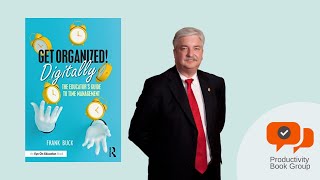
A Conversation with Dr. Frank Buck about his new book, Get Organized Digitally