An Introduction to Evernote's New Feature, Home! [audio only]
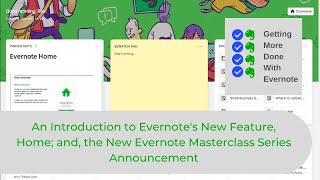
Ray Sidney-Smith walks through Evernote's new Home dashboard, a customizable three-column widget display that works across Basic, Premium, and Business accounts. He covers which widgets are available, how to customize them, and the 300-character Scratchpad limit. A three-part masterclass series starts January 18, free live sessions on Mondays at noon Eastern, with premium recordings available through the Personal Productivity Club.
Chapters
Hello and welcome to Getting More Done with Evernote, episode 14. In this episode, Evernote just launched a new feature called Home, and I've got a big announcement for you. I'm your host, Ray Sidney-Smith, Evernote user since 2009, Evernote Certified Consultant, and Evernote Regional Leader for North America. As you can imagine, I love Evernote, and with Getting More Done with Evernote, I hope to help everyone love Evernote, or at least enjoy digital note-taking a little more with each episode. And so on with the show. Evernote is launching a new feature and it should be rolling out in your Evernote accounts very soon, in your Evernote desktop software very soon. The feature is being called Home in Evernote. According to its release notes, it's stating Home as, quote, a new one-stop dashboard that puts the information you need front and center, neatly organized and instantly available, end quote. Using widgets, Evernote displays different content within your account to you in a, quote, convenient and streamlined view, end quote. Evernote Basic comes with Notes, Scratchpad, which has a 300-character limit, and a Recently Captured widget. So those 3 widgets are available to you in the dashboard. And then Evernote Premium and Business accounts get additional widgets, and those widgets are the pinned note, notebooks, tags, and shortcuts widgets. And those each allow you to have one of those widgets. So one of those 7 widgets can be put into your Evernote home screen area, that dashboard. Evernote Premium Business accounts also get the ability to customize the widget appearance, meaning that there is a background. I'm going to talk about that very shortly, and you'll be able to do some customization there as well. Really Home itself, from my perspective, is a, a fungible dashboard for you to be able to put the right information in view as you open up Evernote for the day. And this is just very powerful to be able to get your notes in the right visual organization front and center right when you need it. And I really like this idea. Now I'm not as bullish on the idea of the scratchpad. It has that 300-character limit, and to be quite honest, I don't see myself using it as much. I, I use the quick note functionality on Evernote Desktop quite a bit, but I don't see myself using the scratchpad as much. But I see the utility of it for so many others where you may just want to take down a phone number or capture an address, or someone told you something really important when they walked in the door. You can just throw that into the, into the scratchpad and go on with your day, and it automatically saves, and then you can save it as a note later. So I see the value of the scratchpad. It just happens to be something that doesn't necessarily work into my own Habits. Now, the parts of Home are really quite simple, but I wanted to walk through them. I've also recorded a quick demo of Home in Evernote, so you can click on the link in the show notes to see the video, or you can watch the video embedded there. Home is broken up into two distinct sections. You have the, the header at the top, and then you have the available widgets below. And when you are inside of Home, you can move those widgets around so that you can have the columns. There are 3 columns set, and you can have each widget take up 1, 2, or 3 of those columns and an unlimited number of rows. It's just limited by the number of widgets that are available to you, those 7 widgets right now. You can customize your home. In essence, you can go up to the header and you'll see good morning or good afternoon and your name, the date and time, and then there's an image in the background there. That image can be changed from the Customize button in the top right-hand corner of the screen. You click on Customize Customize, and you'll be able to select a background. Now that background needs to be a JPEG or a PNG. Evernote automatically gives you 12 default images that you can select among, or you can upload your own. As I said before, that needs to be a JPEG or PNG. It has to be under 5 megabytes, and the recommended size is between 2000 by 1280 pixels. When you are now in that Customize screen and you have uploaded your own background or otherwise, you now on the right-hand side have the available widgets widgets to you other than the standard 3 default widgets, which are Notes, Scratchpad, and Recently Captured. So then you can drag any of those available widgets to you into the dashboard, change its size width, and locate it in the appropriate row that you might want it to be in, and then set the features for it. For example, the pinned note, you'd have to select the note you want pinned. You can only select one pinned note, and as I said before, you can only have one type of widget available to you currently at any time. You can only have one notebooks widget, you can only have one pinned note widget currently. And that's it, really. Getting set up with Evernote is pretty simple. You click the Home button in the left navigation menu and then you are in the home screen, in essence. You can also reset default widgets here. So if you ever kind of set up your widgets and you just want to get it back to the default settings, if you click on the Customize button in the top right-hand corner of the background, then scroll down to the bottom of the widgets pane and you will see a Reset Default Widgets button. So it's really helpful for you to be able to get through. I'm very excited about Evernote Home. I think this is a great new feature that Evernote has pushed out, and this is just a show of the abilities that Evernote now has in this new Evernote platform. So I'm very much looking forward to seeing what Evernote does going forward. With that, now I have an announcement for you all. I've been working on this for quite some time and I'm really excited about it. Practically speaking, I wanted to do something fun and useful for the Evernote community in light of the new Evernote product suite. And so starting on January 18th, I'm launching a 3-part masterclass series. There are 3 distinct masterclasses that are Getting Started with Evernote, Going Further with Evernote, and Pushing the Envelope with Evernote. The first masterclass, Getting Started with Evernote, is going to be covering the basics of Evernote, starting from the ground up. Why Evernote and how to create an account all the way through using the basic features of the system. As I said, we're starting on January 18th, and those will run Mondays at noon Eastern for 5 weeks. So those live masterclass events, the, the Mondays at noon, those events are going to be free. If you're in the US only, you can register on Zoom. OnZoom is actually the name of the platform, O-N-Z-O-O-M. I know it's confusing, but OnZoom is the new platform that Zoom is launching for this kind of public registration. Unfortunately, it's US only. If you go to the registration page, that is focus@work.co/evernotemasterclass, or if you go to the show notes, click on the link there, but it's focus@work.co/evernotemasterclass. You'll see there are further instructions on that page if you're outside the United States. I'm trying to work around the OnZoom limitations and so I can add you to this specialized calendar event. And I'm hoping that those who are outside the US will be able to work around on Zoom. I'm not sure, but I'm hoping, I'm crossing my fingers that that will work. Other than that, we have a premium course associated with getting started with Evernote as well as the other masterclasses. The premium course includes lifetime access to the video replays. That's inside Personal Productivity Club, the digital community that I run. You must have a free account inside of Personal Productivity Club in order to access the premium course. Even to even purchase it, you need to have a membership there. So you need to register at Personal Productivity Club and then you'll be able to go ahead and purchase the premium course. But that will include lifetime access to the video replays, live office hours where you'll be able to meet with me and the rest of the group and, you know, talk through any issues that you might have. Not tech support, but, you know, just other issues with regard to setting up the account. Any downloadable materials that I share during the masterclass will be in the premium course and lifetime access to Getting Started with Evernote. Meaning if I update Getting Started with Evernote videos or I host the live masterclass series again— those are not certain— but if I do, you're automatically able to attend complimentary. The same thing applies for Going Further with Evernote. Going Further with Evernote will be an overview of several life and work productivity systems and how to implement them in Evernote, and then we'll be continuing the masterclass series and closing it out with Pushing the Envelope with Evernote. And in that one, I'll show you how to install Evernote into business operations. So for example, in human resources, we might design a job applicant tracking system so you can see how that works. In marketing, we might build out a customer relationship management workflow, etc. And so we're really going to go from beginner to intermediate to advanced usages within the new Evernote. Right now, The pricing is a one-time fee for lifetime access to each masterclass. So the information builds on each other. So when you buy one course, it includes the prior course. I didn't want you to not have the foundations from the prior one. So for example, if you purchase Going Further with Evernote, it'll automatically include Getting Started with Evernote. So that's the Evernote masterclass series that'll go for most of the first 4 or 5 months of the year. If you're interested in a deep dive into using Evernote, I'm really excited to be able to do this for the community. As I said, the live masterclass events for getting started with Evernote are free, and you can register at focusatwork.co/evernotemasterclass. That's all for now. To learn more and follow me, please visit gettingmoredonewithevernote.com. I'm Ray Sidney-Smith, Evernote Certified Consultant for Getting More Done with Evernote. Here's to your productive life.
More from Raymond
The Checklist Manifesto by Atul Gawande MD Productivity Book Group Made by Headliner
First Things First by Covey Merrill and Merrill Productivity Book Group Made by Headliner