First Impressions of the New Evernote Desktop Apps with Stacey Harmon, Evernote Certified Consultant
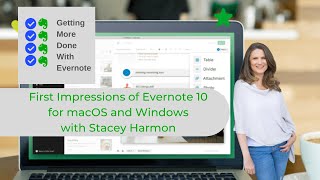
In this episode of Getting More Done with Evernote, host Raymond Sidney‑Smith interviews Evernote Certified Consultant Stacey Harmon to share their first impressions of the new Evernote version 10 desktop applications for macOS and Windows. They discuss the visual redesign (dark left‑hand navigation, consistent UI across platforms), major UI relocations (search moved to the left navigation, tags and reminders now at the bottom of the note view), and the revamped note editor (block‑based content, drag‑and‑drop, new highlight and header options, checkboxes, and improved tables). They highlight specific enhancements such as an upgraded note‑merge workflow, YouTube and other oEmbed preview support, expanded view options for attachments, and the new expand‑note view for focused writing. The conversation also covers upcoming features like the return of extensive keyboard shortcuts, quick‑switcher commands, and the removal of local notebooks (legacy support only). They note cross‑platform parity improvements (sort order per notebook, recent notes, stack drag‑and‑drop, tabbed and fullscreen windows). Finally, Stacey promotes her Evernote v10 resource center (harmonenterprises.com/evernote‑v10) that aggregates changelogs and guidance for users deciding whether to upgrade. The tone is conversational and enthusiastic, with both guests expressing optimism about Evernote’s direction while acknowledging current limitations for power users.
Chapters
Hello and welcome to Getting More Done with Evernote. This is episode 13, and in this episode we are going to be talking to Stacy Harmon about our first impressions on the Evernote for desktop applications. I'm your host, Ray Sidney-Smith, Evernote user since 2009, Evernote Certified Consultant, and Evernote Regional Leader for North America. As you can imagine, I love Evernote, and with Getting More Done with Evernote, I hope to help everyone love Evernote, or at least digital note-taking, a little more with each episode. And so with that, I wanna talk about the first impressions with fellow Evernote Certified Consultant and fellow Evernote Regional Leader for North America, Stacy Harmon from Harmon Enterprises. Welcome to the show, Stacy.
Hi, Ray, great to be here as always, talking about our favorite app.
Absolutely, I feel like you're a regular. It's so comfortable having you here talking about Evernote all the time. When we did the last episode together, we were talking about the launch of the iOS applications and our first impressions there. And so of course I thought, what better thing to do than to have you back and talk about the launch of the desktop application? So if you don't know, we now have new version 10 Evernote for macOS and Evernote for Windows. And what are your first impressions, Stacy? What do you, what do you feel about it?
I mean, it's an exciting foundation for the future of Evernote. So no doubt about it, there's some exciting things about it, but, and we'll talk about what those things are. And it's our first look at what the direction of Evernote is gonna go. So that is really exciting to look at, and I'm very encouraged and optimistic about the future of Evernote from it.
Absolutely, and in future episode, I'm gonna be talking to someone at Evernote about the, really the design language and the user interface and so on and so forth. Stacy, what was your first opinion about the new look of Evernote? I know that you and I have both been playing in the previews and the betas, so we've had a little bit of experience with it so far. What is the biggest change in the interface for you in the new desktop applications?
It's a simple thing. It's the dark navigation menu left sidebar area. To have that as a dark background is the—
is a visual change that is very eye-catching. I know that there's lots of subtle design interfaces, but that's the thing that catches my eye the most. Now, I— it is— another way to answer your question is that it's also very consistent. So in terms of what I'm observing, if you're pulling, it's very consistent with what we've seen in the web app. And then it is also very consistent in terms of if you're on a Windows or a Mac. Machine. And so that is all, um, very exciting. It's very— it solves a big onboarding problem for, for users. So, um, that is, uh, good to see.
Yeah, the thing that I hear the most among the Evernote Certified Consultant community is that now people can train on Evernote Web and it will look the same and feel the same, uh, on both of the desktop applications. And I think that's really going to reduce the barrier to entry for so many new users who may see the Mac application and not recognize it as Evernote comparative to the, the Windows applications. I think this is going to be really powerful for us all to experience all of the consistency of the design interface and, and using it that way. What are things that you feel like are in the application now that are nice tweaks to the experience?
Well, we're seeing a huge evolution of the note editor. So everything that happens on the right-hand side or with the individual notes is showing very— showing a lot of promise for more power. And we're already seeing some improvements in regards to that in terms of this concept of blocks that we have and different types of content blocks and the ability to move those around by dragging and dropping them in different locations, having a lot more fluidity with the note editor, having more highlight options, having header options, having all different kinds of checkbox. We talked about checkboxes versus checklists in the iOS that obviously pulls through to the new note editor. So I think he even said it in your interview with him, the note editor itself is almost like a full new application for Evernote from their perspective within the Evernote app. And we're gonna see lots of exciting things there. And we're already seeing little hints of it So, um, like, I'm really— there's a couple of sexy features in there.
I know that I'm really excited about the note editing experience because of, one, as you noted, consistency. I mean, there just seems to be a nice fluidity of it. You see these new features, just things like if I'm in a table, and I create a lot of tables inside of Evernote, and when I just, you know, you create a table and you go and fill in the back— background of a particular cell, and it automatically knows to change the the font to a lighter color to create proper contrast. Just little things like that that are just really subtle, but just increases your experience in terms of being more productive. I don't have to think about, oh, okay, now I have to go and turn the green text to white so I can see it against the green background. It just knows that stuff and goes for it. And I've also, just so that you're aware, the note editor, or now note view, as you educated me earlier about, right? So we have the note view to the right of the navigation menu, we now have at the bottom, you will see where the tag interface is, as well as the reminder note, a little bell icon that you can use to basically set reminders on notes. So that's a little bit of a big interface change that flows from Evernote Web. But if you are not using Evernote Web, it's a bit of a design change that is in a completely new place for you.
I actually think there's 3 key design elements that users who haven't been part of the betas should be aware of. And you just mentioned two of them, the fact that tags and reminders are now located at the bottom of the note. Those are where you go to work with them, but also the search box is now on the left-hand navigation menu that is central, you know, now it's like stationary and in the same location for everybody.
Yeah, which makes a lot of sense. You would have imagined that that's where it should have always have been because, you know, if you're navigating, trying to find something to go someplace, all of those pieces are now in the navigation menu. And so you're absolutely right. Are really key changes that I think are very logical to the overall movement of the application. What do you think about the features that are to come in the system? They have noted in their release notes that there are certain features that have, that have not made it into the new versions, and they are working as best as they can to bring themselves up to date in that sense. What are some of those features that are to come back to Evernote that you're really excited about?
Well, the key commands in general. So one of the things that has not been released in great volume is an array of key commands, and power users often rely on key commands in order to be extra efficient or add what I like to call micro efficiencies to their workflow and save lots of time. So we know that the Quick Switcher app is, or the Quick Switcher command, which is on the Mac Command J. And it's on Windows.
It's Control+Q. Control+Q, okay.
So you could tell which platforms we work off of. That I use religiously to move throughout and navigate throughout Evernote efficiently on a day-to-day basis. And that has been announced as coming back very quickly. And I know lots of power users are very excited about that. And I anticipate that Evernote will continue to fold back in those key commands They have a very clear chart about the key commands that legacy Evernote supports and the new version 10 support. And the fact that that is something that's in their, their help and learning library tells me that it's something that they're focusing on building back in.
Absolutely. And just one point of note for those who have asked me a multitude of times, local notebooks are no longer supported in version 10. And so if you want to keep local notebook support, you're going to have to stay on the 6.25 versions that you currently have. They're considering them legacy versions, and you can run those until it no longer works anymore. I'm running 6.25 concurrently with my current version 10. Not all systems are able to do that, but I for some reason am in that magical zone and I'm able to do that. So I continue to run both of them concurrently, and I'm happy to continue doing so until Evernote gets things up to speed. Um, but, and, and I don't know this to be true, no one's told me this, but I'm pretty sure based on the Electron architecture for the desktop applications that you will not be getting local notebooks back. I'm just, I just have that sense, uh, that the architecture of the, of the framework is not going to allow that. Maybe they can do some magic and make it happen.
Yeah, I agree with you that in reading between the lines, um, again, without like an inside scoop on this They do list it as no longer supported publicly on there versus the not yet available vocabulary. So that tends to say that it's not on the radar for feature development. But to your point, we have no idea what's possible and what may come in the— that would be more, in my opinion, in the years ahead, not in the months ahead.
And this is one of those trade-offs that you have to make in any development world. And so I understand the trade-off and if you have any questions about applications that do handle local, completely off-the-grid storage, feel free to reach out. I do have several options that I have been playing with and that I'm pretty happy with that can do that kind of storage for me for offline notebook management.
And I think that's a really important point too, because I think Evernote's data on this probably shows that it was a very small user group that was using that feature. Now, it was a very important feature to that user group, so we have a very vocal backlash about it. But on the flip side, like in my programs, I've never taught, I've actually advised against ever using local notebooks. Okay, so it's one of like for the history of the time I've taught Evernote, because it's always in my view been kind of counter to what we're using a synchronized service for. Right, so it doesn't surprise me that it's gone away. And I think that the majority of Evernote users aren't using that. And like I'm getting a lot of questions like, well, what were local notebooks? They didn't even know what it was. Right, so for the bulk of the audience, and I know there there's going to be both camps listening to this. But if you— you don't have to worry about that. It's not— if you weren't using it before. Right? And I think, Wes, what you— what I think you've just hit the nail on the head, which is let's look at what some other solutions are if that's an important workflow feature for you.
Absolutely. And the reality is, is that for the longest time, offline notebooks was actually an option that wouldn't even appear in the menu unless you forced it to appear in the menu, which is why nobody ever used it. And with great understanding because there are so few people who need that. And of course Evernote's business model is around the idea of you synchronizing your data, uh, in the cloud and utilizing, uh, that function. So it makes a lot of sense, uh, for them to, uh, kind of let that quietly go away and, uh, and we'll find other solutions to, to handle that very narrow band of, of need. All right, moving right along. What are, uh, some other things that you have noticed in the new interface, uh, in the new application? I know you have all kinds of goodies that you have been noticing Okay, so there's two things that get me kind of excited that I haven't seen in Evernote before.
The first is they have greatly, dramatically improved the note merge feature. So merging notes was actually a pretty powerful function that I would say fell in the power user camp. So not everybody's even familiar with the fact that you could merge notes. So if I, if I had, um, if I had two pieces of related data as separate notes, I could combine those into a single note using the merge feature. This is, this has a lot of various use cases that we don't need to go into here, but there were a lot of nuances that you had to understand about how to properly merge notes and create what order they were in, etc. Now if you go to merge your notes, so I, uh, check this out, select two notes in your note list and down at the bottom you'll see a a very clear merge indicator icon. When you click on it, you can actually drag and drop the order. It'll, it'll preview the num— the merges, the note titles that you have. And you, if you don't like the order of them, you can drag and drop them around in order to control the order. So if you're merging like 10 notes, you can control the order there. If you want to delete one of them right from that merge interface, you can delete it right from merge interface. And this is very noteworthy for power users. You know that in the legacy version of Evernote, if you merged the notes, it deleted your source notes and it moved them into the trash, and there was no unmerge option. Okay, so you had to be pretty savvy about what you were doing, because if you mistakenly merge, it's a little bit of a hassle to unmerge, and it required some power user sav. Um, now you have the choice of create, retaining those source notes or not through a checkbox. So it put the control in the user's hands. Like you have options as a user and as a fluent user in Evernote, I love this. I love this. It gives me the control. I can reorder, I can remove, and I can decide to keep or, or delete those source notes. And that is the flexibility that I want to see from Evernote. And it actually really articulates. I got very excited when I saw it because it is a massive improvement to the the merge feature, it also tells me that Evernote understands what power users want and they have built something in that supports that. So that's the first one. The other one, have you pasted a YouTube link into the new note editor yet?
I have, I have. Tell everybody, this is amazing, isn't it?
It's so cool. So in terms of what they're doing with note links, if you put a YouTube video in, just as one example, obviously you can put a link from a lot of places in Evernote, But they actually preview the video for you in there. So you get a visual icon of the YouTube video. And then your view options, which have always been another power user move for Evernote Fluent people, is you can change or choose how you want to view those attachments. So a link is a form of attachment. And when you choose the options, you can choose like a thumbnail, you can choose the simple URL link, you can choose an enlarged thumbnail. But even more important is you can actually play the video inside the note.
And that's really kind of fun. It's really kind of neat. And now, and you combine that with this other feature that I discussed right at the beginning, which is you can drag and drop these blocks around. So if I want to move that YouTube video from the top of my note to the bottom of the note, I can easily drag and drop it and do that. So I thought that was kind of cool. Like, I'm encouraged with what they're doing with different types of note links. In general, I'm noticing that the preview options are expanded. And that again is giving the user control over the data that they are capturing in Evernote and allowing you to display it in a note in a way that works for you. And now, Noteworthy, it's not— you don't have those expanded view options for all data types that you are attaching to Evernote. However, it seems exceptionally logical to me that this is going to be expanding over time, and they're just showing us what you can do with a couple of key file types. Probably the most utilized, like PDFs, work really great and have expanded view options. This stump— this YouTube link, really cool. They've mentioned it on their improvements list in their public communication that they're improving links, and this is the first place we've kind of seen that, but clearly it's on their map and their radar. It's not working with Office docs and Pages and the core you can still embed those attachment types, but you don't have the view options. Uh, so that kind of thing I expect will come. Um, but these— this preview from things like YouTube are exciting.
Yeah, what we can expect to see is that, uh, they're going to start supporting more and more of what we call oEmbed technologies. So oEmbed support coming to Evernote's note view, uh, you know, is just like so amazing. And I'm looking forward to seeing all of that, you know, where you might be able to post, say, a Twitter link, and that tweet will then just beautifully appear as you would see it on Twitter. So, you know, WordPress and other technologies have this oEmbed technology, and it looks like Evernote is starting to support more and more of those, starting with YouTube, and hopefully more will come. And then, of course, the lagging parts will probably be Office, you know, being able to display and manage those pieces, because that's going to require a little bit more architecture. But even because And thankfully, because of Microsoft 365 going online in so many parts, that will actually and hopefully make it easier for there to be more integrations there. Again, no, no internal knowledge. I don't know, but I'm very excited to see some of those pieces, uh, you know, bringing, uh, Google Drive, uh, you know, uh, support into the, into the space. And Microsoft 365 support, I think, is just going to be really amazing as well. Any other pieces there? You had noted some, some, some—
yeah, so that's what I wanted to address is back to the idea of this consistency amongst the platforms. Depending on if you're a Mac user or a Windows user, you might feel like there's new features in version 10. The truth is that they existed, but they only existed on one of the two platforms. So, um, it's exciting to see now all users have access to those. And a couple of noteworthy ones, um, Mac users are going to love that you can now define a preferred sort order on a notebook-by-notebook basis. So I can have one notebook sort by title and another notebook sort by date updated and save that as my default view of that particular notebook. Exceptionally useful when you're really a power user, and Windows has had that. Mac now has the ability as well. On the flip side, Windows users might really enjoy the fact that they now have access to Reminders. I'm sorry, recently that everybody had Reminders. I misspoke there. But in the Shortcuts area, which has been moved for Windows, by the way, it did not go away. I'm seeing a lot of miscommunication about that. It's just that Windows users used to have the ability to put it along the top. Shortcuts are now universally in the left navigation menu. And with shortcuts comes an option called Remind— why am I saying it wrong?
Recently Used—
Recent Notes, Recent Notes. And Mac users have had these forever. And it's— I've noted in training that I've done how functional it is. It's so nice to be able to quick click one of your last 5 notes that you modified.
It's really, really useful.
So I think Windows users now have that, are going to really enjoy having the ability to kind of see that. So I think that that's— those are a couple of the things. Also, like, Mac users never had the ability to move notebooks in and out of stacks from the left-hand navigation area. And we can see some, some of that coming. You can't create a stack through the left menu yet, but you can move a notebook in and out of a stack through drag and drop. Windows users will be familiar with that. It's new for Mac users. We didn't have that option before. So we're seeing some of these features that existed, like the best of breed from the different platforms, now being available to all users.
Yeah, I think, I think some of the consistency that is being borne out is actually bringing to the surface features people didn't realize. I'm really looking forward to the keyboard shortcuts all being put back into place I, I was a heavy teacher of using Command 1 or Control 1, 2, 3, and so on and so forth. And, uh, and so that's a really powerful piece of the whole structure is that, you know, if you are a strong desktop user, you want to be able to use the keyboard for pretty much all the functions in the system. And reactivating— I use ActiveWords 4 and a big fan of the tool, which is a keyboard shortcut and automation tool, and Now I have to retie all of those, uh, back to the system, and I really want to see those things, uh, brought to, uh, to the fore.
There's one more I forgot to mention that I love that's new, uh, in the note editor, and it's the expand note view. So one of the things we've heard Ian say in a lot of places, um, they're, they're— the vision of Evernote is expanding from, uh, remember everything to remember everything and accomplish anything. And I feel like there's this underlying element of being able to focus built into that. Okay, so this expand note, uh, button is in the upper right— upper left-hand corner of the note editor, and it's going, with one click, allow you to take that 3-column panel to a one-note view of your, of your note so that you can focus just on the content that is there in your face. It's kind of like cleaning your desk in one fell swoop so that you're looking exactly at what you want to focus on. And we actually, one of the things, this is one of the only areas where we have a user preference currently built into Evernote 10. And that's about if you want that view to be readable or full screen. And it's kind of interesting. And it's, I'm really looking forward to playing with that a little bit more because I think that that's going to be really functional for writers, for people who are working on task lists within notes. And really just trying to craft something that requires them to focus deeply. I think it's an exciting feature.
Absolutely. I think that one thing that I've been hearing folks ask about is on the Mac system, you have the ability to have tabs and have multiple tabs within the, in, within the system. You can still open up notes in separate windows, and that means if you put them into full screen in macOS, I think any of the latest versions, you're then able to put them into their own desktops and then put different applications side by side with them. That's just really, really helpful to be able to have a specific note open in that full screen mode and then have, say, another application like Excel or, you know, another— your calendar, what have you— and work with those things side by side. And that's really giving you a lot more power in that space that was a little bit more cumbersome and clunky in the old version. And I'm, I'm glad that they've cleaned that up in the new one as well. All right, you you have produced a really wonderful resource for everybody. Can you tell everyone what you've done so that they can— Sure. —access it?
Well, there's a lot of questions about Evernote version 10, and there's a lot of points of view about Evernote version 10.
And whether or not you're ready to update to version 10 depends greatly on how you use Evernote. So I created an Evernote version 10 resource center that I'm keeping updated with changelog information, like centralizing the changelog so you can see how quickly Evernote actually is iterating on the different version 10 apps. And also it has a guide to answer the question that we are hearing a lot out there, which is, should you update? Should you update to version 10? And I think one of the things we'd be remiss to not address here, and you already have stated it, but it is very possible, you can run legacy Evernote whatever version you are on alongside version 10 until such time Evernote's built back the features that are essential to your workflow. Because there's no doubt about it that there are things that are missing for power users. And, um, but as you have heard in this discussion, those things have, um, are coming back, and we're seeing signs of what's going to be possible with this new framework. So there's different levels of Evernote user. If you're new to Evernote and you have very low note quantity or you use it mostly as a capture place, the new— dive right into version 10. But my, my resource center will help clarify that both visually and provide you links to all of the key resources and information that you need in order to make the decision if you should update or not.
So I will put a link to this in the show notes. Is, is there a quick URL to that?
It's harmonenterprises.com/evernote-v10.
Wonderful. And so I, again, I will put a link to that in the show notes for you all, so you do to hop out to that. And thank you, Stacy, for putting that together. That is very handy for me as well. So with that, this has been really fantastic. Thank you, Stacy, for joining me here on Getting More Done with Evernote.
It was a pleasure to be here.
Fantastic. That was Stacy Harmon. She's Founder of Harmon Enterprises, certified Evernote Certified Consultant, Evernote Regional Leader for North America, always a wonderful person to have on the show with me to talk about Evernote. And so with that, that takes us to the end of our show. To learn more, and if you would like to follow me, you can just visit gettingmoredonewithevernote.com, and you can learn all about the other pieces, listen to back episodes if you want to. I'm Ray Sidney-Smith, Evernote Certified Consultant for Getting More Done with Evernote, and here's to your productive life.
More from Raymond



The Checklist Manifesto by Atul Gawande MD Productivity Book Group Made by Headliner
First Things First by Covey Merrill and Merrill Productivity Book Group Made by Headliner