Getting Things Done with GTDNext
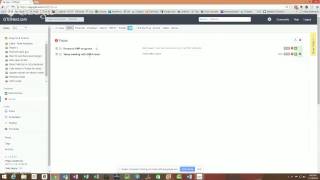
In this recorded GTD/DC Productivity Group session, host Raymond Sidney‑Smith introduces co‑founder James Titus of GTDNext. James shares his background in Microsoft and consulting, his long‑term use of GTD, and the motivation behind building GTDNext as a web‑based productivity tool. He walks the audience through a live demo, covering the core interface (outline‑based tasks/projects), areas of responsibility, tags/contacts, inbox capture, and the GTD workflow (Capture, Clarify, Organize, Reflect, Engage). Key features highlighted include unlimited sub‑projects, automatic next‑action identification, focus list, scheduled and repeating tasks (including periodic scheduling), waiting and someday/maybe lists, info nodes, archiving, and the ability to set projects as sequential or parallel. James also discusses premium vs free limits (areas, tags), the community forum, and future roadmap items such as calendar/Gantt‑style timeline views, Google/iCal integration, and native mobile apps for iOS and Android. Audience questions touch on timeline visualisation, mobile app plans, and mobile‑browser access, with James outlining current work‑arounds (export to Evernote) and upcoming development priorities. The session ends with thanks and a note that the video will be posted for later viewing.
Chapters
Okay, great. So this is Getting Things Done, DC Productivity Group. Today we have James Titus. James lives in Seattle, Washington, so he's joining us here from, from the state of Washington. We're in the city of Washington, and he is the co-founder of GTDnext, which you can find at GTDnext.com. James works for Rebel Consulting, a management consulting firm, where he spent 17 years working. Before that, he spent 17 years working at Microsoft. We became interested in productivity and GTD. So with that, I'm gonna turn it over to you, James. Everyone, I hope, can see you, and, and if we— by and see what you're doing when you go to the screencast, and then the recording itself will show it in pretty good detail, so we'll be able to see that in the recorded version. So turn it over to you, James. Thank you.
Great, thanks Raymond, appreciate it. And nice to— it was great listening in to the the meeting you guys had going on. A lot of great questions and interesting topics. So I'm excited to talk to you a little bit about GTDnext. And as Ray said, my name is James Titus. I co-founded a little software company called GTDnext. We are a software startup, and we're currently bootstrapping GTDnext. We've been going since about January, so not quite a year now. We're, you know, month 9 or 10 here. Previous to that, well, actually, and currently right now, I work for Revel Consulting. It's a management consulting firm. They have me at Microsoft right now, which is where I also worked for 17 years before joining Revel in various functions as product manager, program manager. I've been in charge of groups of up to 120 people and support. So I've had an opportunity to really embrace and get to know productivity techniques. I really needed them working at Microsoft, and I'm sure in all the companies you guys work for yourself, it's, it's a very busy time. So I was introduced to GTD right after the book launched back, I think it was around 2001, 2002, and quickly got on board. And I've— because I was in software, I think I started looking for ways to take it digital pretty quickly. So I have literally played with and used just about every single tool out there. I heard someone mention The Brain. I've used that. I have MindManager. I have subscriptions to about every tool out there because I love productivity software and I've just really enjoyed just playing around with it, tinkering with it. I use, of course, being a Microsoft, I used Outlook for years and years. I tried GTD systems with Outlook. I tried GTD systems with OneNote, combining the two. And then, you know, a few years ago when, you know, we started getting— seeing web productivity software out there, I really, you know, found the advantages of those tools and started looking at those pretty quickly. That led me recently to GTDnext, which is really my, my take at the system that I would build to use if looking at all the other systems out there and the ones that I've had trouble with or couldn't quite do what I wanted. This is really my chance to combine my software skills with my love for GTD, and GTDnext is kind of the outcome. So I'm gonna switch it over to the screen share and kind of walk you through a little bit about how I manage my life with GTDnext and to kind of give you an overview of the tool and hopefully also give you some ideas about just GTD in general, some strategies that you can use whether or not you use them in a tool like GTDNext or just on paper or whatever. So hopefully you'll get some value out of this whether or not you end up using GTDNext or not. And as I'm going through, if you have questions, I was having a little bit hard time hearing the question, you guys talking in the room because you're a little bit far away from the mic. But if you have a question and say it to Ray, since he's closer to the mic, I think I'll be able to hear it if he repeats it. Feel free to repeat them.
No problem, I'll repeat all the questions to you, James.
Alright, thanks a lot. So I'm going to switch over here. Let me know when you can see my screen. Alright, are you able to see it okay?
Everyone can at least make it out. It's a little small on here, but we can make it out.
OK, well, you know, let me—
Like I said, in the recording.
Yeah, I'll make it appear—
No, it's not you.
Well, I know. I've made this— I've increased the zoom on Chrome here to 125%. So hopefully you in the room even can see it a little better. It normally doesn't look this big on the screen. So when you watch it in the demo afterwards, it will look a little big. It's just because we have the zoom on. So we went through a couple of things here. This is the interface for GTDnext. We are a web app. We are working on mobile apps. At the moment, so we'll be rolling out mobile apps in the future, but right now we are a web app available at GTDnext.com. As you first come into the, into the interface, what you see is an outline that you can start to populate yourself. When you're looking at the outline, what you'll see is the ability to quickly and easily create tasks and projects. And what you do is you just start typing a task name, and when you hit Enter, you can start typing another one. Task— we'll call this one Task 2. And if you hit Enter and then Tab, you've automatically made that Task 2 into a project. So you can have a, you know, a subtask or a subproject below here. We'll even rename this one Project 1. We've got a subproject Project 2. And the interesting thing about GTDnext, and something that isn't found in too many other applications out there, is the fact that you can have unlimited subprojects and tasks, which is very handy if you've ever tried to plan a large project or even something that's fairly small with just lots of different steps. So we've taken this ability to add as many steps as you want into the GTDnext concept. And that, in our minds, is one of the differentiators for GTDnext with a lot of tools. I'll show you quite a bit more about how this works, but let's first start with continuing on with a little bit of a tour of the interface here. So at the top, you'll see that there are these different tabs here, the different buttons. These stand for the areas in your life, your areas of focus. So it could be your work life, your personal life, let's say you're a volunteer somewhere, you know, your family life. This allows you to cut and filter your overall project list down to individual areas of your life. We also have the ability on the left-hand side here to take the entire interface and focus it on just one particular area of your life. For example, when you're at work, you don't want want everyone to see the rest of your items, you can go ahead and just filter the entire interface to one particular area. In GTD, you know, David Allen calls this a number of different things: area of concentration, area of focus, area of responsibility. We just call it areas up here, and it allows you to filter the entire app based on those different areas. So Continuing on to the right of that are what I— these are contacts. If you're used to GTD, I call it tags in GTDnext, but they're just contacts. It's Aaron's, online, phone are the 3 that I have showing here in this demo account, which allow you to quickly filter your list by tags, and you can do multiple tags as well. The same thing is true with areas. If you want to show your personal life plus your family items, you can do it that way so that you're selecting more than one item. Okay, so digging into it a little bit more, let's, let's talk through a little bit about how I use the app. So first of all, when I— I'll talk about the kind of the 5 areas of GTD that David Allen kind of goes through, which you have Capture, Clarify, Organize, Reflect, and Engage. So when I'm thinking about how to get things into GTDnext when I'm capturing things, there's a couple of different ways I use. First way is I can just click into the overall outline here and just start typing things. That's, that's way number one. But as I'm typing, if I think of something else that I need to do and it's not related to the area that I'm working on right now, I can quickly just type it into the quick put inbox action here. So I can type in task in inbox, and that goes ahead and puts it into my inbox. This is a good way to brainstorm and just add things quickly over and over again. And pressing the Escape key gets rid of that. Those items end up in your inbox, which is down here. You can see I just have a couple of things in my inbox, and I can go ahead— and that kind of brings us to the next area, which is clarifying and capturing. So I have this productivity book group array that I want to read this book, so I listed this here. I can go ahead and make that an active task, and I'm gonna assign that to my personal area. And now it is out of my inbox and it's been moved over to the overall outline. The next item is just the task that we just played, played with here. We can add that, we can add that just to the demo area, let's say. I'm going to put that as an active task. I could also make it into a scheduled item, a waiting item, or a someday item, following the different kind of lists that David Allen uses. Alright, so back to the, the main project area. Again, going through how I use the, the app itself, I usually start with— after I've captured everything and clarified— going to go into the organization view. So what I would do there is I like to look at the work that I need to do by the areas of my life. So for example, if I'm at work, I would take a look at the Project and Actions area and just click on Work. So I'm now just seeing all of my work items. I can quickly expand the entire outline and see all the items, or I can collapse it here so that I'm just looking at a few. I can also go ahead and click on an item and just focus on a particular item and get down to just the items within that particular project. This allows me to kind of focus on an item and not see the entire outline, which can be kind of cluttered at times if you're not looking at and wanting to do that. So Just take a quick check in on you guys. Are there any questions so far? Are you able to hear me still all right?
We can hear you. I have you muted so that, you know, we're not shuffling around and so forth. People are putting themselves on different devices. The screen is small, our projector wasn't working, sorry. So people are putting themselves on different multiple small screens. So keep going.
Okay, great, thanks. All right, so the next piece that I want to show you is the how the next action function works in GTDnext, because it's another piece of GTDnext that is different than most simple task managers. Most task managers on the market aren't really designed around GTD, so what they tend to do is they tend to give you a huge list that shows all the next steps of your project all at once, and it gets a little bit confusing to see all of those actions in one view. So what we do is we automatically take each first action in a project and we mark it with a green N to show that it's a next action. It then shows up on your next action list and just that action, just that first action from the project shows up. So for example, this project here has two actions, but I can't really do the first one or the second one until I complete the first one. So it's not helpful to me to see this second action on my next action list. So what happens is I just see this first action. This is an automatic process. As I complete an action, you'll see that the N here now is highlighted, the second action. Now that action is on my next action list. Now of course I can override this because there's some projects that you want to have many actions on your list at once. They're what I call parallel project where all the actions are happening, are available to you to do at once. But we default to kind of sequentially showing the action so that we're not without overwhelming people in the next action view. So I'll switch over to that view right now, and you can see a couple of things. One is that for the work area that I'm in, I have 3 next actions scheduled. I can go ahead and drag those into the order that I'm thinking that I might want to do them. And then what I do from a work perspective is I take the first items that I want to do during my next working period— say my next working period is an hour— and I I click on the focus button. This moves them over to my focus list, and now I just have 2 items on my focus list, and this is where I'll stay to do the work that I need to do. I may take a look and decide to, you know, sort them in a different order or something if there's many of them, but this is the view that I use to actually do the engage part of David Allen's process, and that allows me to really not see everything else and just see the item that I'm working on. Alright, so I'll go back to the main view here, and you'll see that in this view I've got right now just showing my work items. I'm gonna switch over and show my personal view, and then I'm gonna go ahead and collapse the overall outline so it's a little bit easier to use. I'll show you a couple other things. The first thing I want to show you is this Party for Kim. I'm gonna go ahead and focus on the party, and then I'm gonna open it up, and I'm gonna open it up all the way. The next thing I want to show you is the panel. Tab P opens it, or I can click there to show it. When I'm in the panel, I have a little bit, a few more options for organizing my tasks. I can take a task, I can say, you know what, this particular one is I'm not going to be able to do this for a while, or I don't want to see it for a while, I'm going to go ahead and make this a scheduled action. I can schedule it for somewhere down the road. Let's say just on Friday is when I want to actually do this. This will prevent the item from showing up on my next action list until Friday. That's another way to keep my list really just focused on the things that I can do now and make it a little bit cleaner. The same is true here for other things. We have a call Ron. This is something I'm— I called him and I'm waiting to hear back from him. I've got a note that I took here. I've set this action to waiting. I've got a subproject here of calling Yelp to review— sorry, reviewing a few Yelp reviews and then calling a couple people from Yelp to do the catering. I've got call 1 and call 2. You can see that I've marked those contacts to phone. And which I can quickly go ahead and filter down to phone by clicking the tags there. Another interesting thing is sometimes you want to, you know, kind of get rid of all the clutter and hide the panel, but you still want to be able to take notes. If you press Shift+Enter, it opens up a note panel right below the item where you can take notes and do some interesting things like that. Just pressing Shift+Enter closes that again. It now shows a little note icon here to let you know that you've got some notes within that particular particular action item. All right, couple of things I also wanted to show you. I'm going to go over to clients and show you this particular client. This is a way to use GTDnext. It's a little bit out of the ordinary. This item here is a communication log that I've set up for this client, and I've got a couple of different communication logs that I've done. And if I click here, I can see that I had lunch with Mark, nice guy. This is the initial meeting. I called Mark on this date. These aren't actions. These are actually what I call— they're an info node. So I've marked this particular item as info. Now it doesn't show up in any of my action items. It's just an info thing, and I can go ahead and have a complete outline that is independent and separate from the rest of my project, and it's not going to affect my next actions at all. Alright, so that's how that info mode piece works with the project. Alright, I know I'm talking fast, so please jump in if you have any questions, but I'm just going to keep going until I do, so let me know if you need me to stop.
No, no, keep going. We're following along, and I'll have questions at the end, and we'll do that. If anybody does have questions, they'll let me know.
Great. I like to check in just once in a while and make sure you guys are still there. All right, so another piece— That's a good thing. I've lost plenty of people on these things before and talked for 10 minutes. All right, so a couple of other items to show you. Are the different lists that we have. So we talked about the next action list, and you can see if I unfilter, we can have a lot of different items on this list. Again, I can filter this independently of all the other items. I can also— I can sort it independently by just dragging and dropping. I can filter it to just show my focused items, or I can filter it to show the items that have some sort of a due date by clicking that. Now the next list down is the focus list, and these are just the items that I went ahead and marked as focus items. What I do, and maybe it's a little bit different, is that at the end of each day I'll actually take the focus off these items so that I start fresh each day, and that my next working period, which, whether again it's a day or an hour or even 15 minutes, I'll go ahead and look at the entire list and then just pick a few items that I want to focus on based on, you know, again, GTD principles of how much energy I'm feeling, how much time I have available. I'll look through the due dates, things like that, just to kind of get a sense of what do I feel like working on right now. I don't really believe in like a whole priority system where you would show like A1, A2, A3, and that's why the GTDnext system is a little bit more less, I guess, constrained by having, you know, setting priorities of A1, A2, A3. We just allow you to kind of pick which items you want by filtering down. Let's say I want to make some phone calls right now. I could just highlight those items. I would go over to the focus list, and now I see those phone calls. I'm done making the phone calls, I can undo that. I have a few other items I could have you know, moved them around in the order that I think that it makes sense to do them. If I need a little bit more context, like, okay, what was this call Chef Sally about? Oh, I can click here and I can go back to different levels of the project. I can go and focus just on the subproject, and so now I see the context of that action. I can kind of work my way back up the chain and see, okay, it was from Hire a Caterer, and finally back up to the entire main project for Plan the Party for Kim. And then of course I can go back to my entire project list. Alright, so I was working my way down the list. The next— that was the focus list. The next list is the inbox. Inbox, again, anything that I click here and add, or there's a special email address that each client has, each subscriber has, you can email that email item. So anything from your inbox or when you're out and about, you have an idea, your phone is basically your capture device. You just type an email and send it. The, the subject line becomes the name of the task, and anything that's in the body of the email becomes the notes within the task. So then you would go ahead and sort your items here. The scheduled tasks are a tab or list shows all the different things that have been marked within the main outline of projects and actions as either scheduled scheduled or as a repeating item. So you can see this item here, check stats, and I'll go ahead and click over to that. This is from a project of updating the website for a friend's charity. I want to check the stats every month on the 3rd so that I can see how the website is doing. So I have a scheduled task here that will fire off on a monthly basis. The next event will be on December 3rd. Now Repeating actions, I go into that a little bit here. You have the option of daily, you have the option of weekly, you can set which days of the week. Let's say you have a workout plan or something you want to be reminded. You can also set how many weeks in between, if it's every week or every other week. You have the ability to do monthly tasks, every other month, every month, and pick which date you want to do the task. Yearly, of course, and then my favorite actually is periodically. A lot of task management apps drive me crazy because they don't have this option. This basically says that when I finish this item, I can then set GTDnext to tell me to do it again 10 days from now, or 30 days from now, or 60 days from now. I find this— the funny story on this one is I find this very helpful for getting a haircut. My son and I go to SportsClip every month, actually about every 25 days is when I like to do it. And if I don't do it on the exact day, when I was using old systems, I'd find that the next month would come around and I'd be 10 days too early for a haircut and I'd have to kind of fiddle around with the scheduling to get it to work right. Well, with periodic scheduling, once you hit complete on that item, it automatically schedule it say for 25 days later so that you don't— you're not based on the schedule, you're based on the completion date. So anyway, that's just a handy thing about the repeating schedule. We're actually one of the few apps that offer the ability to have multiple repeating schedules per action item as well, and you can, you can set that here. That's helpful if let's say you have a report that's due every week but at the end of the month it's also due, you have a special monthly time for that. So for just one, one example. Alright, so that's the scheduled list showing you the items that are coming up that are scheduled and also showing you the repeated items. The next up is the waiting list. This list shows you all items that you have marked as waiting with a quick way to get back to it if you need to by clicking here. And then third list is this— or the next list is the someday list. This is a list showing you any item that you you've put on your someday/maybe list, which of course is a great GTD practice in general, is to go ahead and schedule things onto your someday list and make sure that you look through them on your weekly review. All right, next area within GTDnext is the areas. These are areas of responsibility, again, is how I kind of refer to this. We call it areas within GTDnext, and it's in this particular version, I've got 1, 2, 3, 4, 5, 6 of them set up. And you can have in the, in the premium version of GDNext, you can have as many areas as you want. In the free version, you can have up to 4. All right, and then tags is just an area for some tag management. You know, we could have called this context, but I really use this for more than just context. In GTD, of course, you have the different contexts of phone and area parents online, things like that. Basically the place in which you are available, you have tasks available to you to do. But I also use it for tags as well. So I will often put— I'll tag an action item with the name of the person that I need to talk to, or as an agenda item for a meeting that I have coming up. I have this one, Eat the Frog, from Brian Tracy's book by the same name, which you can tag items. For example, if you want to do just one item very first thing in the day, you know, you eat the frog, you get it done right away. You can tag an item like that. So there's some different ways that you can play around with tags. It's a little bit more flexible than if we had just called it context. I think people would have just thought of the context of phone and errands and things like that. The archive is a, let's call it, a premium feature of ILN in the premium version, and that allows you to take any of the two to the completed items and you can archive them. You can set how many days you want to go back and archive items. Just click that button, it will do it for your entire project. Or if you're in an— if you're on an item that has been completed, you'll see an archive button down here at the bottom and it puts it in the archive and it cleans up your view. Because as you go through and, you know, complete hundreds of actions, hopefully a week, you're going to get a pretty crowded view. So we allow you, number one, to hide the items. But number 2, we allow you to go ahead and archive them as well so that they clean up your project view. And then the archive serves as your way to go ahead and view them. The red items are items that were canceled or deleted, and the items that are gray like that were the completed items. You'll also see there's a restore feature which makes it very handy to go ahead and restore with the children. You can use that, you know, if you have almost like a template, basically. If you want to do something over and over again, you can complete it and then come back later and restore it, and you'll get all the, the children items done back for that list as well. Alright, lastly, last item on here is if you click on the list of our build number, you go to our forum where you can see that we have a very active development cycle. You can see that we have a lot of releases here. The forum itself is at forum.gtdnext.com, and we've got a lot of people asking questions about the product, you know, kudos, you know, problems that we've resolved, questions. It's a fairly active forum, not just about GTDnext, about GTD in general. So if you're looking for another place to talk about GTD, this is a good place. Alright, with that, I think I've gone over most of the main features. And so I guess there's just one item that I wanted to talk about left, which is the fact that when you're looking at all of your items and you want to go ahead and do a subproject, like we— let's take a look at this Plan Party for Kim here. We do have some advanced things as well that allow you to take a project and make it be sequential instead of parallel. So that means that the actions in that particular project or that project itself can be done in parallel to your main project, or you can, and that's the default. All subprojects are done in parallel, but you can turn that off if you want. Let's say you're planning building a house and, and some things can't be done till later. You can set that project to be done sequentially, and you'll notice that the end just turned off here because these items up above now have to be completed before this project will get kicked off. We find the default of parallel, which is the absence of sequence, sequential, is kind of the kind of people would expect to happen with their subprojects. So we leave that as kind of an advanced setting. You can see how that works down there. Alright, so just want to show you that not only do we kind of have some of the basic list building things, but we have some advanced features for planning projects as well. All right, Raymond, why don't you go ahead and ask questions?
Great, thank you so much, Jim. So anyone have questions for Jim, Miranda?
I know there's like a calendar function or at least a way to take the list and make certain of the aspects of the— make certain of the projects repeating. But what would really be useful is if you could see a timeline timeline? Like when you have a calendar, there used to be calendars you could put on the wall and you could look at the whole year and you could see how things were going to fall, when things were scheduled, and get a sense of the whole picture. Rather than just having the list and functions that appear periodically in the list, is it tied to a timeline so that you can get a whole—
So the timeline feature, what does the calendaring look like? Is there capable of showing something similar to maybe a Gantt chart or a timeline perspective within the tool yet.
Yeah, there's two ways that we'll handle this in the future, and no, we don't have that right now. What we'll allow people to do in the future is to take an item that has a due date, and picture that the due date here— there's some items that have due dates that you want that item to show up on your calendar, but there may be others that don't. A lot of apps default to just showing all your scheduled items and your items that are due on your calendar. We're going to allow you to basically choose, so you have an item, you know, another button here that says put on calendar. We'll do like a Google Calendar or iCal type feed that will allow you to take all these items that are due and are scheduled and then pull them right into your Gmail, your Outlook, and you'll see them right there with the rest of your items eventually. And so that'll probably be the first step that we take. The second step is that we'll have another list type over here that's a calendar that will show you kind of what you're asking for is a list of anything that has a start date or a due date, those items will appear on the calendar, which is a great feature and allow you to, you know, pull and move them around and drag them around, that type of thing. So it's a great call-out, and certainly there's a lot of features that we have on our list, and you should see how many people in the community are giving us ideas. There's a lot of great ideas, so, you know, we are definitely interested in listening to those ideas. So So I appreciate that. Any other questions?
Question from Daphne before you present. She's curious about the mobile app. Are you planning on launching mobile apps? What's sort of the time frame? And what platforms are you going to be launching on?
Yeah, we're working on mobile apps right now. I've been in software for way too long to give you a date of when they'll come out. I'm not even going to speculate on a date. Because that just sets us— everything up for failure or missed expectations. So I'll let you know that we are working on it. My co-founder Sergio is our main dev. And what I've been telling people on the forum right now is that we've hidden Sergio away in a country not the US, and he is focused on working on mobile apps this month. Month. Not to say that we're going to complete it this month, but that is pretty much his sole focus this month of November, where we spirited him away from his home and he is locked up in an apartment. So— and the other point around that is we're actually looking at a tool right now. The tool that we're using allows us to build it once and then release it into Android and iPhone is the— iOS is the two platforms that we're looking at right now. We've had requests for Windows Phone, and being a Microsoft guy, I hear them, but I actually use an iPhone myself, and while I love my Windows folks, we won't be doing that one for probably a little bit while. And I'm sorry to the two people that asked for the BlackBerry app, we'll probably not be doing that one either.
Great, so we have one more question and then we have to close out. I'm going to turn it over to Mitchell. Mitchell, your question.
Since you don't have a mobile app, is there a mobile view that's available browsing from a tablet or a smartphone?
Did you hear that?
Yep, I heard that. On the iPad, you can view your lists. They'll come up within the Safari browser. It's not a great view. I don't recommend trying to do anything with it as far as entering data. You'll just get frustrated. If you're looking for just a quick way to view it, you can do that. Some of our users have been taking the export button here where you can export all, you can see all your tasks. They've been syncing that, or they've been taking that. They know they're going to be on the road and they want their information with them. You can easily copy that, and they put it in Evernote, which is something that we'll integrate with in the future. But they— just talking about integration integrations a little bit. But yeah, that's how they're handling that right now is they're just grabbing this, highlighting it, hidden copy, put it in Evernote, and then you got it with you.
Wonderful. Well, thank you so much, James. We really appreciate you being here. I'm gonna let you off the line, but just a quick round of applause for James.
Woo! Thank you. I very much appreciate it.
Yeah, thank you for joining us, and like I said, I'm gonna post this video on the GTD meetup website hopefully tomorrow or within the next couple days. And so folks who couldn't attend can watch it and review it later.
Great. Thanks for your time, Ray, and everyone. Appreciate it.
Great. Have a great rest of the day. Thank you. Bye-bye.
Thank you.
More from Raymond
The Checklist Manifesto by Atul Gawande MD Productivity Book Group Made by Headliner
First Things First by Covey Merrill and Merrill Productivity Book Group Made by Headliner