GTD® Personal Productivity System in Google Sheets
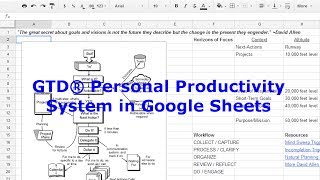
Ray Sidney-Smith walks through his Google Sheets template for David Allen's Getting Things Done system. The template includes tabs for inbox, projects, next actions by context, waiting items, and a weekly review checklist. He demonstrates the full workflow using a home-buying scenario, shows color-coding and automation options, and explains how to adapt it to your own life.
Chapters
Hi there everyone, and welcome to the GTD Personal Productivity System in Google Sheets template tutorial. I'm Ray Sidney-Smith, and I'm the personal productivity enthusiast behind this tutorial and the Google Sheets template that I've created. And you probably also know me from a bunch of other activities that I have. Of them are ProdChat, which is the weekly productivity tweet chat. So you can join us any Wednesday evening at 8 PM Eastern time. 5 PM Pacific, that means, and we're out there tweeting about productivity, different topic every week with guests and so on and so forth. I'm also the organizer of Getting Things Done DC Productivity Group as well as the Getting Things Done NYC Productivity Group, and I am also the host of ProdPod, the podcast of productivity lessons in 2 minutes or less. So you can go out there and find that at prodpod.net. I'm also the host and facilitator of Productivity Book Group, We're a virtual reading group and we read all things within the genre of personal productivity and related materials. So you can go out there and check out those materials if you'd like. So recently I came across a request from Tyler Carlin in the Google+ Productivity Community, and so thank you, Tyler. And he was looking for anyone who had a GTD spreadsheet or workbook set up, and I remembered that my second GTD implementation was in an Excel workbook. So I went in search of the Excel workbook file in my archives and I found it. I immediately uploaded it to Google Drive and converted it to a Google Sheets template, the one that you see here on screen. I'm going to walk you through the template just so you can see the different tabs in it, and then I am going to show you around the, the template using an actual sort of— not an actual, but a simulated test case. So Right here we have the inbox, the GTD inbox. We have next actions lists, and so you can go ahead and create as many of those @context lists as you need. You just right-click or click on the down arrow and go ahead and duplicate the spreadsheet here, and you can create as many as you want. There is this handy GTD spreadsheet that is actually the workflow diagram, the GTD workflow diagram here on your left-hand side. So you can go ahead and follow the workflow diagram. And then on your right-hand side, I've put some helpful pieces of the GTD puzzle here on the, on the right-hand side. So you can see here the horizons of focus. And in making it all work, David Allen had put together these really great questions that fitted each of the various altitudes. So you can go ahead and just go down there and ask yourself those questions at each of those horizons. And then down here on the bottom left-hand corner is the workflow in words both the GTD and then the Making It All Work changes. So on the workflow side of GTD, we have Collect, Process, Organize, Review, Do. On the Making It All Work side, we have Capture, Clarify, Organize, Reflect, and Engage. And then there's some resources here which primarily link to the David Allen Company, so you can go to gettingthingsdone.com or davidkoe.com and find some additional materials. Okay, so that's the GTD tab. Over here we have the Weekly Review tab, and the Weekly Review tab I'll explain in a little while, but that's pretty much the Weekly Review tab. You have your Projects list, which will be able to cover all the projects you have going on in your, in your system, in your life. You have your Waiting For list to follow up with anyone that you've delegated something to or are expecting something from. You have the Agendas list, and the Agendas list is things you'd like to talk to with people that you might be seeing soon, or know that you'll be seeing soon, and you may have several agendas lists over the course of time. Then we have the Sunday maybe list, so that you can list your Sunday maybes. And then I have two additional sheets that are not exactly GTD proper, but they are next actions completed and projects completed. And so they're a place for you to be able to put your next actions and your projects once you have completed them, if you don't want to just delete them. So that's the system in a nutshell, the template that is. And so let's hop on over to the sample sheet. And so this is a sample that I've set up so that I can work within it, and I've created some context lists there across the bottom. You can see that I've already created some, and they're all color-coded so they match the various sections of where they fit in terms of the system. So red is inbox, greener context lists, and so on and so forth. So with some upgrades and updates, I've created this personal productivity system in Google Sheets based on Getting Things Done. And if you would like to, you can also use this using Microsoft Excel. And so if you go to File and then drop down to Download as Microsoft Excel, you can go ahead and download the workbook as a Microsoft Excel workbook. Just open up the Google Sheets in Excel and you should be able to follow all the instructions I'm giving here within the GTD Personal Productivity System in Google Sheets template, minus of course the collaborative functionalities that are only found in Google Drive. If you're watching this, I am going to presume that you already have read Getting Things Done by David Allen, and so the lists and terminology I'll be using in the video should be familiar to you as that of the Getting Things Done or GTD methodology. If not, I really recommend that you go out there and get your hands on a copy of Getting Things Done: The Art of Stress-Free Productivity by David Allen. And I'm not getting paid for this. I'm just really excited, obviously, about Getting Things Done. And so, of course, you can go out there and find it. I really recommend both the paperback version as well as the audio version if you want to go ahead and listen to it a first round and then read along with it or vice versa. It's really a great version to listen to. I know that they have an audible.com version here on Amazon. Okay, so since Google Sheets does not support macros, I also wanted to make a note that I stripped out all of the scripts that I had written to move fields or rows based on highlighting or strikethrough formatting. If you would like to add additional functionality to the workbook, you can learn how to do that by going to Google Apps Script. And you can find that at google.com/script/start. And what this is, is the ability to extend the functionality of Google Drive applications. That includes Google Sheets, Google Docs, and Google Forms. And here is a page where Google Drive support page where it explains to you how to extend those tools within Google Drive with Apps Script. So if you want to be able to do more, you can go ahead and learn Apps Script. It's pretty easy to learn. And then you can go ahead and extend the functionality of the Google Drive template that I've created for, for purposes of that. So for example, you know, if you go ahead and strike through a particular line item here in the inbox, it will automatically delete it and move it to the next actions completed spreadsheet tab. So you can do things like that if you'd like. So let's bring up the template. This is the template in front of you now. And we are going to walk through it in what I'm calling a case use of the GTD personal productivity system here in Google Sheets. So I'm sitting at my desk and I'm invested in another request from my boss. I have an idea. So I need to collect and capture so I can refocus on my current task. Here in my inbox, I'm going to go ahead and capture that particular thought. So I'm gonna put New York City— whoops— I'm sitting at my desk and I'm invested in another request from my boss. I have an idea, so I need to collect and capture it so I can refocus on my current task. So here I am on the inbox tab, and I'm going to go ahead and collect this particular thought. And you can see that it's pretty amorphous. It's just a thought in my head, and so I go ahead and capture it. So I go ahead and finish up my boss's request and get that out to her, and this is my time to take a few minutes for for processing and clarifying, you can see that I can jump over to my GTD tab and see the GTD workflow diagram there in front of me to help me in case I do need some, you know, sort of jogging of the memory of the workflow diagram or any of the other pieces of the GTD system right there in front of me. It's sort of a nice dashboard. But I, I know what I need to do in terms of taking this particular inbox item I look at it and I notice that it is, for me, really a project. So I'm going to go ahead and take this out of my inbox. I'm going to go ahead and just delete it for now. And I'm going to hop over to my projects list. And I'm going to decide that this is my new project. I'm going to buy a new 2-bedroom home in New York, New York by July 2014. And you can see here on the projects list, I have a date begun, date completed, and project support field as well. In each of these, I've attempted to try and give you a quick sort of pop-up window if you hover over the description items so that they can help you understand, you know, some information about those. So in this case, I put the SMARTER goals criteria so that, you know, there's specific, measurable, achievable, attainable, sometimes known as action-oriented, realistic, timely or time-specific, evaluative and re-evaluative criteria for that particular goal. In this case, I feel like I'm comfortable with this particular project description. And project support, of course, you can link to where you have saved any project support materials from a cloud service or whatnot. I'm gonna place today's date in here, so I'm gonna put the 4th of March 2014. And of course, once it's completed, it's gonna move to the next action, the project completed spreadsheet. So I'll just go ahead and put it there at that time. Okay, so I've got my project now in here and I need to anchor my next action or next actions into my next actions lists. So I know that I'm going to have to go ahead and call someone and I'm going to go ahead and say I'm going to call the realtor to schedule a time to visit some listings in our preferred neighborhood. Okay, I know that's going to take me about— I'd like to estimate the amount of time that I'm going to take on these things. It's going to take me about 15 minutes. To have a call with the realtor. And in this particular case, I can go ahead and associate the project with that particular project across my system. And in this case, Google Sheets allows me to do that pretty easily. You can see that Google has given us this great little ability to reference data from other sheets. So you have the ability to do that. If the sheet is just one word, you can just type in equals the name of that spreadsheet. And then of course, the column and row. That it fits in, basically the cell identification data, and it's separated by an exclamation point. If there's more than— if there are spaces or non-numeric— I'm sorry, non-alphanumeric symbols, then you just want to single quote the project's spreadsheet name and then of course give the exclamation point and then the cell row feature. So in this particular case, I know that this is going to be equal sign it's called the projects list and going to put an exclamation point in there. And I know that it's column C, row 3. Okay. And so you can see here now that field populates and it references this particular project to this particular task. Now you don't have to do that for everyone if you have a fairly simple list of projects and next actions, but if you have a fairly complicated system and you want to reference back to them, you can do that as well. Now, I know that I have another next action, which is also from my projects list here. And so I'm going to go ahead and put that in here. And again, it's the same cell, and I'm going to email mortgage lender regarding getting a prequalification so that I know how much I can afford to buy in this particular situation. All right? And I think that that's going to take me probably about another 15 minutes in order to complete that email and send it out to my mortgage lender. Okay? So here we are, we have anchored 2 next actions, we've cleared out our inbox, and now we are set to go ahead and move forward. And at this point, I realized that I had just spoken to Susan down the hall about a recommended moving company as I was talking about buying a new home. And so I asked her to send me along a list of the recommended moving company or companies that she had told me about in our conversation. So I'm going to add to my Waiting For list, Recommended Moving Companies List. And so there it is captured onto my Waiting For list so that I know to follow up with Susan about the recommended moving companies that she had talked about. So, I step away from my office for a meeting and I'm going to come back to my Next Actions list to review what I need to do. So, I'm going to hop over here to my Next Actions lists. I'm back at my desk or I'm back where I normally work and now I know that I can go ahead and call so-and-so and I can go ahead and email such-and-such and make sure that I take care of my Next Actions. You can see that I've added some small ASCII symbols to the left of each of the context-based next actions list to sort of its physical activity. So you can see these visually relate to them. I found this on a particular website, which I'll put there on the screen for you, and this particular website has all of these really great images, so you can add new lists and hopefully find symbols that match your context. But if you just scroll down through the list, you can see that it not only has regular symbols and general punctuation, mathematical operators, and then miscellaneous technical symbols, but then it also has a sort of extended character entity list, and it includes little clouds and sunshine and little snowmen and such. And so all of these various little items— there's even checkboxes down here. I saw checkboxes earlier when I was looking at them. Musical notes, scissors and airplanes and so on and so forth. So lots of different options in terms of symbols so that you can make sure that you can place these symbols next to your Next Actions context lists. And again, it's just to visually cue you in on the things that you need to get done. Also, what I'm doing, I sometimes want to limit my view so that I can focus. One way to do this in Google Sheets is to hide spreadsheets within the workbook. Basically, on any particular sheet, you can right-click and it gives you the ability to go ahead and hide that sheet. So if you're in solely doing mode and you want to be able to get rid of all of these other additional sheets that are in view, you can just go ahead and click— right-click on them and hide them. So I'm just going ahead and clicking Hide on these 3 sheets because I don't want them in view. I just only want these particular Next Actions context lists, and then at some future time I decide that I want to go ahead and bring them back. If I just go to View, then I go to Hidden Sheets and click on the hidden sheets, they will go ahead and pop back into view so that I can interact with them, and they pop back into view in the exact order that they were in. So they populate, repopulate the screen so that you don't lose their place, so that they don't lose their place. So it has been a productive week, and now I'm ready to do my weekly review. I turn off my internet and I go into offline mode in Google Sheets if you'd need to. I also silence my office landline, cell phone, and tablet. I close my office door and I put up my handy-dandy David Allen Company Weekly Review in Progress doorknob hanger. And now I can follow the instructions on my weekly review. Checklist, which happens to be on this tab. So here on the weekly review checklist, you can see that I have each of the sections of the weekly review here. So we have the Get Clear, Get Current, and Get Creative sections. If you would like to follow the Don't Break the Chain methodology, the Jerry Seinfeld concept, and I've provided a link here on the screen for you, you can go ahead and actually put checkboxes or X's in the fields of the areas that you have completed within the weekly review. In this particular case, the X's that you see on screen here are actually lists that are in this GTD personal productivity system template in Google Sheets. So, the get the inbox, obviously you can get your inbox to zero. You're going to review your actions lists. You're going to review your waiting for list, review your your project lists, and then of course you review your someday/maybe lists. So those are all right here in the, in the system itself. And the others, of course, you'll be reviewing outside the system if you have them outside of this Google Sheet. And if you go ahead and just place the date of the weekly review, you can just keep putting them to the right. And if you want to, you can also freeze these columns. So I would freeze the first 4 columns And so that puts a delineation here and you can just keep tracking as much as you want to the right as you, as you move along so you can continue seeing them. By doing so, you can analyze perhaps weak spots in your productivity system and focus on improving those areas. Okay, so I'm going to turn off the freezing. And so there goes my weekly review. You will note that this implementation actually lacks a calendar, mostly because I presume that people will want to keep their calendar in a different system. However, if your calendar integration is important for you to implement inside the Google Sheets workbook, you are not left alone. I particularly like in the Google Drive template gallery— this is the Google Drive template gallery, drive.google.com/templates— you can find one specific template that I happen to like. Called the Perpetual Calendar Template, and it's produced by vertex42.com. Thank you, vertex42.com. And they have this really great calendar template. So what you do is you actually click on the Use This Template button. It'll pull that template into your Google Drive, and then you're just going to copy and paste the sheets, the, you know, the spreadsheets from this workbook into the Google Sheets workbook that you already have set up for the GTD personal productivity system. Okay, so you'll go ahead and do that. Also, this implementation has no reference context filing system in it. So as it stands, there's no contacts manager, archives files manager, and so on and so forth. Again, I recommend that you probably do those things outside of this particular Google Sheets workbook. In general, as it relates to project support materials and archive reference files, I'd recommend, of course, you go with Google Drive. Further, I like the idea of setting up a Google Form so you can actually capture on your mobile phone and desktop without having to have the system completely open. So if you're just in a capture mode, I have set up here this Google Google Form, and you can go ahead and just, as you can see here, I've created this Google Form and it just says GTD Capture. It tells me what, you know, I have a little question, what has your attention? Put it here, a field so that I can go ahead and complete those questions, you know, answer the question, put any thoughts I have in. And this is the actual live form. And so here it is, you know, I just have a thought and I go ahead and type in that thought and click submit. And off it goes. And, uh, and now it's actually been deposited in my GTD template. Okay, so I've gone ahead and thrown that into my GTD template, and it's just listed here as GTD Capture Inbox. And you can see that that was actually captured and logged. You can as well share this with select people in your life when they need to delegate tasks or projects to you. It will reduce your email then you can have Google Sheets notify you about the addition to your inbox if you really do need the prompt. I wouldn't want the extra email, but perhaps you want to be prompted to know that it actually showed up in your inbox. And this might be obvious, but I really encourage you to go ahead and make modifications to this GTD personal productivity system in Google Sheets template. It needs to change in accordance with your ever-changing life and work. Let me know your thoughts and as well as your enhancements, questions and suggestions for the GTD personal productivity system in Google Sheets. I'm sure that I will update this template over time. So check back on occasion to see how I may be tinkering with it. Again, I'm Ray Sidney-Smith, and here's to your productive life.
More from Raymond



The Checklist Manifesto by Atul Gawande MD Productivity Book Group Made by Headliner
First Things First by Covey Merrill and Merrill Productivity Book Group Made by Headliner