Using Evernote with Getting Things Done (GTD)
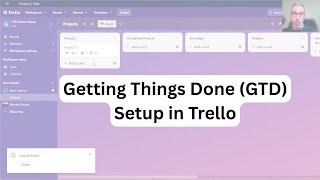
Raymond Sidney-Smith, an Evernote Certified Consultant, walks through his GTD setup using six notebooks, a tag hierarchy, and saved searches to turn Evernote into a task manager. He shows how tags like Actions, Calls, and Waiting-Fors create dynamic context lists, how the inbox processes into projects and next actions, and how shortcuts put your most-used searches in the toolbar.
Chapters
All right, so welcome everybody to Using Evernote with Getting Things Done. I'm Reece Sidney-Smith, Evernote Certified Consultant and Evernote Regional Leader for North America, and I have been using Evernote for many years. Since probably around 2009, I've been using Evernote, and I've been a GTD practitioner, or Getting Things Done practitioner, since 2001. I've been using it since the book came out. I picked it up off of a bookshelf in Barnes Noble and fell in love with the material, and I've been practicing some form of GTD in my own personal productivity system Ever since, I wanted to give a little bit of context as it relates to what today's webinar is going to be all about. So we're together for about 45 minutes, and I want to be able to run through the, the, the demo itself. And this is a demo of a setup of the system, not necessarily a GTD training or training in how to use Evernote features. I'm going to be using some advanced Evernote features here today. So just be mindful of the fact that I may be going through some things that you may not be familiar with or may not be comfortable with, but know that I will be in the webinar replay email— I'll be sending a post-webinar email. You'll be able to access the, the resources for being able to use those features, and I'll be sending you some screenshots of the various parts of the system that I'll be setting up today. So don't worry so much about that. Now, in Getting Things Done, The Art of Stress-Free Productivity by David Allen, he generated this workflow chart, and many people know this in Getting Things Done, or GTD, as being the processing and organizing flowchart that we use for being able to organize, that is clarify and organize, or process and organize items as we make our way through the GTD system. And so this is really the focus of what I'm gonna be talking about today, and in a few years after David actually put this together, he actually created a new map, the workflow map, it encompasses really all that which is GTD in this handy little cheat sheet. I am not going to be covering all of that today. What I'm going to be doing is just focusing in on the very top of the mat, and more specifically, the way in which we move items throughout the GTD system for purposes of clarifying and organizing into where Evernote really is most powerful, which is the ability to create notes and manage those notes individually. What I'm going to be doing is, is walking you through the portions that are project support and then tasks that are not necessarily date-driven. So this is work that we predefine, and then I won't be really touching on references much. I'll be covering some issues in Incubate related to Someday/Maybe and primarily focusing most of the time on the context-based actions list. So I just wanted to cover that so that you're aware of really where we are in terms of moving through today's session. All right, so let's hop on over to my demo account so you can see the Evernote setup in action. So this is a demo account, so just bear with me as I work through in the demo account for you. But in essence, what I've done is I have created a series of notebooks inside of a stack, and then a series of saved searches and shortcuts, as well as the tags that fit into a hierarchy for me to be able to use GTD within Evernote for, again, clarifying and organizing. So I wanna go through with you the items in the structure so you understand why I created these pieces and just so you can see them as they are. And then when I get to the end, I'm gonna run you through how I would use this in real time so you can kinda see it in action to begin with. All right, so let's start at the top. Here we have actions, the actions notebook. The actions notebook itself is that which holds next actions. Now, mind you, I have named these notebooks and rename them over time, so they're a little bit malleable. You can change them to the, to the needs of what you want them to be. But this is the most simple GTD setup. You can, you can obviously make these much more advanced as you come along. So for example, I have an Actions notebook. You can see here that I've styled these. You can do this in Evernote for Windows, but you can't do this in Evernote for Mac yet. But the idea here is you can style these notebooks, and in this case I made this orange for, you know, productivity and action. And so I have the Actions notebook here. And like I said, each— this is for, for next actions, and each, each note represents an individual next action. Okay, so it allows it to be fungible. You can move it from one place to another. You can add reminders to them so that you can put a date associated with it if you really needed to, and kind of move things through the system that way. Okay, so Actions. Next is Commonplace. This is an addition. This is not really GTD, but I like to have a place that is a temporary holding space for inspirational thoughts. You know, maybe I'm doing a little bit of doodling during a meeting, things of that nature. So I take some meeting notes, I might throw them into my commonplace notebook because they don't necessarily have an action associated with me per se, but I still want to keep it in reference just to kind of hang around. So it's just a temporary place. Think of da Vinci's commonplace notebook where he, you know, he drew all of these amazing potential inventions and tools and that kind of thing. It's just a place for you to capture all those items. Next down we have Done. Done has been called different names for me as well over time. I've called it, I started out calling it actually Projects. And so, oh, to answer Dana's question, this is actually, I'm sitting on a Windows machine right now, but everything I'm showing other than the styling of the notebooks is actually possible on both Evernote for Mac and Evernote for Windows. So the, uh, the idea here is that, uh, the Done notebook itself is, uh, designed, um— oh, I'm sorry. So for Tobias, no, this is not based on the official GTD for Evernote guide. And, uh, and so I'm not, I'm not basing this off of David Allen's, uh, David Allen Company's guide. This is my own flavor of inventing, uh, how I would implement this in in Evernote with my experience with Evernote. And to Peter's question, it shouldn't matter what version of Evernote you're using. Okay, so Evernote Basic or Premium, this should work just fine. Okay, so, so we have— again, I'm sorry, I'm gonna hold off all questions until I'm done with the demo. I want to answer everybody's questions. I see them popping in and I really want to answer them, but I really do need to get through the material first. So, okay, so we have, we have the Done notebook. I've called it many different things over time. I called it Projects. Actions Completed for a long time, and it was just a really long notebook name. So I— and then I wanted it to filter down, so I named it Z Projects Actions— Projects and Actions Completed. That was a little bit, you know, cumbersome, so I just ended up settling on Done. It is the Getting Things Done methodology. So this is the terminating location for our actions and projects. So when you're done with an action, you're done with the project, if you're not going to delete it and you want to keep it around for some reason, you would put it into Done. Next, we have the Inbox, and the Inbox is also your default notebook. That is, you know, the special notebook where if you don't direct something to a specific notebook in Evernote, that's where defaults to go into. So we have our Inbox, and this is where you can capture from Evernote Web Clipper, from your thoughts in your mind, you're capturing on mobile, you're emailing into Evernote. You can put all those items that ultimately are open loops into your Inbox. Next up, we have Later. Later is a special notebook again. I created it for consumption. So many times people are filling up Evernote with things that they may want to read, they may want to watch later, they may want to listen to it later. Say there's a specific podcast episode that they came across in their, in their, you know, web browsing, and they said, oh, you know what, I want to listen to this later. Well, this notebook is where you would put those things. You would clip the audio. You can, you can take the audio file from a podcast and put it literally into the note, and then you have that note available to you to listen to the audio later on the go. Next up, we have Projects. The Projects notebook is actually two-purpose. I have the Projects notebook designed so that you're able to both hold your projects, and it then represents a complete list of your projects. And a project, of course, is any outcome that requires more than one action to reach it. And also I've created these 6 notes. These 6 notes represent the upper horizons and then some, basically some cheat sheets for you to be able to readily access the GTD materials. So as you can see here, I have this in title sort, and you can see that from the top down, I have Horizon 5, the highest horizon used to be called 50,000 feet, right? So we have Horizon 5 and taking us down to Horizon 2, areas of focus and accountability. What I've done here is I've set these notes up so that they are in the project's notebook, because in my opinion, the upper horizons are all their own sort of project. And I don't need them to be separate notebooks. I just need to manage them all together. They're usually simple lists. Maybe they might be brainstorming documents. They may be mind maps. All of that can really be held in a single note. I haven't seen a lot of people with the upper horizons identified in such a way that they required that much more granularity than a single note. Of course, you can always create separate notebooks for those. It increases the complexity of the system, though, and I particularly don't like it, but you may decide that you want to. So anyway, in this implementation, I have numbered them so that, again, when they're titled, they go from the highest horizon to the lowest horizon. You could reverse that. And here we have each of the horizons holding those horizons. Information. So I could put into the purpose statement, into the purpose note, my, you know, my life purpose, my purpose for the corporation, whatever it might be, and then short and long-term goals— well, that is long-term and then short-term goals— and then the various roles and responsibilities I have in life in my areas of focus and accountability Horizon 2 note. I've also then created a note and attached my GTD workflow chart so that I have that available to me along with the GTD workflow diagram there so that I have those ready access, and then I have the weekly review checklist so that if I— when I get to my weekly review, I have the checklist here ready to go. And of course, you can always go in and type up your own weekly review checklist if you added particular items and you want to customize your weekly review checklist. Those are all available to you. Now, over time, you may have hundreds of projects in your projects notebook, so you want to make sure that you go ahead and identify those, those projects in some way, shape, or form, and separate them from the Horizon notes and these other notes here. So what I've done is I've actually tagged each of these notes as reminder notes, and the reminder notes do not have a due date associated with them, so that when you're in the list view in Evernote on the desktop, you can just quickly look at the reminders list at the top. It kind of creates this set of quick links, and here we have the quick links to all of those notes. So whether you have 50 or 100 or 150 projects in your notebook, you can always quickly jump to one of these lists when you're reviewing during your weekly review, these specific notes. Okay, so then we go down to the Someday/Maybe notebook. And the Someday/Maybe notebook— oh, so this is kind of pertinent to what I was just saying. So a question for after— okay, I'll answer your question later, Rachel. Wonderful, thank you. And let's see. Let's see, we have a couple of stuff here. Ah, great, great. So great question. I said I was gonna answer these all at the, after the session, but now I feel like answering them during. So the difference between later and someday, I will get to. Tobias is saying here that he'd argue with each horizon being a project, the horizons should all be synced to one up and down, resulting in any projects necessary to achieve and comply with your horizons. Tobias, I welcome that. The criticism. I think that we all look at this very differently. I don't— I consider all— any— anything— any horizon is just a series of projects. They're just different types of projects to me. So if you see them as a different sort of thing, that's great. I see anything that has an outcome as a project, and all the upper horizons for me are just different flavors of projects. I've actually created other types of horizons over time, so it's It's for me just a way for me to look at things. So I have something called programs in my own system, and programs are different than projects in that way. So this is, you know, interesting in its own right. So let's see. All right, so next up, the next notebook is the Someday/Maybe notebook. And the Someday/Maybe notebook is for some days and maybes. So for me, some days are different than maybes, and I'll explain the difference. So some days are things that I will accomplish. I'm going to accomplish those things. Uh, maybes are things that I may accomplish, but I may not accomplish. They're kind of wishlist items. So I'm not particularly worried about the maybes, but I am very particular about my somedays. Somedays are written in such a fashion that they're either the single action project or the project itself along with the missing resource. So I might say take the vacation or, you know, buy my next car, right, whatever the item is, and then in parentheses afterward, I type out the missing resource. So it might be waiting for my tax refund check, or it may be getting my next bonus at work, or whatever it might be that's going to be the trigger. Not just financial things, but it could be, you know, waiting for mom to retire is going to be the trigger for taking that big trip with her. So whatever the missing resource is, what creates a someday, whereas a maybe is something like I'd love to climb Mount Kilimanjaro. Uh, not really, but, uh, but if I did, that would go into maybe, and it wouldn't have any specific missing resource. It's just kind of a— the stars aligned, the opportunity arose for, for me to do that, and I'm going to go do that. All right, so that's the folder, uh, the notebook structure within that stack. And again, you can name the stack whatever you'd like to name it, but I just called it Productivity, and those 6 notebooks represent it. Now as I was talking about with some days and maybes, I'm putting both individual some days and maybes in the same notebook. And how do we differentiate the two of those inside that notebook? That's where the tags come into play. So I use a replicated tag hierarchy to match up with the notebooks within the Evernote plus GTD kind of flavored system that I've created here so that you're able to move both moves notes, but also organize them across notebooks. You can't search across notebooks, you know, for actions across multiple notebooks without searching, say, the title of the note or the body of the note or things of that nature. But you really wouldn't know that they were a context-based action. So by using tags, we can, we can search the entire system for those. And that's why I've created the tag hierarchy. Now the first one up is Actions. Actions— every action in your Actions notebook, or really any actions, next actions in your entire system, should be tagged as Actions. So this requires you to tag every note as Actions. That can be a bit cumbersome. So you can use tools like IFTTT or Zapier. Those are two automation tools that connect to your Evernote account, and you can say whenever a note is placed into this notebook, that is the Actions notebook, then tag it Actions. So you can do a little bit of automation to help reduce some of the manual labor there associated with it. Next up, I then have some sub-tags all within the actions tag, and this gives us a little bit more clarity as it relates to context-based actions lists. So for example, I have the, the agendas tag. This gives me the ability to go ahead and tag something for if I need to talk to my boss, you know, we put his or her name there. I have my coworker or coworkers, I would have those key coworkers or key people in my life, spouse, a mother, father, sister, brother, that kind of thing. These would be where my agendas would be placed. And so to Stefan's question about tag hierarchy, he says it isn't possible in his Evernote for Mac. The ability to do so is, is possible in the— in the— when you click on tags, you can kind of see some of those pieces all in the full tag view. They may not necessarily appear I'd have to check. I'm not in front of my— on my Mac at the moment, but you should be able to nest tags and see them. That's really not necessary. You know, the view here is not so much a big deal because I'll get to why you can actually use this notwithstanding the hierarchy here. I'm just showing this. It's aesthetically pleasing to see the tag hierarchy, but don't worry so much about the tag hierarchy in that sense. Anyway, so I have the agendas that I have for those. I have 3, 4 different sample agenda I'm sorry, actions for context otherwise. So what I've done here is I have created a calls list, so a calls tag, a messages tag. In my world, I can email, SMS, WhatsApp, Telegram, Messenger. All of those apps are available both on my computer, all my computers, and on my mobile devices. So I don't differentiate the two of them. I can easily decide when I need to send a message to Rick, decide what the best way is to communicate with Rick. So I just chose messages as the all-encompassing messages tag. You can choose to break that out and say, these are emails, these are SMS, these are WhatsApp, and so on and so forth. You can certainly do that. We have waiting fors, and I've just created a tertiary, kind of an ancillary context here for right. And so you will want to create for yourself all of the various context-based actions that you would do in your own world. Now, I tend to think about these as transitive verbs, uh, so in essence, uh, oh, Chuck, I'm going back to the notebook list. The, the icon next to commonplace just means that it was shared with someone. This is the share icon. Um, and, uh, and your— the functional difference between the commonplace and the inbox, I'll come back to that later. And, um, I'll come back to that question later, and I'll come back to that later. Okay, awesome. I just want to answer any questions that are really pertinent to the material that I'm covering right now while I'm, while I'm doing it. All right, and let's see here. Someone's asking about the version of macOS and the Evernote app that, that I have. I'm Guessing. Okay, I'm just trying to answer some of the questions as we make our way along, but I'm gonna keep moving along then. Okay, so the system keeps popping up in front of me, which is why I keep seeing the Q&A panel. I don't know how to turn that off. Okay, so we have We were— okay, so we have write. So you decide all of the various context-based actions. I like to think about them from the transitive verb perspective. So you're identifying for yourself what you are doing to something, right? A next action is something that you can physically see someone doing for something. So you want to be able to really identify those for yourself. So you can say, I'm going to, you know, pick up groceries. You're going to write a novel, write a blog post. Think about those kinds of verbs, and those tend to be the actions-based context tags that you'll want to have in the system. You can also have a catch-all call Actions context for single action projects, things that you want to accomplish in just a single action but don't fit into one of these various buckets. We then go down to Incubate, Maybes, and Somedays. Again, that's how we differentiate maybes from, from somedays. So my somedays will be tagged the Somedays tag, my maybes would be tagged the Maybes. Then we have Listen, Read, and Watch Later. I tag every item that I want to consume later as later, and then I also tag it as listen, read, or watch. So if it's a podcast episode, it's going to be listen, or if it's a piece of music that I've recorded at a, you know, an event or something like that, I want to listen to it again, I go ahead and tag it as listen. If it's an article that I want to read, I tag it as read, and then watch is for anything that I want to watch later. We know in the Evernote Web Clipper, if you're on YouTube, it will give you a YouTube option in the Web Clipper, and you can clip a preview and the name of the particular video with a link back to that video. So you can have that in in your Later folder. And then when you want to watch various items later, you can just click on the Watch tag and find all of the Watch Later items. We then have our Projects tag. All of our projects are equally also tagged projects. So all of your projects are tagged projects in your Projects notebook. And then we have our projects.meta and our projects.support. So we have projects.meta is a special kind of addition, if you want to call it that. But I think about meta projects as being layered projects. Some people call those slow burn projects, some people call them, you know, waterfall projects, big projects, whatever you want to call them. They're in essence projects that contain other projects, and I like to split those apart from the other hundreds of other projects that I might have in the system that are just smaller one-off projects. So these projects also contain links, internal note links, back to the— so your individual projects that might be birthed from the meta project will contain internal note links back to those individual projects. So my meta project is gonna have internal note links that will lead me out to those so that I can connect those pieces so that when I am doing a review of the project, I can quickly jump to the child projects that exist. And since we can do that in here in Evernote, I just like to be able to do that. Next, we have projects.support. So this really helps us solve couple of problems in Evernote. One is that on occasion I want to be able to share documents or notes with other people that are not, you know, like, so for example, say that I have a single projects note and that projects note has some sensitive or private information in it, and I don't want to share that with the rest of everybody else. What I would do is I would create a small, another note that would be a projects.support tagged note, and then I can share the part that I want to I would copy that into that note and I would share that with that person. Also, because of Evernote system limits, sometimes you have a large project, maybe it's a projects.meta tagged project that's a large project, and what you are saving into Evernote can't fit inside of the note that you have. So if you are even on Evernote Premium, you still have a 200 megabyte file system limit on each note. And so if you have more data than can fit in that note, you would create a projects.support note, and then internal link from the note back and forth between those two items. So you kind of connect those pieces upward to the, the master project. So that's what that's for. Then we have two different status notes, uh, tags. The status tags are for being able to limit from view by using saved searches, and I'll get to saved searches very shortly. But the idea here is that sometimes we have projects or actions where everything needs to kind of be taken out of sight, out of view for a very short period of time. Say that you are going to do a very large presentation and you just really need to, you know, you plan to do all of these things, but your boss came to you and said, hey, I need you to, you know, take the lead on this big project right now. Go do this presentation. You have to, you have to get all that other stuff out of view for a short period of time. That's why I like the inactive status. So I could just highlight all the things that are currently in my system that I may have been planning to do in the next 24 to 72 hours. I just tagged them all inactive, and now when I look at my context-based actions list, they all filter out of view. So they're just quickly out of view. They're not gone, they're just out of view temporarily, and then I can resurrect them when I'm ready to. And finally, we have the status Z tag. The status Z tag allows us to be able to remove things that are either done or terminated. Say that I was working on a project and I failed to accomplish that project., but I don't want to delete it. I don't want to throw it into the trash. I just want to keep it around for purposes of reference. Maybe I'm going to resume that project again in a year or 6 months or something like that, and I want to be able to look at that again. And so I will tag it Z, and you'll see very shortly what that means in terms of the system. All right, so those are the tags, the tag hierarchy. You can make some modifications to that, of course, as well. But that leads us to saved searches. So the saved searches really end up being our context-based lists. And what I do is I use the— I use advanced search operators to create the ability to, uh, to filter down to the right things at the right time, right? So the Fourfold model within GTD, right, choosing actions in the moment, allows you to say, if I'm in discretionary time, what are the things that I can efficiently accomplish together? And so in this case, if I wanted to click on Actions Calls, what that's going to do is give me a filtered view of everything that is in the notebooks, uh, in the Actions notebook tagged Calls and also tagged Actions and not tagged Inactive. Now you can play around with the advanced search functionality here to do what you want. For example, if you have multiple notebooks that contain actions, right, maybe you have work actions and personal actions, you can remove the notebook search and just only look for the tag actions. That's the flexibility of being able to tag everything actions, and that way you can search across multiple notebooks with those things. So what I've done here is I've created several searches that allow me to be able to activate various parts of my GTD system, including active projects. So here when I click on projects active, this will give me all of my active projects, and I'll get to that in a moment. But the idea here is that the saved search itself gives me a— all of my projects that are tagged project. Everything that is a project support note is going to be filtered out. Anything that's tagged a horizon note is going to be filtered out. And then notice that I also have things that are filtering out the tag Z because I don't want to see anything in my done notebook or in some other reference space that's a, that's a project that I'm not working on. And then anything that's inactive, basically anything that I say, okay, in the next several days I just really can't deal with right now, I can remove those from there. Now if you want to see those inactive projects in your active projects list, just delete the active tag limiter here so that you bring that back into view. Okay, so those are saved searches. Now of course, this is a going to become a big voluminous list at some point, and you want to be able to move them around and put them in an order that really helps you. That's where shortcuts come into play. And so what I've done is I've created a shortcuts section here. Note that shortcuts are also movable. You can actually put them up here in the toolbar, you can create them as a separate toolbar below this, and you can have them here in the note panel as well, or in the navigation panel here. So, uh, what I've done is I've just placed the various items that I want to regularly see and have available to me, and you would put all of the ones that are really important to you up at the top here. So in this case, I've chosen to have my Inbox at the top, my Actions Notebook below that, although I don't really need that necessarily because I have my context-based actions list. Note that you can also just drag a, a tag for a specific context list up to the Shortcuts toolbar. So for example, if I go back to here and I realize that this particular coworker is really important, I can go ahead and just place their, their tag up here and say, okay, well, whenever I need to talk to my coworker, just click on that tag and all of the agenda items for him or her are now there and available to me. Okay, so pretty, pretty flexible for you to be able to do that. I have all of my saved searches here and you can, you can manifest these however you want. So your most important context, all of your context lists can be here, however you want to do that. Remember that they're always available from when you do a search. So when you do a search, you can then search for your various saved searches here. So I just clicked Ctrl+Q on the, on the Windows, but there's an available one for the same thing here in, on the Mac. You just click on your search field and you'll see all of your saved searches in the dropdown menu. And so you'll be able to then go ahead and access all of your context-based actions lists, uh, right directly from the, uh, from the search field. Okay. Uh, all right. At this point, I'm going to just show you around the system so you can kind of see what's going on here. I'm gonna move this back to the inbox so you can see what I'm talking about here. So I'm going throughout my day and I've been capturing items, and here I am in my clarifying time of the day, and I have 2 items sitting in my inbox. So what I'm gonna do now is I'm just gonna quickly process through the items and, and, and get get through them. So first and foremost, I am going to— let's see here. Yeah, so first and foremost, what I'm going to do here is I'm— I see there is a note here that I've generated from Evernote Web Clipper, and it's something that I want to read later. Okay, and so I've tagged it later, tagged it read, and then I'm gonna throw it into the later notebook. There's no more processing or clarifying necessary. I know that I want to read it later, and I put it there into my later notebook. Notebook. It's tagged later, tagged read, and I can always find it again through those tags and in that notebook. Now, next up, I have a wedding invitation. Now, this is what I would consider a meta project. This is a project that's going to create many other projects, and so I'm going to have to think thoroughly through how this all works out. For the demo purposes, I've tried to think through this with some fun little pieces here. So here, let's go ahead and drop these other items into the inbox. Just so that we can see them all together. So I've decided that the wedding invitation is a wedding for, uh, Jane and Joe. And so this is the meta project. I've tagged it projects, and I've tagged it projects.meta, and that just helps me organize that generally. Now what I've done is I've realized that there's probably 3 projects that need to be worked on over the next several weeks, and Again, in GTD, we really want to be just several weeks ahead of schedule. We don't really want to be 6 months or a year ahead of schedule. We want to be flexible and adaptive to the changing nature of work. And so, for example, say Jane and Joe decide to not get married this year. They change the date, they— something, the venue doesn't come through. You don't want to do too much pre-work for some projects, and some projects you do want to do quite a bit of pre-work. For this one, I've just chosen to be a few weeks ahead of schedule.. And so I've decided from looking at the wedding invitation that I need to plan the bachelor's party, I need to buy a gift for Jane and Joe, and I need to book some travel for Jane and Joe, which includes making a hotel reservation, car rental, and some flight arrangements. Okay, so you can see here in any specific note, I can create just a quick little checklist item of little things that I want to accomplish inside of those projects, and so on and so forth. I'm gonna put those into my projects notebook. Again, they're tagged projects. And then after looking at those projects, I've also decided that I need to do some of the actions associated with those this week. So I'm going to now, uh, you know, pre-flight my system with actions that are resident within, uh, the project for getting those things moved forward. And so here goes, uh, 4 different actions: arrange a phone call, speak to my spouse about travel arrangements, and so on and so forth. I've tagged all of these actions, and now I've thrown them into the Actions notebook. Voilà, our projects are now in our projects, our actions are in our actions, they're tagged appropriately. And again, I can always now use my actions-based list here to see my actions. I can see that when I get home, I can click on spouse, and there goes my agendas list to speak to my spouse. And one of those things is to speak to, to the spouse about travel arrangements for Jane and Joe's wedding. Then back in the inbox though, we still have this item, and you can see what I did here was I copied the internal note links from the 3 projects that are children or child projects of that particular project. So those are all linked in here, and I can put additional project support items in here. I've kept the original wedding invitation. Maybe I took a picture of it, maybe I received it via digital, and it's all here in this kind of master meta project note itself. And that's of course going to go into my projects notebook as well. So it's a very simple, simple system. As I, as I complete items, like I said, I'll just drag those into done., and those just get completed into Done. During my weekly review, I would likely also tag these as Z, right? And now it gets filtered out of view because now I don't need to see any of those items anymore in the system. So it's just a quick overview of how you would really use the system in, in action. And at this point, I'm going to go ahead and hop back over to my slides. Close us out because we are at time, and then I will be happy to stay as long as I can to answer any questions. So let's hop on over to that. So first and foremost, this is actually the, the first time I'm talking about this in public, but I have been planning for several years something called the Productivity Summit. It's a live virtual personal productivity conference, and it's free to attend. It's 2 days. It's October 4th and 5th. October 4th and 5th, and in the webinar— post-webinar replay email, I sent a link to RSVP to it. So if you're interested in 2 days of really fun talks, we have over 45 presenters, we have panel discussions, 4 different tracks, we've got an interactive learning room, we've got lots of fun exhibitors who will be joining us. So join us on October 4th and 5th for Productivity Summit. It's a personal passion project of mine, so I'm looking forward to hosting that. And then here on screen are my contact information. I've just launched a new podcast called Getting More Done with Evernote, so feel free to follow me on the podcast. And you can find me other places if you need to reach me. My email address is on screen. I'll be happy to answer any emails you have coming out of today. So what I'm going to do is I'm going to go through the questions and try and, and answer your questions. And so let's see here now. Um, Chuck is asking, um, you're not sure what horizons represent, uh, and, uh, Tobias, uh, noted here that it's basically different heights from which you look at life. And, uh, projects are completed within a year. That's by definition of GTD, uh, and that's malleable. Um, and then, uh, and then he described the other horizons kind of going up there. Uh, and then, uh, let's see. So So Chuca, if that is not clarifying, let me know, but I would say, you know, all that material is actually in GTD. So I'm happy to explain the horizons offline, but those are all there as well. Okay, question for after the presentation from Rachel. Could you keep horizons in commonplace? Absolutely, yeah, commonplace is a good place for horizons to be kept, 'cause it's kind of where you are thinking about things and reflecting. It's much more of a, you know, the kind of emotive and creative space of your mind as opposed to the more logical, linear, and granular action-based stuff. So absolutely, I like the idea of putting your horizons in commonplace. And so Christina says, I understand she uses something called GPS goals for big projects, priorities, and strategies. And so you're welcome, Christina. Chuca's asking, what's the functional difference between commonplace and inbox? Great, so commonplace is not something that you would process to empty, whereas your inbox is something that you want to clarify and process to empty. And, uh, to answer Christina's question, yes, status Z is in essence archive. And I just didn't want to create the— I didn't want to create the archive tag because then archive stood at the top of the list. And, uh, the same thing with, uh, done, the done notebook. I could have called it archive, but then it, then it flows to the top of the thing and you have to call it Z archive. So I just called it status Z. Again, you can, you can choose how you, uh, do this implementation in terms of the actual lexicon that you use. Just choose it and be consistent. Tobias is asking, how well does this work in mobile? In essence, you can do all of these things on mobile. The only thing I may be— you may be limited on is internal note linking. That may be the only thing that you might need to do on— you can create notes, note links, but I'm not sure about copying and pasting the internal note links into other notes. That might be the only limitation for mobile, but otherwise, your shortcut cuts, once you've manifested them, are all available to you on mobile. So you could, you could do this system pretty much from the day-to-day actions level, that could all be done on mobile. All right, I'm still going through the questions here, bear with me. Then let's see, Joe is asking, how do you pin the saved search on the sidebar. That will be in the features rundown. So if you, if you don't find it in the features rundown, just shoot me an email message and I'll give further clarification. Chigai, I apologize for mispronouncing anybody's name, it looks like you can do everything with tags. Why do you need notebooks? The notebooks are actually just a hierarchical structure so that you have bigger groupings of things. I wouldn't want to see everything inside of one notebook. That might be a little bit too overwhelming for most people. So the tags just allow us to be able to do what we need to do in the system, the notebooks allow us a little bit of clean lines between our system. I like it. You might be able to manifest this all in one single notebook, except for the commonplace notebook, because that would be a little bit weird to see commonplace items. You would maybe have to create a tag called commonplace for those items. I try to reduce the administration by not having to tag things that we don't need to, but also then tagging things affirmatively that we want to filter out of view while while also allowing us to filter those things in view on specific occasions. Let's see, does this work— Tobias is asking, does this work without the mouse with hotkeys? So I would, again, review the material for your platform and see what particular hotkeys you're talking about, but Evernote is fairly friendly to the keyboard, so most of the things you're talking about can be done by keyboard. I mean, dragging and dropping your saved searches up to your shortcuts list is probably not going to work, but almost everything else should be able to be done via, uh, by shortcut, you know, either keyboard shortcuts or otherwise. Uh, Adriana is asking, how do you link actions, action items to a, um, to project.meta? Um, that's a great question, Adriana. So from my perspective, um, I don't, and I don't really want to. If you are doing an effective weekly review, you do not need to link, um, your individual actions to projects because you're looking at them often enough that you should know the connection between the two of them. And I would actually say that that's the litmus test for whether or not your GTD system is in good working order, that when you look at your actions list, you're associating those with the projects that they are connected to. And if you can't, you're doing too much. That's a clear sign of overwhelm. And so that's a real problem. Craig is noting here that you can do— you can create note links on the Android platform. Thank you. And, and so I will continue on with questions over here, and then I'll move over to the, to the chat panel where there's other questions. And so, okay, so it looks like Sage is asking, what are all of the tasks in the weekly review? What are all the tasks in the weekly review? So the tasks in the weekly review is your checklist, the weekly review checklist itself. So those are the actions that you take every week to do your weekly review. Okay, Tobias, I'm— I don't understand what you mean there. Hotkeys? I mean the core workflow you showed. If you want to provide further clarification, that still doesn't clarify for me what you're asking, and I'm happy to clarify what I— my answer, but I don't know what you're talking about. Brian, you say, do you use Todoist in conjunction with this Evernote system? I actually use Remember the Milk. Remember the Milk, when you create an item as a reminder, just a reminder without a due date, it automatically synchronizes natively with Remember the Milk. So that's how I do it with, with Remember the Milk. But you could do this very similarly with Todoist and a combination with Task Clone and that kind of thing. So thank you, Brian. Freddie, what's the difference between Z and Done? Okay, so Z is anything that you move to any other part of the system. So it's archived or terminated from your from your lists, that tag, that -tag:Z, the advanced search operator, is added for everything that you do not want to see as an active project or an active action. Okay, and so it's added to the saved searches so that you cannot see those things when you click on a saved search. So you add it that one time in the saved search, and as long as you add the status tag Z, then it will then be removed from the space. What I suggest is that if Z kind of bothers you, I would I would create a semantic, you know, rule, which is calling it archive, calling it terminated, calling it finished, whatever you want to call it, so that it is something that is removed. And, and then, then you can either place it in done if it is actually done, but if it's just something that is not, not an action or project that's now currently being done, that it's actually moving to someplace else over time that you might want to reference later. Okay, so Tobias is saying, I'm wondering about the processing of the inbox items. Does that work without the mouse? Ah, yes, thank you, Tobias. So, so yes, you can, you can absolutely process everything on the desktop using fully keyboard. So you do not need your mouse in order to move all of the items in, in, in Evernote. So that, that is actually the primary way in which I do it. I use the mouse so that you guys could see it on screen, but more often than not, I am fully utilizing the keyboard when I'm processing items in my Evernote inbox. So great question. Thank you. Okay, a couple of other notes here, and then we're gonna close out. So Patrick asked, at the top you have two tabs, personal and business. Oh, so that, that's because my demo account has Evernote Business. So that's actually very different than just having a single Evernote account that's a personal account. So I hope that clarifies that. That's a very— that's a, you know, you have Evernote Basic, Evernote Premium, then Evernote Business. It's an Evernote Business account, which is why there's those two tabs. And I think, I think I've got it all. Uh, let's see. Um, so to ACM's question, there is a glossary in and on the Evernote Help and Learning site. So you can search for any of the terms that we talked about and find it there. And, um, and so if you have a question about GTD, type items, feel free to let me know and I can, I can direct you. I will direct you there at the end of the March 2015 edition of Getting Things Done. There's a glossary of all the GTD terms. So in essence, the Evernote website or the Getting Things Done book both have all of those available to that. And Stefan noted that you can nest tags by dropping and dragging and dropping them on one another. So, so yes, you can absolutely tag and organize the hierarchy of those. Elizabeth is asking about watching the Productivity Summit afterward. Yes, so Productivity Summit is on a Friday and Saturday. They'll be available until Sunday, October 5th at 5:00 PM to watch, rewatch any of the video replays, and then you'd have to pay for the video replay package after that. But if you wanna watch all of them up until that Sunday evening, you can go ahead and watch those replays available, but you have to register in order to do so. You have to RSVP and then we'll send you the links to be able to do that. Last question, and then we're gonna close out. So Stefan is asking, how do you recognize an Actions home project when it's in the Action notebook and it's not in the project's notebook anymore? So how do you recognize an Actions home project? I'm not sure what— I think I understand what you're, what you're asking there, Stefan. In essence, if it's in the Actions notebook then it's an action. If it's in the projects notebook, then it's a project, and they're both tagged respectively actions and projects. And that's how I would, how I would set it apart. So, um, feel free to email me. You have my email address on screen. I'll be happy to clarify if for some reason that doesn't make sense to you, but I'm happy to clarify. But actions go into actions, uh, projects go into projects notebook, and that's how you would distinguish the two of them. Them. Okay, and otherwise, that's it. Thank you everybody for joining and sticking around for the Q&A. And, and then otherwise, here's to your productive life, everybody. Take care.
More from Raymond
The Checklist Manifesto by Atul Gawande MD Productivity Book Group Made by Headliner
First Things First by Covey Merrill and Merrill Productivity Book Group Made by Headliner