Mars Edit Demo
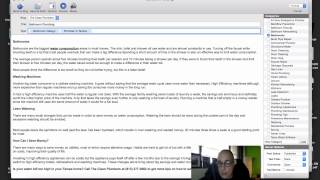
MarsEdit is a macOS app that manages multiple WordPress blogs from one place, auto-detecting credentials and syncing posts. It cuts multi-client blogging time roughly in half with drag-and-drop images, auto-scheduling, and a client dropdown. Costs $39 on the Mac App Store.
Chapters
OK, so I want to share with you a new tool called Mars Edit. This is a great program for managing a large amount of blogs. So the problem with when you're running your agency and you have 15, 20, 30, 40, even 10 clients, right? You want to put up blog posts at least on a weekly basis for them. So it can get kind of cumbersome to log into each blog one at a time, put up your post, log out, go into the next blog, and so on and so forth. Now, as the business grows and you add more clients, you will start to have more and more blogs. Logging in and out, logging in and out is a waste of time. There's a, there's a few tools out there that make the process a little easier. One of them I'm showing you right now is called MarsEdit, and MarsEdit is a cool little blog manager. And so it— now understand, this is a Macintosh-only product, so if you're a PC user this is not— this particular program is not going to work for you. If you are a Mac user, go ahead, download MarsEdit. It's like $39, it's well worth it. If you are a PC user, you should be a Mac user, but that's a whole new video that we'll have to record later. So if you're a Mac user and you want to manage your blogs much better, this is how MarsEdit works. So this is basic— what you see on the screen here is basically the interface. All your blogs will be over here on the side panel, and you can see each one has its posts and pages, so you can manage both posts and pages underneath through MarsEdit. So let's add a new blog, and it's super simple. So you down here in the, in the bottom corner, you press the plus sign and this little box opens up. And you're gonna name your, your blog post, your blog, the Clean Plumbers, and then of course their URL, and then finish. So Morsetic goes and does its auto-detect It detects that there is a blog out there with that, with those credentials, and now it's asking you for your username and password, and we're gonna go ahead and do that here, and we say okay. So now it's going through. What it's doing is it's going into the Clean Plumber's WordPress site and it's pulling in all of your existing, um, content. So this is a lot of the blog posts we've done, and it just keeps going and going and going and going. And it pulls in some of the posts as well, all the posts as well. And what you basically— what you see here is you see the title of the blog, you see the date, the time it was published, you see the category that your blog has. And if you use tags, that would show up here. So when we put this little dropdown here, now you see posts and pages. So these are all the pa— if you want to add a new page to your site, you could do it in here as well. This is super simple. What you want to do right now is create a new post. So what we're going to do is we're just going to create a dummy post, and I want to show you how easy it is to add images and all that good stuff. So we click New Post up here in the top, and this window opens. And now what you see here is you see the blog name, and you can switch between the different blogs you have on your site. You put your title, you put your tags, you put your content. And all of this is the different categories that you have on your blog site. So I am going to go ahead and pull in just some fake content here. Well, um, Oh, the internet's running slow today. Okay, so I'm just gonna grab a blog post that's already published and probably should have had this opened already. Let's do this. Alright, so now I'm going to Grab my text and you will put this however you want to do it. Let me just delete this image because I want to show you something. Okay, so I've edited my content, assuming I've edited it and it's cleaned up and it's ready to go on my blog site. And I'm going to make a title for this called, I don't know, obviously I would come up with a better title. And if I use tags, um, in my WordPress blog, I can do that. Just separate them by a comma, and you can see it highlights it in the blue box, meaning that's ready to roll. Um, and there you go. Alright, so now I have my tags, my title, my blog name, and all of my content here. Now, then I can go over here and I can choose, you know, one of my categories. Because it's really good to categorize everything, and we'll just say bathrooms. Done. Easy. Um, if you want to add a new category, super simple, just put it in here and click Add. Um, we'll get back to the server option area in a second. Now I want to add photos to this thing. So when you add photos in a, in a WordPress blog post, you know that you have to get your image, get it formatted, then upload it to the media sharing section of your blog, of your WordPress blog. And then place it in the— have it placed in the area and you're done. Well, this is a little bit easier because now I can just take my image here and drop it right into my, my blog. And so it opens up this dialog box, and in here it's gonna upload to the Clean Plumbers blog. I don't have it sectioned off, I don't use that feature. And then I'll say style, and I can align it left or write, or however I want. There's your file name and your alt text. So here's where I'll plug in my keyword, Tampa plumber, and then my width and height of my, of my image are 300 pixels by 220. Perfect. And then I'll say I don't want to post this now. Because— oops— because this is a live site. So what I'm gonna do is I'm going— you're simply going to say upload with post. What this will do is it will upload your image, upload your post, everything at the same time. So you can stay out of the WordPress interface, you can upload all your images and everything right into into MarsEdit. So as you can see, my image is placed, my text is here, my call to action, everything. And then I'll go down to my server options here, and my post status is in draft mode right now. I can make it pending, private, or published. And text filter I don't use, comments I don't use, trackbacks if you want to accept them you can. And then that's it. You simply say up here in the top corner, send to blog, and it goes. You can preview it, so you just look ahead, everything looks good, I like what I see, done. And that's it, it's as simple as that. And so let's pretend that— I'm not going to save this, it's done, it's up there. So now we can auto schedule all of our blog posts for this client. And normally what would happen is you would move on to your next client And of course you would close this, this client's WordPress site down, you would open up your next WordPress site, and then you would log in, do all the credentials. But with BlogMars Edit, you just go on to your next client by simply hitting the dropdown, going into the posts, and everything is there. What you want to do from time to time, every time you go into a new client, is just simply refresh, and it keeps— pulls down all of the existing content from the from the site. You always want to keep this updated with your, with your existing live site. And that's it. MoreZed, it's a great tool. It allows you to manage a multitude of blog posts and it cuts your time in half, and it's really super simple. My favorite thing is the way it handles the images, because that is just so time-consuming in WordPress. Putting in your blog post, putting in your images, uploading them to the media. This is really easy. You drop them in Drag and drop into your text, press one button upload, and everything is done. So I hope you, I hope you like this video. And MarsEdit is a $39 product. You can buy it on the Apple Store, and it again, it is only a Mac-only product. So I hope you like the video, and more on the way.
More from Joshua


From 26 Years in Business to Nearly Doubling Recurring Revenue | Sandy Waggett




How Luke Truetken Scaled His Agency to $110K MRR by Going All In on One Niche



Website Production at Scale - The AI Tool Stack for Modern Agencies with Marcel Knopf