Tomer Molovinsky walks through connecting Per Diem to Square's Menu feature so restaurants can manage one menu across their app and website. The setup takes four steps: build a Square Menu with categories and rules, sync it in Per Diem, switch to Square Menu as your source, then add visibility toggles and item caps. Customers see location and time-filtered menus with prices, images, and modifiers from Square.
Chapters
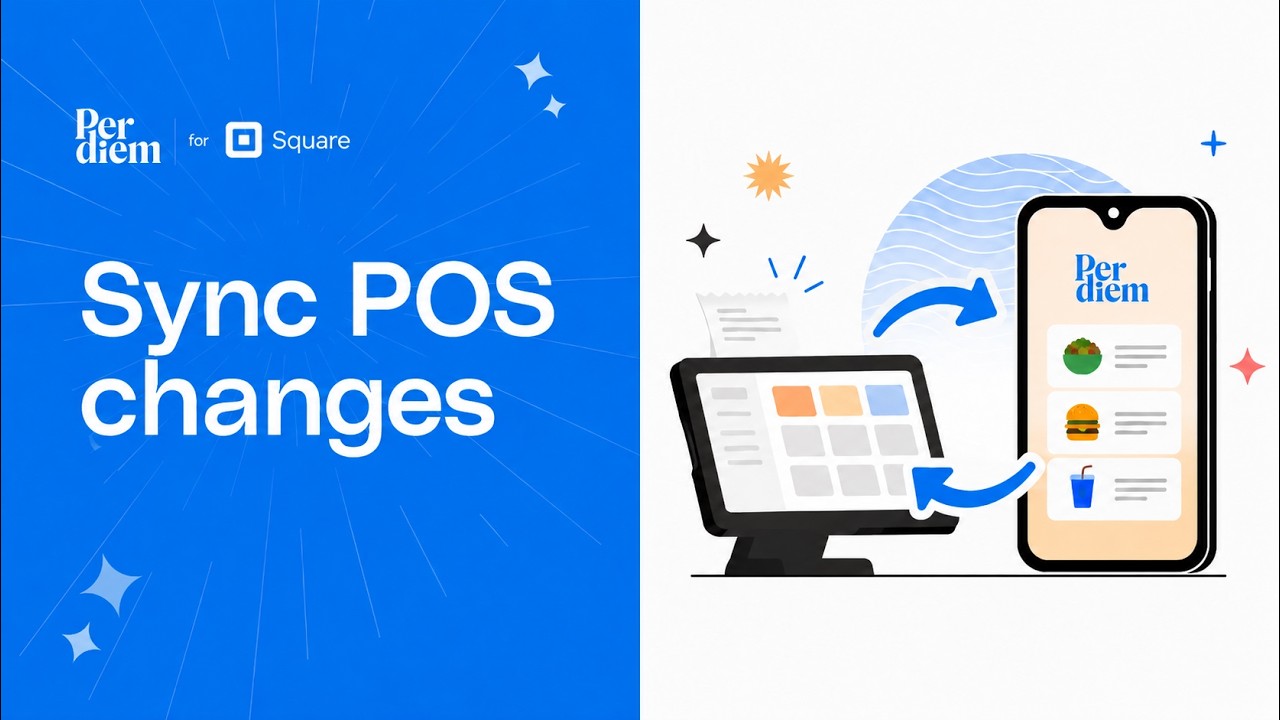
Your menu shouldn't live in two places. With Perdium, you build it once in Square, and it shows up, beautifully, on your own app and website. Let's look at how Perdium connects to your Square catalog, the two ways to organize it, and how each one helps your business. Square gives you two ways to organize your catalog for online ordering, and Perdium works with both. The first is the Item Library, the legacy approach. In Square, you tag each item with a category under Items, then Categories. Perdium reads those category names and shows them to your customers. It works, but it's the older way, and Square is phasing it out. The second is the Square Menu, the modern, recommended path. Here, you build a named menu in Square under Items, then Menus. You add display groups—think of them as category buckets—and assign your items to each one. Every display group becomes a customer-facing category in your Per Diem app and web ordering site. And because it's Square's modern system, it does more. You can create multiple menus—breakfast, dinner, online only—assign each to specific locations, and set weekly schedules. All in Square. Perdium syncs those menus down and renders them on your branded channels. You switch this on in Perdium under Menu Management, Settings, Menu Source. Just opt in to Square Menu. And if you run more than one Square Menu, you'll choose which ones your customers see right there in the opt-in flow. Here's why this is powerful. Square is your single source of truth, for items, prices, modifiers, categories, schedules, and locations. You build your menu once in Square, and Perdium reads it and renders it for your customers. No maintaining two systems. No double entry. Perdium then adds a thin layer on top. You can hide any category or item with a visibility toggle, set a max items per order cap, and turn on promotional features. Promoted items, dietary tags, catering, upsells. But you never recreate the menu itself—it all flows from Square. Setting it up is simple: 1. Build your menu in Square. Create a Square menu under Items, then Menus. Add your display groups, assign your items, and set your schedule and locations. 2. In Perdium, go to Settings, Sync POS, and hit Sync All to pull down your latest Square catalog. 3. Head to Menu Management, Settings, Menu Source, and click Opt-in to Square Menu. Running multiple menus? Pick the ones customers should see. Just one? It's selected automatically. 4. In Menu Management, Menu, flip the visibility toggle on anything you want hidden, and set max item caps if you need them. And that's it! Your customers now see your Square Menu in the mobile app and on the web, with the exact schedule and location rules you configured in Square. So what does the customer actually see when they open your app or web ordering site? Perdium renders the Square menus you've enabled, filtered by their selected location and the current time. A breakfast menu scheduled for 7 to 11 AM appears during those hours and disappears afterward. A menu assigned to one location won't show up at another. That logic all lives in Square, and Per Diem respects it automatically. Categories appear in the order you set, with simple drag to reorder in menu management. Items show with their Square names, prices, images, and modifiers. And your visibility toggles and promotional touches—promoted items, paired items, dietary tags, catering badges—layer right on top. That's the Square integration. Build your menu once in Square and let Perdium bring it to life on your own branded app and website. Link below to see it live.