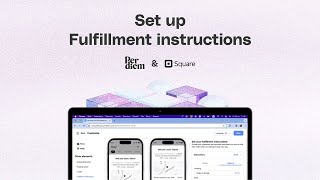
Michael Enerji walks through enabling delivery in Square's Per Diem Merchant Dashboard. You pick a provider (Uber, DoorDash, or in-house), set your delivery fee name, and optionally add a minimum spend or waiver amount.
Chapters
Foreign. Hi everyone, I'm Michael Enerji from Tripardium.com and I'm going to be showing you how to set up delivery on your mobile app using the Per Diem Merchant Dashboard. So first of all, you want to be sure that you want to support the delivery option on the mobile app. So in order to have that done, all you have to do after logging into your account is to go to Operations, then expand that menu and then click on Delivery. So once you click on Delivery, you want to be sure that the feature is enabled. So if it is turned off, you're going to see this banner that tells you that the feature is turned off. So you get to turn it on for you to be able to use this option on the mobile app. So depending on which delivery option you would like to support, whether it's DoorDash, whether it's Uber or you have your own in house delivery, the options are here for you to select. Right now this is set to Uber. All you need to do is pretty much just fill in all the information here, the delivery fee title. So on the subtotal, when the, when the customer is purchasing the item to be delivered, this is how we're going to label the delivery fee. So whatever you put here is how it will be labeled on the mobile app. And you can also set a minimum spend amount which is optional. In this case it is set to $20. And you can also decide that you want to waive the delivery fee when a customer spends a certain amount. So that's the waiver amount here, depending on how you want to do it. There's also the option to charge the customer a fixed delivery fee, which is an advanced option. But we recommend that you use the first option here which is to charge the customers for Uber delivery. Delivery fee. If you want to use DoorDash, it's pretty much the same thing. All you need to do is select DoorDash and then fill in the information there that is needed. If it's an in house delivery, you click there and then you pretty much just fill the information there. So all you need to do at this point is just scroll down to the bottom of the screen and then save. So once that is saved and you are good to go.