In this tutorial, Colin Brown demonstrates a rapid workflow for generating 30 LinkedIn posts in under five minutes by leveraging ChatGPT to produce 30 business tips—optionally styled in the voice of famed copywriter Gene Schwartz—and then processing the output in Excel to create a clean CSV file. He then uses Canva Pro's Bulk Create feature to import the CSV, automatically generate 30 LinkedIn‑style image posts, and download them as PNGs. Finally, he shows how to schedule the images using the EbizSuite social media poster. Throughout, he stresses the importance of reviewing AI‑generated content for accuracy, notes that Canva Pro (or its 30‑day trial) is required, and mentions that the free version of ChatGPT suffices for the prompt generation step.
Chapters
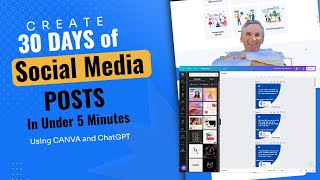
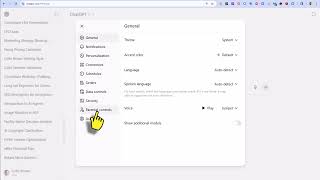
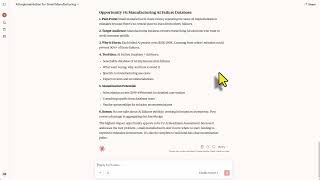
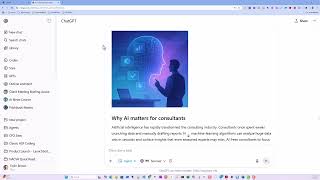
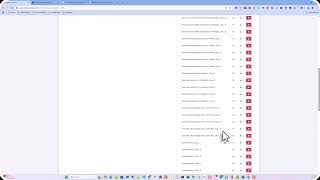
In this session, we're going to cover how to create 30 social media posts for LinkedIn in under 5 minutes. And to do this, we're going to use ChatGPT and Canva Pro. You can use the free version of ChatGPT, but you will need the paid version of Canva, which is Canva Pro. We'll start with creating a prompt in ChatGPT to create 30 business tips. You can see that I've put in, give me 30 interesting business tips that would help an entrepreneur grow a business with AI. And I was okay with these results. They're mostly good. There's a few things I would actually change. And be aware, anytime we're using ChatGPT, we always want to review the results and verify that there are no misleading or actually incorrect information being presented. But I wanted to improve on this, so I went ahead and added a few elements. I said, give me 30 interesting business tips that would help an entrepreneur grow a business with AI in the voice of Gene Schwartz, a famous copywriter. Now it comes back and it says that it recognized that Gene Schwartz is a famous direct response copywriter and he's helped sell millions of products. So these results I am much more happy with. So I'm going to go ahead and assume, for the sake of time, that I have gone through and just reviewed all of these results. In the meantime, I'm going to go ahead and copy, hitting Ctrl+C for copy, and then I'm going to paste it into Excel. And I've gone ahead and I've removed the quotes by doing a find and replace search for the quote and then replace with a blank. So now I've got this nice— I've got 30 rows of content that can be used as business quotes that I can use in a post for social media. I'm going to click Save As. I'm going to save it as a CSV. Now let's hop on over to Canva. And once again, this does require the Pro version to be able to do this, but they do have a 30-day trial and you can get ton of content created quickly by just using the trial version. First thing you want to do is go and create a LinkedIn post. You want to choose your template and then customize it with your information. You'll want to select the area that's going to accept those 30 business tips. Then you'll go over to bulk create, upload a CSV, Grab your CSV file, and then we want to right-click and connect, connect the data. Click Continue, and it says we're going to generate an additional 29 pages. Click on Generate 29 Pages, and there you have it. Click on Share, Download, save them as a PNG. Save all 29 pages, and in less than 5 minutes, we have 30 days worth of social media content right there. Go ahead and load those pieces of content into your social media poster, preferably in EbizSuite.com, and it will automatically schedule and post those pieces of content on whatever schedule you set up. Now you go to work and do the same thing, and you'll have all the content you need created in a very short period of time.