Colin Brown shows how to build a website in eBizSuite by selecting from hundreds of templates, then editing text, colors, and images in the side panel. Each template generates multiple pages you can customize individually, and the analytics view tracks page views, opt-ins, sales, and earnings once live.
Chapters
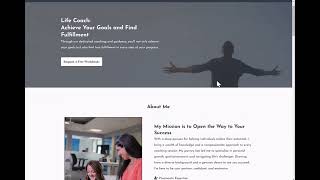
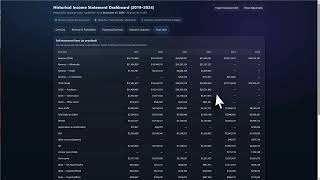
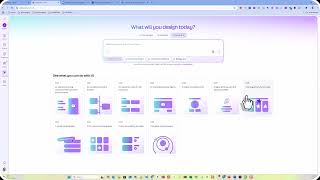
In this section, I'll show you how to get started with creating a website. We'll do this by selecting Sites from your menu and then selecting Websites. Simply create new website. You could go ahead and create one from scratch, but we recommend you start with a template. There are hundreds of templates that you can start with. You can also use tags to narrow down. You can see there are literally hundreds and hundreds. You can also search by category. Once you've selected a template that you'd like to use, go ahead and click on Select. You can preview it and then go ahead and say Continue. And this is going to add the template to your available website. From there, it's going to go ahead and place it into the edit mode where you can go ahead and select any item anywhere and make changes, whether it's text or color, change out the images. Simply use the options in the side panel here where you can change images. Selecting an object will allow you to change that object, and all the options are going to be found in the side panel. You can go ahead and save that and then click on Preview. You will need to enter in your SEO metadata, and here is the preview. So definitely play around with this. It's very easy to use. When you're done, you'll simply go back to the menu, and you'll be able to see each of the pages that it's created in this template, and then edit those particular pages so that it matches your branding and what you're trying to accomplish. So that's how you set up a website using a template to help things get started immediately. This is also where you can see the stats of the pages. So we don't have any data here because we haven't This is a new page, but this is where you're going to see all your page views, any opt-ins if you have an opt-in page, any sales, and any earnings. This is also where you can see orders that have come through on your website. And then under settings, this is where you're able to select a domain for your website, give it a path, put in your Google Analytics code here. You can put it in a test mode or put it in live mode so that you can test checking out of your site before making it live. You can turn the GD— you can turn GDPR-compliant fonts on, and then we recommend that you always have image optimization enabled. Have fun setting this up and building out and designing your website, which can be changed and modified at any time by you and your staff.