Colin Brown shows how to set up calendars in eBizSuite, from branding and naming to linking Google Calendar with two-way sync. Choose from four scheduling types: Simple, Round Robin, Class, or Collective. Embed the calendar on your page so visitors can book appointments in real time.
Chapters
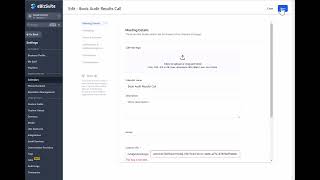
The next thing we want to cover is setting up your calendars under Settings. So we go to Calendars, and the first thing you want to do— you see I have some set up currently. I'll go ahead and click on one here, and I'm going to click on Edit. You'll notice that you can upload an image that can be a calendar logo. It can be seen when you set up your calendar. You can give it a specific name, a description, and even assign it to a group. If you have many calendars for many employees, for example, you might set up a group for sales, one for support, one for admin, and then you can assign those calendars to a specific group. This custom URL is going to be the, the domain name with these things added onto it, well, that will go to a link specifically to this particular calendar. You can set up your default availability if you want it. These are the standard times, but if you want it to be custom, you can go ahead and make those custom, or you can go ahead and just adjust these by changing the start time and end time. And you can copy them to all if you want to change them all quickly. You can also accept payment when you're scheduling appointments. So if you, for example, charge $100 an hour for a consulting call, then this would be a method that would allow you to do that. There are also notifications. The first one is the option to allow you to select the type of notification. And in this case, we don't have a lot set up here, but Acknowledgement email is the default here, and we would need to go into the email templates and set up if there is a specific template that you want to use in your notifications. The other thing you can do is you can specify who's going to receive this notification. So you might want to have the contact, the person who has scheduled the call, to get this email, but you also might want to send it to yourself. So you can then put in your email address here, and it's also not a bad idea to allow Google Calendar to send invitations and update emails to attendees. So it's another option. Under Connections, this is where you'll link to a specific calendar. Now I don't have any setup here, but to do that, we would simply click on Set Up External Calendar and then sign in with Google. Go ahead and allow Lead Connector access to the account. Now you'll want to have an actual property set up under there. It looks like I don't have one on this particular account, but if you do, it's going to show up here. Once you've got it connected, when you go to calendars, you're going to be able to see these connections if it exists. And it looks like I, I have one. I would probably need to go into that actual account and set up a specific calendar. I would also suggest when you get this set up to go ahead and turn it to two-way. That way it will— if you set up an appointment inside of eBizSuite, it will actually update your Google Calendar and vice versa. If you keeping your calendar up to date, let's say on your phone or on your desktop, it will also post to EBSuite. And I would probably turn this on as well, executing automation. So regardless of the two-way syncing, it's going to allow you to fire off workflow triggers. For certain events that you set up. And then there's customizations. You could have a cover image for your calendar, and you can specify how you want to look. You can also put in some custom code to change it using some CSS styles. And then I always recommend you have these turned on, which allows the person to cancel or even reschedule the meeting. So that is how you set up your calendar. Or various calendars. You might have many calendars. I recommend that you, if you're going to have, if it is a shared calendar for multiple salespeople or let's say departments, it's a good idea to name these appropriately so that you can find them. You'll also notice that there are different calendar types. If I click on Create Calendar It's going to ask me if you want just a simple calendar, a round robin, a class booking, or collective booking. And a simple one, if it's just you, then that's a great place to start. A round robin is going to choose based on a round robin model. It'll hit the first calendar then it'll book the second calendar, book the third calendar, so forth and so on. And then in the class booking, as you can see, contacts can schedule a meeting with a single person on your team. And then collective booking is where you've got— you can schedule meetings with multiple team members simultaneously, which are good for sales calls and technical support and interviews. So depending on the use of the calendar, you want to select the type of calendar scheduling type, and then you're— it's going to show you the type of calendar that you have set up. And then, as we just did, you can edit those. You can also duplicate those. You can copy an embed code and maybe place that calendar on some other website or even on a social media area if they allow embedding of code. And then if you want to set up a permanent link or a scheduling link, you can do that. You can also turn the calendar off, move it to a group, and of course you can delete the calendar. That's gonna get you started and get things mostly set up. At the end You're ultimately, when you have a calendar set up, you're going to be able to create that calendar and put it on a website. So if I just choose this one, let's say, and I want to Add a page. I can choose this area, and currently it is a form. But I can also choose Add Element and choose Calendar. Then I just need to select the calendar. Remove this. And now it's going to grab the information from over here. And anytime someone needs to schedule an appointment with you, they'll be able to click on this and it will be updated dynamically from the Google Calendar so that you're always up to date and you can have your prospects and clients schedule an appointment seeing your availability on your calendar. So it's very, very handy and should save you a ton of time and money messing around trying to schedule appointments with your clients.