1:30
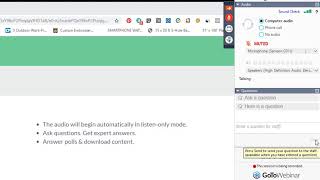
Colin Brown shows how to use the GoToWebinar control panel at the bottom of your screen. You can ask questions, see if you're muted (red icon means muted, green means audible), and raise your hand when the presenter asks for it.
Colin Brown shows how to use the GoToWebinar control panel at the bottom of your screen. You can ask questions, see if you're muted (red icon means muted, green means audible), and raise your hand when the presenter asks for it.
You'll notice when you start up your GoToWebinar, you have this current control panel that will show up. Eventually it's going to disappear. Hide itself simply by going over it into this small control panel area. And that is so that it doesn't interfere with the presentation materials. So if you do want to open that up, you just click on Show Control Panel. It'll open up. You can see the questions here and enter in your questions. Click Send, and you'll also get your answers from staff that will also post there as well. You have the ability to mute yourself. In this case, you're being muted by the organizer. If this ever turns from this red to a green, that means that we can hear you. So be careful about what you might say or do when that is green. You also have the ability to raise your hand and then lower your hand. And that might be something that the presenter might ask you to do. Other than that, it's— that's all you have to do or worry about when you're on a GoToWebinar.