Colin Brown shows how to build a reusable PowerPoint template by designing a 1920 × 1080 background in Photoshop or Canva, exporting it as a small PNG or JPEG, then importing it into Slide Master view to set fonts and layouts. Save the file as a .potx template to reuse across presentations.
Chapters
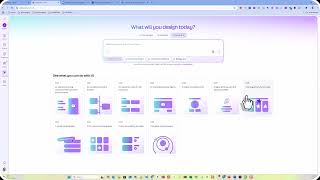
Whenever I start to create a template, I start out in Photoshop and I design the layout or the background that I'm going to be using throughout my presentations. You don't have to use Photoshop. You could use Canva or any of the other free tools that are available on the web. There are quite a few of them these days. You'll just want to start out with a canvas size of 1920 pixels by 1080 pixels. Once you get that done, save that as a PNG or JPEG, whichever one is smaller. You want to keep the file size small so that your PowerPoint presentation size is also small. Then we hop on over to PowerPoint. In PowerPoint, we go ahead and create a new blank presentation. Click on View, Slide Master. Now it comes up with all of the different styles that are available, but you want to edit the slide master. So you want to click here. If you wanted to change font styles, you could go ahead and highlight all this and then change fonts. You could change individual sizes. That's also going to be passed down to all of the slides' styles. Then you can add your background. So in this case, you click on Background. And you click on Picture, Insert. Go ahead and find it on your computer. Select the background image. In this case, I did two images, one of the same, which is JPEG and PNG, and the PNG was smaller, so I'll use the PNG. And now you can see that it has applied that to every style. It's a good idea to go through each one of these, make sure they all fit still. So there's an issue right there, as you can see. I'd probably get rid of that page number. But everything looks good. So all we need to do at this point is click on File, Save As, and change this to a PowerPoint template. Give it a name and click Save. Now you have a legitimate PowerPoint template that you can use, and this can be applied to other PowerPoint presentations that you've created in the past, but this is the correct way to create a PowerPoint template using the slide master.