Colin Brown shows how to connect Calendly to Zoom so clients can book meetings that automatically generate video links. Set up event types in Calendly, enable Zoom integration through the Integrations page, and authorize the app in Zoom Marketplace. When someone books a slot, Calendly creates the Zoom meeting and sends the link in the confirmation email.
Chapters
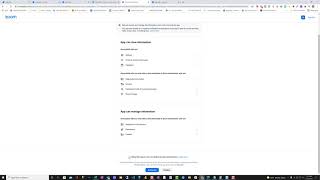
So in this video, I'm going to show you how to get Calendly set up for your business. It's a great tool to allow you to automatically allow others to schedule an appointment with you. So you just go to calendly.com. You can see right there. And we can just click on Individuals and then click up Sign Up for Free. And in this case, I've already signed up and I've created 3 events. I've got a 15-minute meeting, a 30-minute meeting, and a 60-minute meeting. I've only got one turned on at this particular point, that's the 30-minute, but you've only allowed one scheduled event for the free account. You can create as many as you want, but only one can be active. You can also share this link, or you can send people directly to this link. So what I'm gonna do is show you how to connect to Zoom. So this 30-minute meeting is also scheduled on Zoom automatically. So to do that, we're going to go to Integrations, we're going to click on Zoom and say Connect Zoom. Now you'll notice it does give us some information here. It's going to automatically create a Zoom meeting at the time of the event is scheduled. It's going to instantly share you that unique conferencing detail to the person who is confirming to have this meeting with you. You do have to have a Zoom account. A Zoom account is also free, and you can, with the free version, can hook up to Zoom. You also need to make sure that the account administrator has to pre-approve the Calendly in Zoom Marketplace. So I'll go ahead and click on Connect Zoom. It says you're about to install Calendly for Zoom. You'll need to allow this app to use my shared access permissions and then authorize. You can follow these instructions here. Basically, go to the Calendly home page, select your event type, select edit, and then on location, select Zoom. Click on Edit Location, and we're going to say Zoom. You could also put some instructions just mentioning to them that this is a Zoom call and will automatically be scheduled, and the email confirmation will contain the Zoom link for the time and date that has been selected. And that's it. I don't have anything set up on this particular calendar, but if I did, I could click on that and it would come up automatically set up the time and date in my calendar, as well as connect to Zoom and set up a Zoom call with a Zoom link automatically created and an email confirmation sent to you and also the person who is seeking to have a meeting with you. So it's that simple. This can save you a ton of time of going back and forth trying to find available times to schedule with other people.