The video walks through Fielo's extensibility features, starting with the core promotion rule rewarding system that lets administrators select standard incentive types such as points, cash, badges, vouchers, and physical products. It introduces the "Additional Rewarding" option, which enables a custom Apex class to run when a rule is satisfied, illustrated by an example that automatically creates a certification record for a member. The same Apex-driven approach is shown for challenges and missions, allowing custom actions like awarding certifications after a series of actions or when a member ranks up. The demo also covers extending member creation logic, such as creating a community user and customizing how the platform matches users to contacts via Apex‑based field comparisons. Further, it explains how to define custom payout key generation to group member actions according to business‑specific criteria, and how to extend configuration forms by adding fieldsets for additional fields. All features are documented publicly at docs.fielo.com.
Chapters
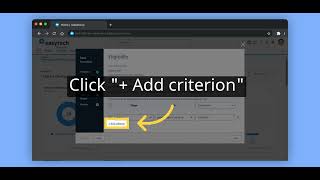
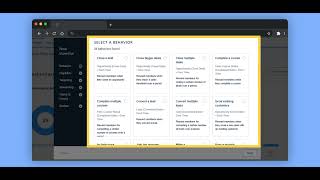
Fielo offers engagement features and extends core functionality to align with your business goals. Explore examples in this video. Introducing our initial extensible core functionality: promotion rule rewarding. Going to the incentives sub-tab, let's see the available reward options for incentives. Here's the incentive we are going to edit. And now let's check the available rewards here on the rewarding page. Here you can choose points, cash, create new currencies like MDF. You can give the member a badge or an instant reward that can be a voucher, a physical product, etc. But what if you wanted to reward with something else? Our additional rewarding can help you with that. Now we're in the advanced view looking at the same incentive. Let's enter the rule and check the available rewards. Here you can see that all the rewards from the wizard are showing, but one extra checkbox is available: Additional Rewarding. By checking this box, we enable this rule to run a specific Apex class that you have created. Here we brought a certification example. Imagine you want to give your members a certification after completing a course, and that information is stored inside an object. Here you can write an Apex code to create and assign that record to the member. If we go back to the rewarding, we can see that our class can be selected here. And done! As soon as a member completes this rule, we are going to give them a certification. We can also do the same in a challenge and mission rewarding. Here's one challenge example. Let's check the rewarding. So as soon as or after a time that a member complete a couple of actions, they will earn a certification. Here we only used a record creation as an example, but you can create your logic as creative as you want using Apex classes. Additionally, you can fire an action as soon as a member ranks up inside a challenge, also with Apex classes. We can also extend our member creation capabilities. When a member is created, both an account and a contact are created and linked to them by default. However, You can define a custom action for when the member is created, such as create a community user. You can modify how our package compares matching user and contact fields. By default, when a member is created, the contact is matched to the user by comparing emails. You can create an Apex class to compare more fields between those two records. After adding your new Apex class to the org, you need to add that class to our custom settings. You can also customize payout records to match your business criteria for greater control and efficiency. With the key creation for payout, you can create your own way of generating a key to group the members' actions, complying to your business preferred criteria. For example, you may need to group not only by member and payout date, but also by a specific promotion or challenge. Within the program settings and rewards edit view page, You can see and edit to your best judgment some fields by default. However, in case you want to add other fields to the configuration other than the default ones, for simple visualization or in order to be able to change a setup, you can extend the record form by creating a fieldset. Everything covered in this video is publicly documented. For more information, check docs.fielo.com.