Step-by-step guide to building an incentive in Fielo using the Behavior Library Wizard. Configure eligibility with Opportunity fields, target specific member segments like gold-level members, choose rewards like cash, set the active period, then save and activate.
Chapters
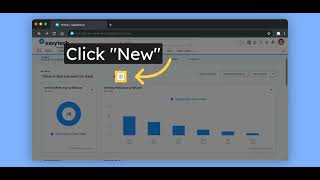
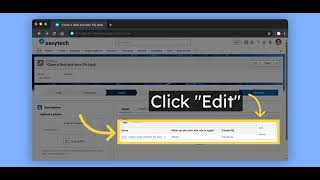
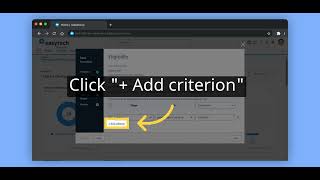
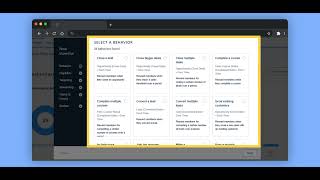
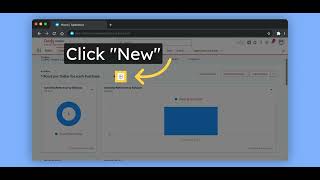
In this video, you will learn how to create an incentive inside Fielo's Behavior Library. Inside the Incentives tab, when you choose to create an incentive, the Behavior Library Wizard window pops up. Here we have many templates that comes out of the box with our package. You can also create your own incentive from scratch, with the possibility to create more templates based on your configuration. For this example, let's see how the template Close a Deal looks like. On the Eligibility screen, you can see some criteria already defined for this template. You can change the existing ones or add more. Let's add some examples. Here you can choose any field inside the Opportunity object, the object incentivized in this configuration. Here we added two more fields: fiscal year and fiscal quarter. On the targeting screen, we can choose which type of member we want to incentivize, and if that member is part of one or more segments. So in this incentive, we want to incentivize gold level members only. On the rewarding tab, we can choose which rewards we want to give to the incentivized member. Here we chose cash. Name and period for our incentive, if it's ongoing for the whole program or it has an end date. And finally, the review page where you can check if the configuration is correct before saving and activating this incentive. To find out more, please check our public documentation at docs.fielo.com.