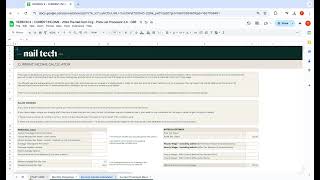
Instructor Amy Guy introduces a spreadsheet-based "current income calculator" for existing nail businesses. The video explains housekeeping steps: make a copy of the Google Sheet, only enter data into white cells, avoid editing beige (formula) cells, ignore temporary red-corner flags, and do not jump ahead in the module so the calculator works correctly.
Chapters
Okay, so you've made it to the exciting part of the module and this is where we are going to start doing some calculations for your specific business. Now before we go ahead and do that, I just want to run through a few bits of housekeeping as we use these spreadsheets because I just want you to get the most out of them. As I said earlier in module one, I am really not a spreadsheets person. I really struggle to get my head around numbers and figures and spreadsheets and overwhelm and things like this. However, the way in which these calculators have been designed is for it to be easy to use and so that all of the formulas are already pre populated. Okay, so you should already be used to using the business tracker, which is the weekly business Tracker from Module 1. If you are using that and you're happy with that, then this one works in a very similar way. Obviously it just gives you different information and has different data input points. But yeah, really simple and streamlined to use as you. As long as you just follow the clear, simple step steps. So first of all, this is the first out of two tools that you have inside this module. So we've got the current income calculator and we've also got like the price list processor which helps you to work out what your price list should be. But at this stage, this calculator is for us to understand what your current income is based on your existing nail business. So you only complete this calculator if you have an existing nail business and you already have prices that you are charging to existing clients. Okay. Now when you open it up, it should ask you to make a copy. So you will do that and then that will save to if you're using Google, it will save to your Google folder or your Google Drive if it doesn't force you to make a copy, which it should do. But if you arrive on this page and everything is locked throughout your whole spreadsheet and you can't access everything and it hasn't asked you to make a copy, you'll just head to file and you'll come down here and click here on Make a Copy. If you are on a tablet, you'll be able to click three dots over here and it'll also ask you to make a copy. But that shouldn't happen. You should be able to open it up, make a copy yourself and then head over to this page. Now a couple of things just to know before we head into the calculations is that every box that you are to fill in is White. Okay, so you should only add data to white boxes like this one. There are also some beige boxes on this spot spreadsheet. Now, the beige boxes are already populated with formulas and codes to work out certain things for you. So please don't mess with those boxes. They are always locked anyway. So if you are on a laptop, you shouldn't be able to mess with the formulas anyway, because they should be locked. But what we do know is if you are accessing on a phone or an iPad or another type of tablet, sometimes randomly, they will appear unlocked. So if that's the case, just don't delete them, don't edit them. We've done all the hard work for you. Leave the calculations there and just focus on the white boxes like these. And these are the information that you should be important nowhere else. If you do come across any small red flags in the corner of some of the white boxes, you can completely ignore them. It just means that they are waiting on you completing the rest of the spreadsheet in order for them to pre populate the information that you need. So it just basically means you haven't finished yet. So completely ignore any red flags, carry on entering your data and it will all correct itself by the end. And the last thing for you to know is, like I said at the beginning, please do not jump ahead on any of these videos or any of these tasks. So the way in which we have laid this module out and all of these lessons out is for us to complete these calculators together. If you do jump ahead or you go and do a task without us asking you to do that task, then it might mean that the calculator won't work in the end, or there'll be something off or something missing which we don't want. So the best way to fill these in is to fill it in together with us as we go through the videos, as we go through the calculator together, then you're going to be left with the information that you need. So without further ado, let's head over to the next section, the next video, where we're going to start doing some calculations.