Two designers move a design exercise from Figma into a Word document for a job application. They build out sections for problem framing, competitive analysis, and user journeys, add styled links to Figma prototypes, and create a table of contents that actually works.
Chapters
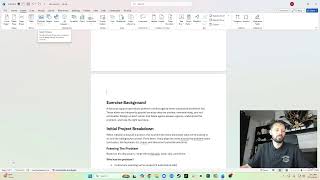
Okay, so let me, uh, catch you guys up to speed here real quick. Um, so I've decided to go for a— it needs— I need to deliver a PDF, right? And the truth is, I realized that some of the problem, like trying to deliver just a Figma file, does not cover all the context. I really think for me to have the best chance to land this position, I need to explain the process and explain why I'm doing the process as well as the solution.
So, you know, here's the—
I decided to move into Word, namely because I can export it as a PDF and I feel a little bit more comfortable typing. It feels more standardized. And then I'll link to certain areas based on what it is. For example, like the exercise background, I don't need anything, but say I get to the the concepts and I want to link to a certain file or something like that, I'll put it in there and it'll also move into the PDF. And then it will, you know, I'll also include it in the email to see those files. But, you know, I really feel like this format will be the best because like I'm looking at them like, okay, so what are predispositions, right? I should really explain that.
So this is where assumptions are— Framing the problem.
Huh. Corral. Is that how you spell corral?
This can't be. How do you spell corral? Nope, that's right. Help align the team around.
Okay, that's much better.
So who, what, and why, and then where. Okay, cool.
So this is where I document the how as assumptions listed before moving into visual solutions.
This may indicate reason Okay, cool. So I'm just finished formatting this.
Okay, so now we can break this down. Inspiration. So I do want a lot of this stuff, it's not necessarily linked in the Figma file.
I don't need to show the prototype currently.
So you see here, like, like trying to explain that here would just be confusing. All right, I do want to put, um, and you know what, I do think that this is going to have to go something like this. Check this out. You know, when I was doing my resume recently, I started getting pretty good here. Maybe. I mean, I don't know, like, it's Microsoft Word, right? So I'm going to insert a table, 2-column.
We're going to look at the Competitive Analysis and Inspiration. I'm going to clean that up, and we're going to make this a Heading 2, right? And then on this side, we are going to view on Figma.
Right, so firstly, what we want to do is table layout.
We're going to remove that. Oh, I see, because this Can I— let's see if we can do table design. We don't need a header row, we don't need a first column, we don't need banded. Let's go to table layout. Can we— yep, we can do something like that or like that, so it's aligned here. Now from the design, we're going to take the borders and we will have no borders.
Oops.
Now we kind of want to make this look like a button almost.
So let's put—
let's just change— let's add a color.
I almost want to add like padding.
I don't know if you can do that here on text, right? Because it just looks like this. That's lame.
So what we do want to do is Firstly, maybe not make it bold.
We'll make it underlined because it is a link, which should happen automatically. And sure, let's just do the link now.
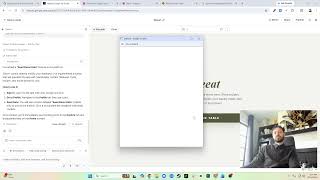
So we're going to share, copy link.
Now I want to make sure this links to the right spot.
So I'm gonna open this up in an incognito window, paste it, and see where this takes me.
This is going to take me right to the—
look, see, good thing I checked. Good thing I checked. Um, node ID 295.
Yep, there we go.
So perfect, that will take us exactly where we want, and we're going to Make this a link.
What is that command?
K? Insert hyperlink? No. So address. There we go. Boom!
That does make it a link.
Looks good. So let's do this.
Okay, so now this is where I get to describe it. Or I can do it here. Yeah, should be here. So now Now having context about the problem. I just really like— is it hypothesis or theory? I can't remember. I just learned this where one of them is something you're going to test or one is not. Or something. Like, I'll look it up in a second. Make a more educated hypothesis.
Solution.
No, we're looking—
yeah, cool.
This is quantitative.
Okay, this is where I review what currently exists and how the users are interacting with it.
Qualitative. Any, any discoveries or prior user research? No, I want to call that discovery research.
Okay.
So I'm gonna start this one. So this would be like an H2, right?
Yeah.
Let's see, so it's 3:30. Let's say she got there 2:00. So I need to run to the store. Let me finish the research part, and then I will— must move. Okay, so competitive analysis. Now I almost want to— link ChatGPT, but I don't know, I think this is fine.
I want to be writing a book, no visuals.
Oops, now let's grab the user journey here. Small. So I'm— oh, this is a— yeah, Heading 2.
So this is— I'm going to do another one of those view on Figma situations.
So, insert table, two-piece, user journey.
Do I want to view— show it on Figma or FigJam? That's the question. I'll do it on Figma just to reduce the number of files because I do have it here.
Copy one Frame link, okay, okay. And this is where we do the same situation here. Table layout, same lo—
oops. Oh.
No, how do I do this?
Oh, I know how.
Like that. Now from here I can do cell margins 0, 0, do that, and then we're gonna go no borders.
Boom.
So we're actually Let's see, can I copy this? Oh, I can. Perfect. We'll have to test these out. Okay, now I'm actually missing user flows, which I'll have to do because there are quite a bit based on the types. Okay, now I may do another page or something. Now the prototype—
did I—
I did type some notes somewhere. Where are they? Notion? Oh, I think this is supposed to be under prototype. Maybe I got a table of contents here. Jeez Louise. Okay, how do you insert a table of contents? It's like I know it's here. All right, to Google. How to insert table of contents in Word. Reference— References tab— Table of Contents. We're obviously gonna need to add— Uh-oh, did it all freeze? Oh no. I see what— I see what you're saying to me. Save.
Browse.
Different first page. Start at zero. Nice. Okay, I need to go.
Everybody, thanks for watching. I'll come back and finish this later.