A designer removes unwanted text from a client image using Photoshop's Generative Fill, which replaces the old Content-Aware Fill method. After erasing the text, they refine the background with layer duplication, color overlays, and blending mode adjustments to make the edit look natural before uploading the final asset.
Chapters
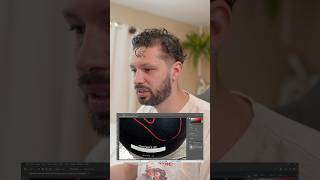
Okay, trying to show all the things that I end up doing in my design career and design life. You can see here, my brother has sent me a picture of the ball and he wants me to take out the name. Now, this is on Photoshop and back in the day, there used to be a long convoluted process here and I'm just going to quickly select it using the Lasso Tool. It'll even take out that dark spot. And it used to be complex. I'd have to do this and try to do a Content-Aware Fill. Let's see what happens. Of course it doesn't work. But now with the power of AI and generative fill, remove text from white box, right? This should ideally remove it and make it a blank, blank box. Just fill it in. I essentially— look at that, beautiful. I have a couple different options. And realistically, if I wanted to make the whole thing like white or clean, I could. I'm just going to kind of merge that in. Let's see if I can kind of auto-select it here. I see a little bit of it is not, and I am a perfectionist, so I'm going to Remove that. I'm going to make a duplicate, going to add a color overlay. Obviously not that color. Let's do something like that. But let's— because right now it looks unrealistic— let's rasterize the layer. Rasterize layer style. Okay, so then as we do this, you can see it'll sit on top. So we want like a more like some kind of difference to the light, like a little drill on like that. That feels a little better. There we go. So this is just— and this is very minor. Sometimes these get more complicated and more advanced, but having to go from Photoshop, then upload it to the site, that is all just kind of part of the job.