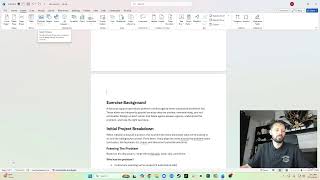
Testing AI Tools and Processes
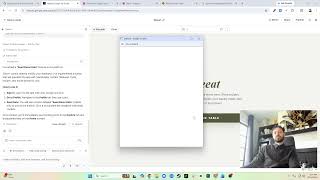
Two designers test Pomeli, Stitch, and Google AI Studio by building a meal-planner app, comparing how fast each tool generates design systems and code versus the control you get in Figma. They also walk through OBS replay buffer setup for streamers, then discuss where AI prototypes fall short on customization and real integration.
Chapters
Okay, so this is— let me pull this up here. Coconut funding. Ah. Is a social. That's beautifully said. That's cool. Ooh, look at these suggestions based on business DNA. Stop stalling. Oh, this looks pretty good. Let me take a look. This looks good. That does not look good. So this is Pomeli by Google brand or Google Labs. I found it here in the for experimentation. Easily generate on-brand content for your business. So this is cool, help generate on-brand content. So let's take a look. Saying, oh, photo shoots down here, so I will try that maybe later. But I, I don't really— it's like not an e-commerce brand, so I don't necessarily need to do that. I mean, I'll need it at some point, but I kind of just want to see what this campaign does. Next, we'll try out Stitch. We could try out Stitch. What, native or web? So you can't do both. You can use— see, design systems. So these already exist. Let's see, um. What else, what else? Um. Create recipes. Want I guess Flash 3.0, high quality designs in HTML with Gemini, thinking with 3.2. Let's try it. Let's see what happens. Let me pull up because I already have this laid out here. So I thought this was really for design system stuff, but maybe not. Maybe this is a builder. The second one is— I'm gonna copy meal planner and profile. Building the design system. Yeah, let's see what the design system yields. Got an agent log. Oh, that— this is the agent log. Okay, so what is this? Mark. So this kind of reminds me of— oh look, design system here, favorites. Okay, so it did create I mean, are we really calling this a design system? A button, search input. Okay, okay, this is kind of cool. So you can see the colors. Nice. It looks like it took— didn't use any corner radius. That's kind of cool. Presets. This is a lot of this Description. Sure, whatever. Hmm, the meal planner looks real nice. This also looks real nice. The feed. Everyone just thinks stories are just gonna exist, huh? Just every social media app needs to have stories, like it needs to be Instagram. Actually, what I really want to do real quick is figure out how to go and do is click on the output tab right here.
And if you're on the simple mode, you can actually scroll Scroll down, maximum replay time recording instead. TikTok gigabyte, which would start at 1,000. But truthfully, you can always video— I'm going to keep it at 1. Even enabled the replay, a picture on the video right here. Roll all the way. This is where we're going to set our hotkeys. So anytime we press a hotkey, it's going to actually save the clip. So we're going to navigate over to the hotkeys tab here, and this is where a lot of people get confused, so pay attention. First, you're going to navigate to where it says start replay buffer and stop replay buffer. You would think that this is the one that controls when you actually take the clip, right? Well, you'd be wrong, and there— you're not the only one because there's a lot of people. All this hotkey is going to do is going to turn this button on to enable you to then scroll down and use Replay Buffer, Save Replay. This hotkey right here is the button you're going to hit in order to save that 60-second clip that we told it to under the Output tab, which is right here. So if you want to have a hotkey set for turning the actual Replay Buffer on and off, you can. I think it's a little confusing to do that, so I don't. And there's also a setting if you go to General here where you can automatically start the replay buffer when streaming. So if we hit that and then we hit Apply, anytime we're streaming and it says start streaming, it's automatically going to start the replay buffer, which does most the work for us. That being said, you do not need to be streaming— totally do that— all you have recording, which I know a lot of people do nothing. So in order to actually save those clips and use the replay buffer, we'll go to Hotkeys, we'll scroll down to where it says Replay Buffer, Save Replay. So this is where I like to use my poverty Stream Deck, because if you're familiar, I have a keyboard that has a little number pad like many of you probably do. And so this number pad can actually have up to like 9, 10+ keys because they're different than the actual numbers. On my keyboard, I just have to make sure the num lock key is turned on. So I enable the num lock, and then now if I press the 9 key on my number pad, which is to the right of my keyboard and not the 9 above the actual letters where you type, I'm going to press it right now. It's going to say number pad 9, which is different than if I backspace that right there and I press the 9 above the letters. That's a just a 9. So this way, if you have the Num Lock enabled, at least for my keyboard— yours might be different— Stream Deck. Now I know it's people that are buying things that you need. So that's why we're going to set it to number pad. We have our start replay buffer here, which if we press number pad 9 right now, it's not going to record anything because it's not start streaming when you're live. Play buffer, stop replay buffer, but I think that complicates things. So ever, and it's going to save it as a clip. So if you actually go to the file button in the top left corner and then click on show recordings, it's going to actually pop up your little videos folder where all of your replays are saved. So you can see right here we got a couple of replays because I was testing this out before the video. Now obviously if you watch it, it's just the starting soon screen because that's what's active on our little OBS screen or Streamlabs screen. However, if you notice, this video is only 13 seconds long. But why is that the case if we set it to 60 seconds? Well, actually stumped me for a second. It's because the replay buffer button just got turned on 13 seconds ago. So obviously, if you're trying to record before that, it ain't going to happen because we didn't tell it to turn on the replay buffer until after that. If you're not dumb like me, you can always— you know, I'm going to keep it at 120 for more than 60 seconds and then you go and actually press your button. It's going to record the full 60 seconds. So there's a lot of little intricacies just like that that can trip you up as a new streamer. But luckily you got your boy to make the fails before you do. So that way you don't get a headache like I do.
Okay, cool. Now I found out how to make replays. That's sick. All right, back to this. So it's cool, it Kind of uses a lot of the similar— at least, uh, let's see, V. Yep, so similar shortcuts that I'm familiar with. So we've got that. Let's take a look at the screen. So now this does look kind of similar to what my screen looks like currently, but I want the top nav because I don't need— like, what are these? Oh, I like this idea for a carousel, but look, this got messed up. This all got messed up, so that obviously won't work. Let's see, can I fix it? Is that a thing? Edit with AI. Okay, let's see. Okay, I guess I can select it and edit with AI. Hmm. Okay, let's take a look now. The meal planner. Now this is really good for design inspiration is what I'm seeing, to be honest. Week view, list view. This is kind of cool. So we've got weekly schedule, so that's this week, but how do I see past weeks? We just assume that breakfast, lunch, and dinner are meals people have. There's no other or create meal or something. Saved library. Okay, so you can like drag it maybe. Uh, not a fan of this, but I mean, normally, to be honest, this is wider because I don't have the side, side. Let me show you guys what I do have. Okay, so here's how mine looks, and I have follower suggestions here. Oh, I don't have a report yet. I have report on the, on the other one, on the app. I have reporting on the app. There's a lot to do here. So here's my Explore currently. So it's got a list of new users and the ability to view all, and then you've got a list of recipes. Now I don't have orders on here yet. This is just like an infinite scroll of all the recipes. So I was thinking about doing something similar to this where I have a certain amount and then a view all and then, you know, something underneath. Create. Create is kind of redundant here. Activity. Alright, this is your notifications. Let's see. Let's see, profile. So let's now compare. So I don't have meal plans, as you can see, but the post is kind of similar. Let's look at the home screen. So they— theirs is just posts with stories. Not bad. Look at the— look at the layout, right? User thing, name. Yep, 11 days ago. Cool. Florence, Italy. Why do you need to know the location? Where do you even get the location? That's weird. Yes, and then that. Cool. Nice round. Yep, comment, like, share. Comment, like. I don't have a share. Share is not bad. I have a detail screen though, so if you go into here, there's a details that has share and it shows the comments here. I don't have comments on here. If you do click on the comments, it takes you here to the comments, to the details page. Okay, so what does it call it? It doesn't even have a name. It just is the feed, right? As you can tell here, look at my navigations up here. I mean, I could put it centered or on the left. I I feel like on the right side it's kind of getting lost over there. Maybe I'll put it on the right. Okay, so then the meal planner. So meal planner is a, is a new feature I'm looking to build. So my problem here, okay, so as a, you know, if you're looking for a meal plan, my, I can see here, this is for a week, it's this week, which is fine. But how do I plan for next week? How do I plan for or see what I had planned last week? So that's my concern. And like, am I gonna have to build a whole calendar system? Or can I just navigate, you know, left and right, right? This can say week of this and just go back a week. Only, you know, maybe for MVP I'll start with just a week because I can put, you know, 12th through 18th up here and you can go back and that'll go to the last week or go forward and go to next week and then you can do it like that. It is concerning that there's no save feature. Like if I, if I do this, I guess when I go through this flow, it's going to save it and now we're just looking at it. We'll be editing these. You can see the little three dots. I don't, I don't need this, the recipe thing, because it's not just recipes, right? What if, what if you're gonna eat out for, for dinner? So this is a cool starting point. Visually, I do enjoy this. So it does do a good job of generating a new design system, but like, how do— how would I use this in, you know, Figma? Or I guess I just have to use this. Like, yeah. Anyway, explore featured chefs. That's cool. Realistically, you saw those pictures are not as, as cool, but this is nice, like a bigger picture to show the profile. But the thing is, they're round, right? Like, profile pictures are round. These random featured chefs are like maybe they are featured chefs, maybe there's like, I can do some kind of special thing and invite them, but like that's a whole flow I have to build. How do they become featured chefs? What image do they get to use? So as of right now, I think I'll keep it like this, right? Just show new users. Now you can see these users obviously don't have any avatars. Trending Recipes is clean, so it's just like a few of them. 1, 2, 3, 4, and you probably have 5 right here. So one, one big one, which is probably the most recent one. Picture, I do have prep time, I have a name, I think I have a note. View Recipes, cool. I don't have this Bakery Vegan Like, I don't have tags yet. I can add them. I had them at one point, but I don't have them currently. I got a whole cookbook. This is cool because I do have cookbooks, but whose, whose cookbook is shown, right? I could do something similar, or maybe I just show recent cookbooks or something like that. And then top-rated orders. How do I make a top-rated order? So an order is what someone orders. Let me show you guys what an order is. All right, this is what I get from In-N-Out. All right, 2 double meats, ketchup only. Delicious. That's what I order. Now I can send that to someone. Let's say you're going to Chipotle. I always use this reference. Well, what would you get me at Chipotle? I'll tell you, this right here. It's gonna be a steak burrito with lettuce, double steak, brown rice, and a large Diet Coke. And I did realize that this took me back to a post because I'm looking at posts here. So here I'm looking for Chipotle, right here. Benihana. See, these are all the things I order based on restaurant. Now, it would be cool, and I'm working on this, is if I go to Chipotle, I can see everybody's Chipotle orders. Mm-hmm. So cool. Yeah, this is nice. This is, this is another— so, so far what I'm getting from this is is another design creator, like from like Figma. Figma Make does this, you know, things like that. Looking at the profile, just going to break this down similar, right? They have the posts, recipes, orders. They have saved recipes as if they're— because I have recipes which are your created versus saved. They're two different ones, you know. Um, look, look, this is cut off. So not bad. And then the design system is extremely minimal. Heading, body, label, button. What is, what is, is this primary, secondary, tertiary, neutral fonts? And this is just how it's gonna update or what it'll generate. So Savor and Social, that's a cool name. I like Delicious better though, the Delicious Design System. So is this— is this— okay, let's see what this does. This is gonna create a prototype. Okay. It's okay. Okay, so what's interesting is this— Google's AI Studio is not in their list of AI products. Maybe I'm on Google AI. Let's see, is this Google Lab? This— create music. I don't even know what I'm looking at here. Still don't know what I'm looking at. Community events. Okay, don't know what I'm looking at here. Okay, just opened up a new section completely. It didn't like navigate me. This is in a— oh, okay, so where was I before? This is ai.google. I'm so confused. Hmm. So these are the products. Sure, that's what I was looking for. Was I here? I was here. Products. Yeah. Okay. So let's see what else they have. DeepMind. Okay, so there's Gemini, there's AI Studio, and there's Antigravity. Okay. I like where we're going here. I see how we're going. So I went to AI Studio, which is here. Let me close this and navigate this way. Yeah, perfect. Same thing. ChatGPT, text-to-speech, image generation, code and reason, build chatbots, agents, and code. Okay, now I've never done this. I've consumed this, but I've never done this. Okay, build. What's happening here? Okay, so Feed. So to me, this is like Figma Make compared to like Figma First Draft, essentially. Let's see what happens. Oh, maybe I need to go to build. I'm in Playground. No, you stop. Let's go to Build. Start gallery. Okay, cool. All right, cool. And then your app. So let's start. I should have copy-pasted that last prompt. Maybe I can go back. No, nope. Okay, that's annoying. Maybe I can take it from Stitch. Oh. No, I messed up. Back to the prototype. Let's see the prototype. Okay, here's how you add. That's not bad. I do like the floating action button. Look, two Explorers and two meal planners and two profiles. Yeah, so redundant sidenav, also the profiles and linked and broken. Are we saying this is, this is good? Like, I'm just, I'm unsure. Like, visually, yes, real nice. Good job creating a visual system for me that I can reference. It's like going to, you know, to me it's like going to UI8 and downloading a, you know, a pack, a theme. I don't even, this to me, this is not usable. It was fast, sure. But I— it's not— if you saw what I designed, if I wanted to get to that outcome which I designed, right, I meticulously created that knowing constraints and going through all this. This doesn't give me all that. It gives me a high level. I guess I can go and keep prompting and keep prompting and keep prompting, but like, I can specifically do that on Figma. So I'm, I'm— I guess, you know, if you're trying to just build something or design something fast with little research or little analysis or steps, this is great. But I don't know, I'm, I'm not saying that this is taking over real design. Now let's see if we can go back to— So now let's try back to build. Okay, this looks more like what I have used before, or what I saw before except in dark mode. Remix, share, publish. So you can publish this, that's kind of cool. Now what is nice for like say landing pages, you know, things like that, this is really good for figuring out what content you want on the page. I see why a lot of people are now wanting design systems, because once you have the design system, you can kind of take your design system, take the design inspiration from this, couple them together, and now you've got faster products essentially. And if you, if you really have a design system implemented, you can just look at this essentially like a drawing and implement it in your system your way. But right now I'm struggling as well. Who's using the design system? System? Like, where is there an AI builder that uses your design system? Because this is generating a design system. Stitch generated a design system. What if I already have one? Like, realistically, I'm gonna have one. I don't want to keep using like the same file or whatever. I want to use my design system to build out a product, change this, you know, all this stuff. So still to be explored. Oh, that's cool. So it has its Firebase already set up. That's sick. So you can actually build a pretty functional website this way that stores data. Now I'm not sure where you'll be able to manage or see this data, but that'll be cool. This, I've seen like a pretty functional app here that had, oops, sorry, you know, that it didn't save data, but it definitely lets you use a product and click around. It was essentially like a prototype. But it was pretty functional. So if you're doing like a portfolio or anything that doesn't need to save data, or like a landing page, website landing page, or something like that. Okay, so data process. Mm-hmm. Hm. I'll tell you, this is why people start turning to, to like chat and AI, because this is not— it's not giving me— like, what is a regular landing page? Is that a— that's none of these. Like, uh, let's see, start using this thing. Static content sites, that's what it is. Yeah, this takes a minute. This takes a minute. This is where you run around and go do something else. Browse the internet like I was doing. So to me, this is— this one is super cool. Let's see if you can focus mode, speech-to-text. That's nice. Add files, you can add files. So you essentially can use this to build your tool. I'm not sure what language it's using though. TSX. So this isn't, um, it's not React. Nice. Let's see. Okay, yeah, sure. Okay, that was my authentication app. Okay, um, General Recipe Order. So I guess it has the functionality. Meal Planner. Ugh, so visually I don't like it anywhere near. Yo, things love the side nav. Like, I don't even like the side nav like that when there's no reason. Look, look, no way to edit. There's no way to edit this. So this is what I meant, a way to go forward and backwards. So I do like this. At least it got a way to navigate forward. Hmm, okay, yeah, yeah, I guess because I'm using like a real database, it's gonna like actually look for real data, which is kind of cool, I guess. I'm not seeing where I can add it. So how do you sign in, log into app with your Google account. Go to profile, navigate to profile tab under the user icon. See data, you see a button labeled see data visible only to user, click it to populate. Let's try reloading the app. Yeah, look, there's an error. Let's see if this is like a setting, because sometimes I don't want— assuming I'm not going to be building in Google's AI Studio. I'm gonna take this code and upload it somewhere relevant. All right everyone, well, that was some fun exploring We explored Stitch, Pomeli, and Google's AI Studio. So far, eh, but you know, we'll be back and check out some more later.
More from Ritzie



I started my career doing lots of graphic design and having to create and edit images.



How to Upload a Project to GitHub (Using Claude + Cursor) | Step-by-Step Tutorial