Learn OBS Studio settings to stabilize your stream. Use the Bind to IP dropdown to select your network, enable dynamic bitrate adjustment for unstable connections, and meet Twitch's 6 Mbps requirement for 1080p 60 FPS.
Chapters
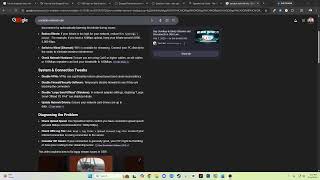
OBS Studio has new networking options available at the bottom. If you have multiple networking devices connected to your PC— for example, a wireless card and wired Ethernet jack— you can use the "Bind to IP" dropdown to force OBS to only use one device— preferably your Ethernet connection— and prevent it from accidentally routing through wireless or something like that. This is also useful if you run separate internet connections entirely for streaming and other network usage. You can try checking the box next to "Enable new networking code" to see if it plays better with the stream servers. Eee! Check your streaming servers. Make sure you're trying to stream to a Twitch or YouTube or whatever service across the world. The global internet is a mess. There are a lot of glitches or other connection issues that might be directly associated with them. While this was more of a problem in older dial-up and DSL networks, this can still very much be the source of many streamers' headaches.
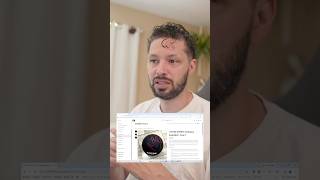
So one of the most frustrating things to see whenever you're trying to stream— to determine— according to Twitch, in order for you to have a 1080p 60 FPS stream, you are going to need to meet a minimum requirement of 6,000 kilobytes per second. And if you have multiple devices or people on your internet And if that is the case, then the more people or devices feed, then that's fucking— or 30 frame settings and put them inside of your OBS, either picking the close on either which country I would recommend. Just, you're gonna have to do is just get your stream key from your Twitch channel, which you can do by clicking this blue link right here that says, and then heading over to the very first box and checking dynamic is in Catch It. And it's going to—
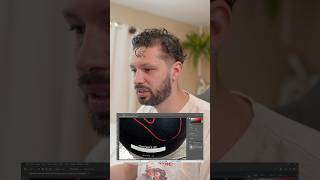
This one OBS setting is clutch for people with unstable internet. If you go to your OBS, then Settings, then Advanced, and scroll down a bit, you will find an option called Dynamically Change Bitrate. This setting is a clutch for people with unstable internet. As it will dynamically change the bitrate up and down as your internet slows down and speeds up, so no more dropped frames. So what are you waiting for? Go tell your friends and—