Cómo visualizar la cantidad de mensajes y límite de Whatsapps
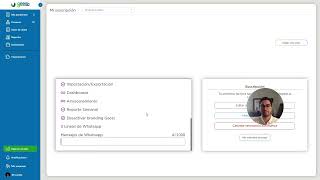
YouTube tutorial (Spanish) by David Castellanos showing how to view WhatsApp message usage and limits inside the account. The presenter demonstrates navigating to "Mejorar mi plan" / view plan and scrolling down to see available WhatsApp lines and the number of messages used from the monthly package. The video explains Gist's counting rules (text = 1, each attachment = +1), that the count resets monthly, and that the system emails users at 90% capacity and when the monthly messages are exhausted.
Questions this video answers
In the "Mejorar mi plan" or "Ver el plan" section — scroll down to see available WhatsApp lines and how many messages have been sent this month.
A text message counts as one message; each attached file counts as an additional message (so text + attachment counted as two).
The message count resets monthly.
The user receives an email when usage reaches 90% of capacity and also when they have exhausted all messages for the month.
Chapters
More from David

Configurar la sección de mi empresa Usuarios, roles, divisa, zona horaria, branding personalización
Condiciones comprender que es posible condicionar no sólo campos de tipo lista de opciones, varian