Learn how to build product sets in Surefront using Bill of Materials. Link catalog items like tables and chairs, set component quantities, and Surefront automatically calculates the total price and cost. Add subcomponents, raw materials, and color options with ratio values to create configurable, scalable product sets.
Chapters
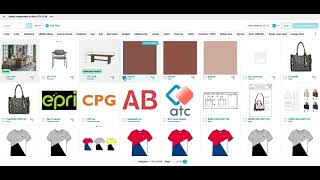
Today we're going to look at how to create product sets using Shorefront's bill of materials. These sets can be composed of individually sellable items or components or raw materials. Here we have a dining set. We might want to link it to a table and chairs that we have within our existing catalog or database. When you click the link items, you can pull up that existing catalog or database. The components menu, you can specify how many of each of these linked items you want include in this set. Now that we've created a bill of material utilizing the chairs and dining set from our catalog or database, we can see that each of those individual products themselves are linked at this item record. We can also look to see that the prices and cost of each of these items are included in a rolled-up calculation of price, cost, times the ratio of the number of items that are included in each one of these sets. While each one of these linked items themselves might be an individually sellable item within our catalog, we can further link subcomponents, materials, or color options to each one of these items as well to create a fully scalable bill of materials. In this case, I'm selecting 3 color options for a table. I'm indicating a 1 for the ratio for maybe a default color that we're linking or associating with this table and a 0 for additional options that we can choose. To switch which of the colors is active on the item, we simply have to go and update what the ratio is on the bill of material.