Workflow Dashboards | Streamline Your Product Development with Surefront

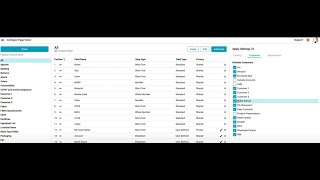
The video provides a step‑by‑step walkthrough of the SureFront Workflow Dashboard. After logging in, the user opens the left‑hand hamburger menu, selects the Dashboard section under Administration, and chooses Workflow Tasks. The dashboard initially applies two default filters – task status (Issued, None, Rejected) and task assignee (current user). The tutorial explains how to remove filters, add new ones by selecting a field and option, and create custom filters that can be saved and shared with a team. Once a filter is applied, the page refreshes to reflect the criteria. The presenter demonstrates interactions on the dashboard: clicking an image opens a quick view with image details; clicking the item number navigates to product details; clicking the source opens the associated PLM record. Changing a task’s status (e.g., to Completed) automatically removes the item from the list. The dashboard offers sortable columns such as item number, status, due date, date updated, task notes, source, type, and product notes. Users can also edit status, dates, and notes directly from the status menu. Overall, the tutorial equips users to efficiently navigate, filter, and manage tasks within the SureFront Workflow Dashboard.
Chapters
More from Luke








THE COMPLETE GUIDE TO PLM IMPLEMENTATION I PART 1: SHOULD YOU INVEST IN PLM SOFTWARE? (4K UHD)

THE COMPLETE GUIDE TO IMPLEMENTATION I PART 2: HOW TO PURCHASE THE BEST PLM SOFTWARE (4K UHD)

THE COMPLETE GUIDE TO PLM IMPLEMENTATION I PART 3: HOW TO IMPLEMENT PLM SOFTWARE (4K UHD)