Surefront's Workflows feature lets you track tasks with suppliers or personal to-dos. Create a workflow by adding a title and task names, assign it to orders or quotes, then mark items complete, issued, or rejected. Keep workflow data at the quotes level for consistency.
Chapters
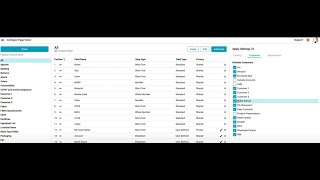
Today we will be reviewing how to use workflows. Workflows are organizational tools to help you keep track of all open items you may be working on with a supplier or as an individual to-do list. We will be going over how to create a workflow and how to use it to maximize your daily work processes. Let's get started by heading over to our product lifecycle management section. From the catalog, click the three dots at the top, select your category, Workflows will be on the bottom right-hand corner. If your window is shrunken, click down the dropdown and you will select Workflows. You can click Create to start your first workflow. Enter a workflow title. Enter a task title. You may add as many tasks as you wish. You may also add add assignees. Assignees can be a supplier or from your internal team. You can add more than one person to a task. You can also leave it blank. Click Save when you are finished. For today's demo, we're going to create a workflow for an order. So you can see we have Project Quotes and Order workflows. The default is Quotes. You can click on Order and you can say go to Orders to add items to it, or you can Select Orders from the top. We will select Go to Orders. Select the order that you would like to add a workflow to. Select your items. You can click All or you can select individual items. Click Assign Workflow. Choose from the dropdown menu which workflow you would like to assign your items to. You may add due dates if you like, or you may leave blank. Click Save.
You can click on the check mark to see the items have been added to the work home. You can also see that the item due dates have been added as well. You can go into this task and mark your items as completed, issue, or rejected. Please note the original due date was 11/24/23. I changed it to completed It now changes to 91924 with my name on it. For items, you can add a task note. This is especially useful for items that have issues or have been rejected. Any task added without a note will not have a note flag in the upper right-hand corner. You can add product notes as well, edit due dates, or remove a workflow. To add product notes, simply click on it, add your note, click Save. Your product note will be displayed in the product note column. You can edit due dates, add a due date for a missing task, or change dates for existing tasks. Click Save when you are finished.
Default to quotes. If we look on our orders tab, we can see all of our items with our supplier and the tasks that we have.
The tasks do not have to be completed in any particular order. Any user can complete a task.
If we wanted to add a second workflow, we could also add as many workflows as we wanted. Then we go to Workflow 1, Workflow 2, and if we wanted this bag to have Workflow 2, we can click on it individually. On the bottom hand corner, we can see where our workflows are. We can assign a second workflow here with the dropdown. We can assign a due date if we wanted to, or we can leave blank, and we can click Save. Within this area as well, you can go in and you can maintain your tasks and mark them as completed or add notes as well. Any product notes we would have for this workflow would be listed up here. We can also use our arrows to hide our workflow or to bring it back we're going to head back to our workflow, and if we wanted to, we can click and add items at the project level as well. We can assign a workflow, we can give due dates, we can click on our check mark to maintain the workflow, We can also request a quote. As we look at the quote and click the checkmark, we can see this item has Task 1 is still green. We can add Task 2 as green as well. If we click on Projects, we can see that Task 1 is green, but Task 2 is not. They are no longer connected. Connected between projects and quotes. We recommend removing the workflow from those lowest level. Remove workflow from project. This will keep the information at quotes level, which is where the data is now being maintained. Continue to create endless workflows to stay on top of your open items with your suppliers and yourself. For additional questions, please feel free to click support.