Walk through joining Shorefront and using its core tools: set up your product catalog, create customized quotes for customer teams, and manage orders. The platform is free to start with a promotional code, and includes built-in chat for real-time communication at every step.
Chapters
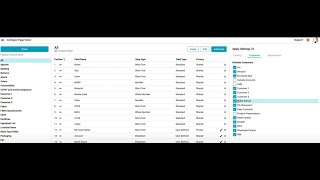
This video will cover how to sign up for Shorefront and how to use Shorefront with your customer. First, note the promotional code that's contained within this invitation email. Second, click on the connect button. From this screen, be sure to choose the team plan. Now enter in your login information, your name, and your email and your password. After you enter in this email, we'll go to the third step to complete our sign up. In this third and final step, utilize the promo code that you received in that email. This will ensure that you are not charged for this sign up. Once you put your promotional code in here, you'll see that you'll have a $0 charge for signing up for Shorefront. You will still need to enter in a payment method to complete the signup process. However, Shorefront will not charge you anything unless you buy additional seats or subscribe to additional premium features. Once you complete this payment information, you will be able to complete signup. And again, you will not be charged for this signup. [MUSIC] Upon logging in for the first time, you will see your product catalog. Your product catalog will be private to your company, and you'll see a handful of example products for you or your team to reference. You can add to the products in your product catalog by utilizing the bulk upload tool or by utilizing the individual create product button. If you want to bulk import a spreadsheet of products, you can do so under this upload tab. However, if you want to create an individual product, you can go and click the Create Product button to enter in individualized product information. Also, any of these example products can easily be archived or deleted. Once you have added products to your catalog, you can decide to share or showcase these products with your customer by selecting the products that you want to share. Going up to the Sell button and clicking on Showcase. From here, you can select which customer or customers and which particular team within a given customer you wish to send or showcase these items to. All you have to do is click the checkbox next to the team under the customer account that you want to showcase these items to as well. You also have the ability to determine whether you want your customer to receive an email notification, as well as whether or not you want to display the price of these items when sending that showcase. Any items that you have sent in a showcase to your customer will be visible underneath that Showcase tab, so you can see all items that your customer can see. Showcases are a great way to share many items with many customers at once. One time. However, if you'd like to share a specific quotation or digital line sheet of a specific set of products to an individual customer, you can also go into the catalog, select the products that you want to share with the customer, and then underneath the sell button, you can click on the create quote button. This will allow you to enter in your customer and quotation information. Be sure to also select a program if available and shared by your customer. When you create this quote, you'll see a success message with a link to the quote that you just created. Please note, all of the items on this quote have been copied from your catalog. So now you can offer customized or individualized pricing for your customer You can change any of the specific details like the quantities. You can see the individualized product details that you're offering to your customer all before you send this quotation to your customer. Any of these changes will only be reflected on this quotation and they will not affect the core item record within your catalog. You first make this quote, it will be in a draft stage, which means only your team will be able to see it. Once you have reviewed and finalized the details of the items for this quotation, you can go to the top right and click on the Send button. Select the customer partner or partners that you would like to be notified when sending this quotation and enter in your email message. Once you send this, the quote will leave the draft stage and will be visible to your customer partner. Your customer partner will also be able to communicate with you utilizing the chat tools on the right side of this quotation. You can see here new chats appear. Once you've shared these products on a quotation to your customer, your customer will be able to select the products that they are interested in and to write an order for you directly in Shorefront. Please be sure to review the order summary and the product details, which should be the same as what you saw on the quote. And if you have any questions, open up the chat to communicate with your customer. If everything about this order looks good to you, please click the confirm button to let your buyer know that you've confirmed the details of this order. Thanks for joining us today to learn more about Shorefund.